

Speed Up WordPress Without Stacking Plugins: A Practical Look at xSpeed Cache
Most slow WordPress sites are not slow for a single reason. A site owner installs a caching plugin, then adds an image lazy-loader, then a separate minifier, then a database cleaner, and finally a CDN helper. Each tool solves one problem and introduces its own settings, and the combination often conflicts in ways that are hard to trace. The page still feels heavy, and no single plugin is clearly at fault.
The more useful question is not which caching plugin is fastest in a benchmark. It is whether one tool can do the whole job cleanly, so the stack stays small and the behavior stays predictable. This article looks at that question through xSpeed Cache, an all-in-one WordPress caching plugin from WPDeveloper, and explains what it does, how it approaches speed, and where it fits.
How Does WordPress Caching Work?
Every time someone visits a WordPress page, the site normally builds it from scratch. The server runs PHP, queries the database, assembles the HTML, and only then delivers the finished page to the visitor. That work happens on every single request, and it adds up.
Caching skips most of that. Instead of rebuilding the page each time, it saves a finished copy and serves that ready-made file directly to visitors. The database queries and the PHP work are done once, then reused — so returning visitors get the page almost instantly rather than waiting for the full build to run again.
Why Static Delivery Beats Rebuilding Every Page
Where caching plugins differ is how early in the process they hand back that saved copy. Many still route each request through PHP and the WordPress core before returning the cached page. xSpeed Cache serves cached pages as static HTML files before PHP and WordPress start, which removes the database queries and the plugin chain from the path entirely.
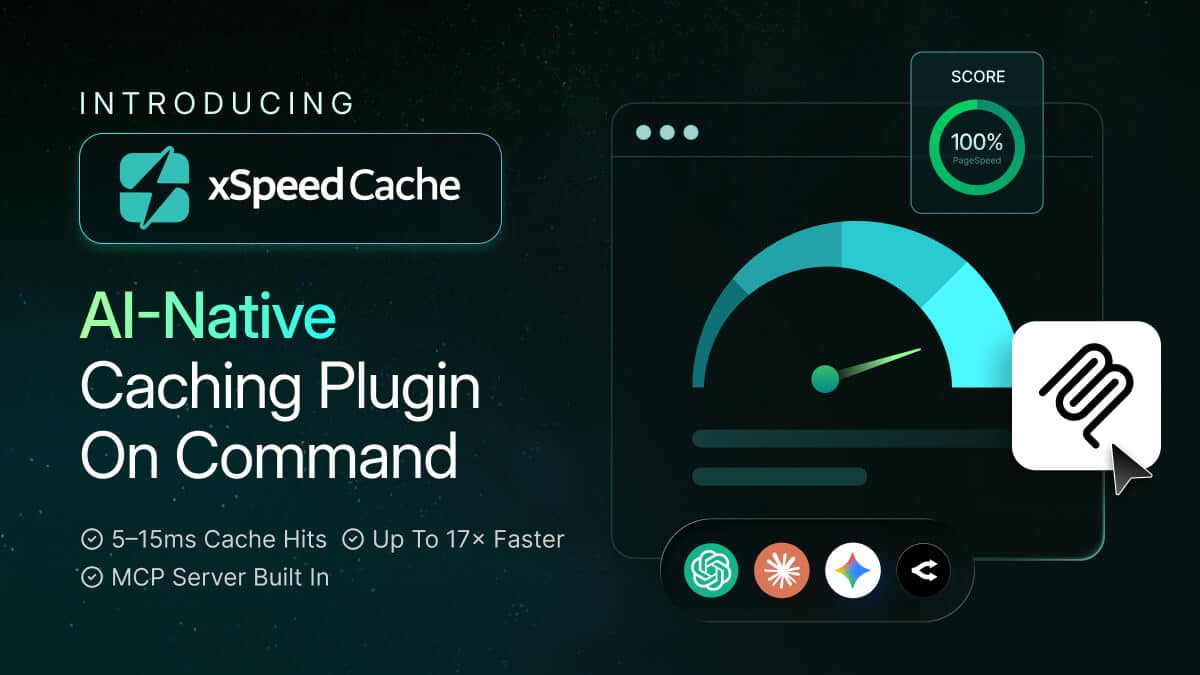
The practical result is a cache hit in the 5–15 millisecond range, compared with the 200-plus milliseconds common to PHP-served caching, and pages that load up to 17 times faster once cached. For a visitor on a slow phone, that is the difference between a page that appears immediately and one that waits long enough to lose them. The page caching guide covers how the engine handles purging on publish, per-post rules, and a separate mobile cache.
Replace the Plugin Pile with One Toolkit: xSpeed Cache
Page caching is only the first job. A genuinely fast site needs several optimizations working together, and this is where separate plugins usually start to overlap. xSpeed Cache includes nine engines in the free plugin, each covering one of those jobs from a single dashboard.
| Jobs a fast site needs | What it does |
| Serve pages instantly | Static HTML delivered before WordPress loads |
| Trim page weight | Minify and combine HTML, CSS, and JS, with a safe fallback |
| Shrink transfers | Compress every response before it leaves the server |
| Defer offscreen media | Load images, iframes, and videos only as they are needed |
| Render text early | Prevent invisible or shifting text on load |
| Speed up return visits | Store assets in the visitor’s own browser |
| Ease database load | Cache repeated queries in memory (Redis or Memcached) |
| Cut distance to visitors | Serve assets from the nearest edge, with Cloudflare purge |
| Keep the site lean | Clear old revisions, transients, and spam on a schedule |
The benefit of one toolkit is not only convenience. It is fewer conflicts, one set of settings to reason about, and one place to look when something behaves unexpectedly.
The full list is documented on the features page, and the free plugin installs directly from WordPress.org with a guided setup wizard that establishes a sensible baseline in minutes.
Let an AI Assistant Handle the Tuning for a Faster Website
This is where xSpeed Cache genuinely leaves the pack behind. Every other caching plugin hands you a dashboard full of switches and leaves the decisions to you. xSpeed Cache does something few traditional plugins do: it lets your AI assistant do the work.
The MCP Server: A Direct Line Between AI and Your Site
Every install includes a built-in MCP server — the piece that makes the AI workflow possible. In plain terms, it gives an assistant like Claude or ChatGPT a secure, controlled channel to your site, so it can act rather than just advise.
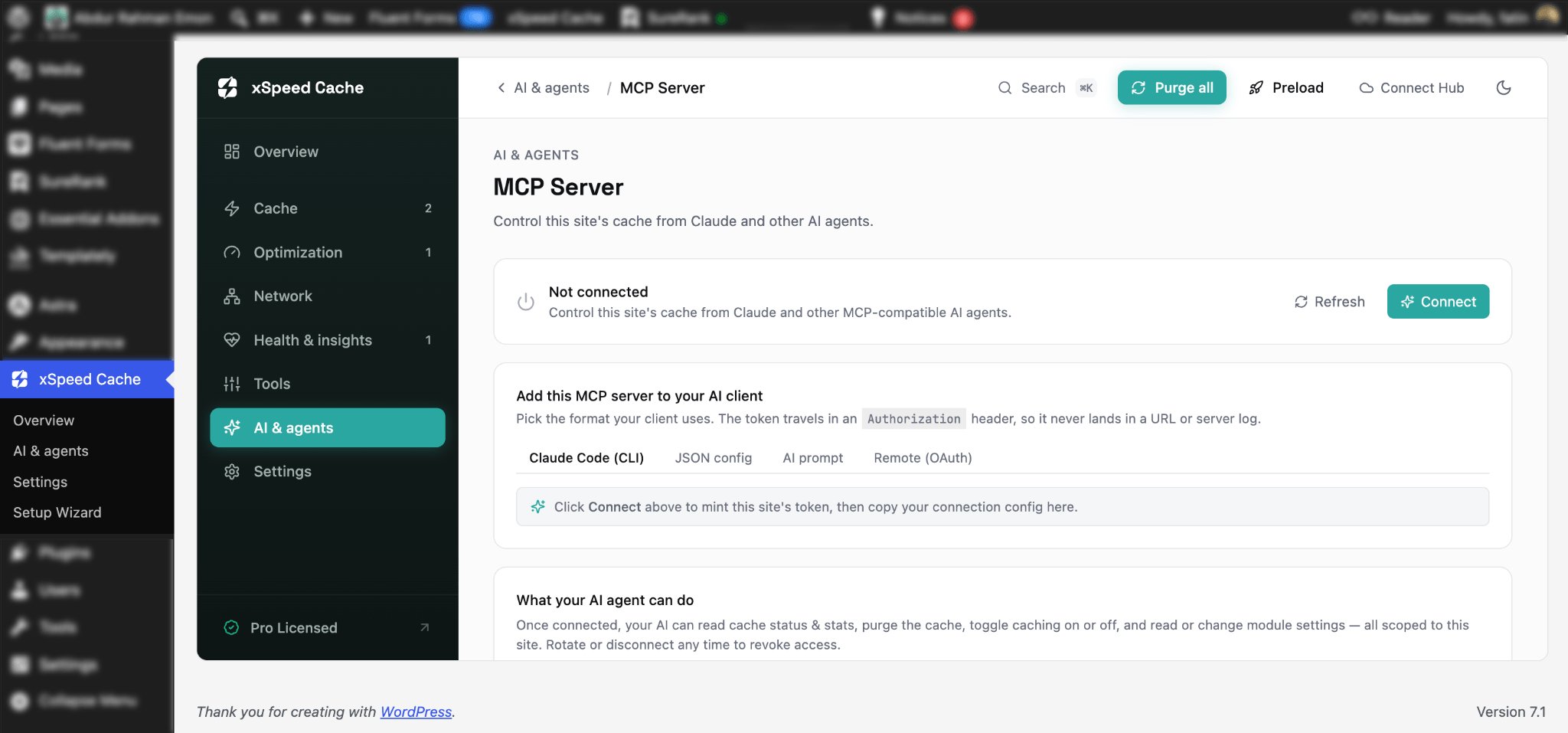
It can run a benchmark, read your current scores, change caching settings, warm the cache, and re-test — the same tasks a performance engineer would run, carried out through conversation instead of a control panel. Every action is scoped and logged, so a read-only connection stays read-only and you can see exactly what changed.
xSpeed Hub: Your Command Center
The xSpeed Hub is the free control center that ties it together. You connect your site (or all your sites) to the Hub with one click, link your AI assistant once, and from there you manage everything in a single place — issue requests, watch tasks run, and review the full history of what was changed and when.
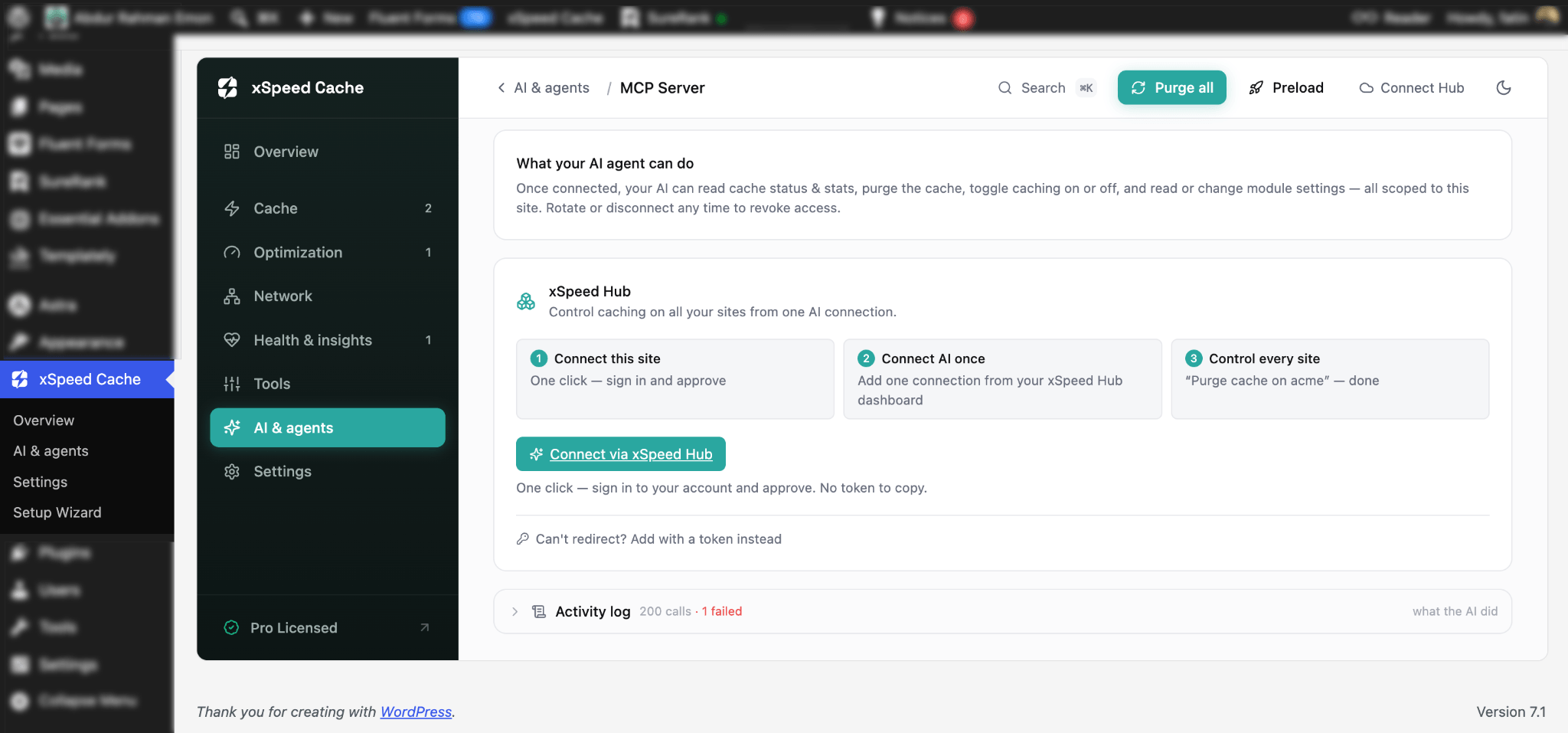
For an agency or anyone running more than one site, the Hub is what turns AI optimization from a per-site chore into something you drive across a whole portfolio from one screen.
The Three-Step Flow
- Install the plugin from WordPress.org.
- Connect your site to the free xSpeed Hub with one click.
- Ask your assistant: “get this site to 100 on PageSpeed.”
From there, your assistant runs a benchmark, minifies and defers scripts, toggles browser cache, preloads your top URLs, and re-tests — going back and forth with the site until the number reads 100. Just give your commands, approve the workflow and watch it happen on your own.
The free plugin already speeds up most sites on its own. Page, object, and browser caching. Minification, GZIP, lazy loading, database cleanup, and the MCP server. For many sites, that’s the whole job done.
Pro is for when you want the site to keep improving on its own, instead of sitting at a fixed baseline. It adds three things:
- Heavier optimizations that need more processing — Critical CSS, unused-CSS removal, Brotli compression, and WebP/AVIF image conversion.
- An intelligence layer that reads real traffic and acts on it — predictive and scheduled cache warming, AI-suggested cache lifetimes, and self-healing cache.
- Proof it worked — real-user monitoring, per-URL analytics to find your slowest pages, and continuous PageSpeed tracking.
Cloudflare auto-purge, a full rule-based audit, and bring-your-own-key AI providers (OpenAI, Anthropic, Gemini, or OpenRouter) round it out.
None of this is required to run a fast site. Pro is simply for when “fast enough” turns into “keep it fast without me watching it.”
And you don’t have to guess which tier fits or take any of it on faith. Before you install a thing, you can see exactly where your site stands today.
See Where Your Site Stands [Free]
You don’t have to install anything to see the payoff. The free site scan grades any URL in about 40 seconds, no signup required.
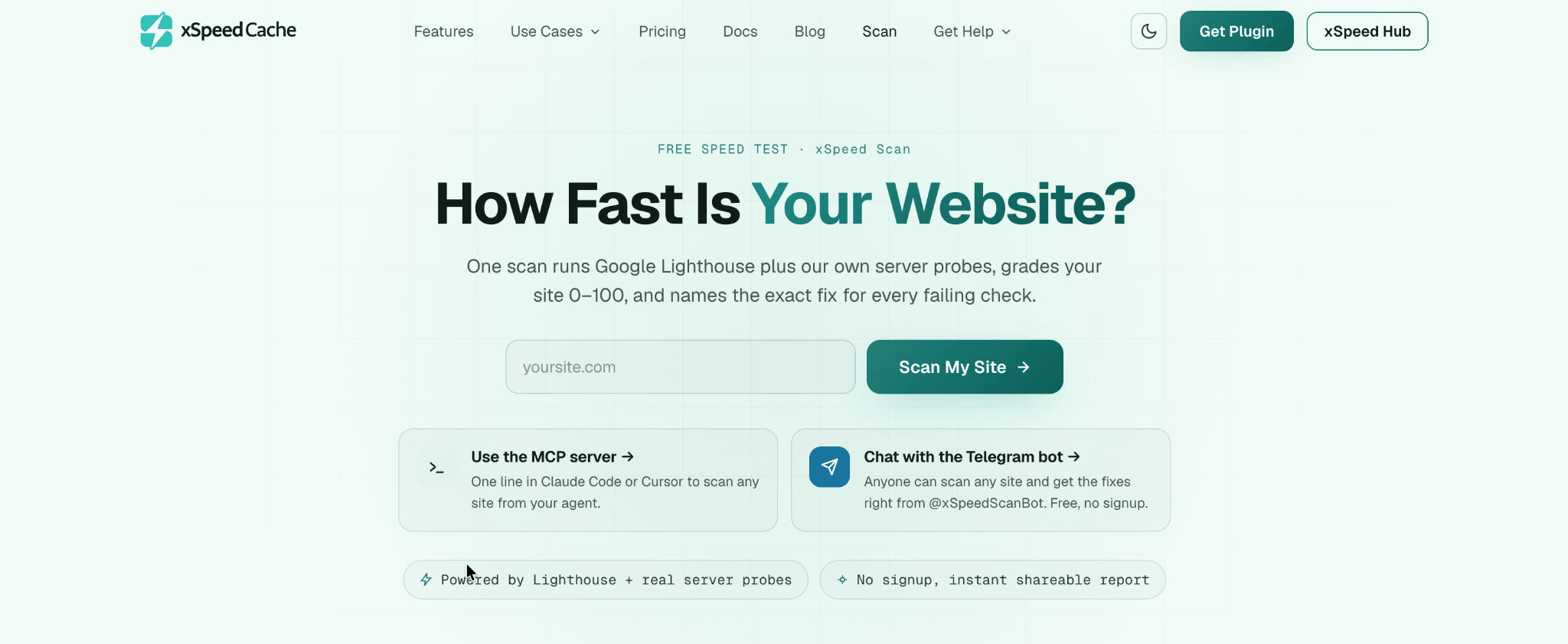
- Real measurements, not estimates: live TTFB, Lighthouse Core Web Vitals, and compression/cache behavior read straight off the wire
- A 0–100 score across four dimensions
- Every failing check names its fix — the xSpeed feature that automates it, or a prompt your AI assistant can act on
- Reports keep their history, so before-and-after is provable, not anecdotal
Match the Plan to the Site
The free plugin is a complete toolkit rather than a limited trial. Page, object, and browser caching, minification, GZIP, lazy loading, database cleanup, the MCP server, and xSpeed Hub are all included at no cost. For many sites, that is the entire requirement met.
The paid PRO tier adds an ongoing layer that monitors real traffic, identifies further improvements, applies them, and confirms the result, along with AI recommendations, self-healing cache, Critical CSS and unused-CSS removal, WebP and AVIF conversion, and real-user monitoring: all you’ll get once you approve. Plans scale by the number of sites.
| Plan | Price | Suited to |
| Free | $0, permanent | Any site that needs core speed |
| Personal | from $29/yr (or $79 once) | A single site |
| Business | from $49/yr (or $149 once) | Up to 5 sites, with priority support |
| Agency | from $99/yr (or $249 once) | Up to 25 sites, with white-label branding |
| Enterprise | from $199/yr (or $399 once) | Unlimited sites, with a custom SLA |
A 14-day money-back guarantee applies to the paid plans. Since launch pricing changes, the pricing page is the place to confirm current figures. Right now, the Launch Deal (50% OFF) is going on!
Compare the Options Honestly
There is no shortage of caching plugins, and several are capable. The meaningful differences tend to appear in what each tool includes for free and how it handles newer expectations, such as AI-assisted tuning. The table below compares a selection of standout features. It is a summary rather than a full audit.
✅ Free — included at no cost
💰 Paid — paid tier only
🟠 Partial — limited
⚙️ Needs an extra service or server
❌ Not available
| Feature | xSpeed Cache | W3 Total Cache | WP Super Cache | LiteSpeed Cache | WP Rocket | WP Fastest Cache | Hummingbird | NitroPack | FlyingPress |
| MCP server (control via AI) | ✅ | ❌ | ❌ | ❌ | 💰 | ❌ | ❌ | ❌ | ❌ |
| Audit log of every AI action | ✅ | ❌ | ❌ | ❌ | 🟠 | ❌ | ❌ | ❌ | ❌ |
| Static serving that bypasses PHP | ✅ | ✅ | ✅ | ⚙️ | 💰 | ✅ | ✅ | ✅ | 💰 |
| Object caching (Redis / Memcached) | ✅ | ✅ | ❌ | ⚙️ | ❌ | ❌ | ❌ | ❌ | 💰 |
| Delay JavaScript until interaction | ✅ | 💰 | ❌ | ✅ | 💰 | 💰 | 💰 | ✅ | 💰 |
| Guided setup wizard | ✅ | ❌ | ❌ | ❌ | 💰 | ❌ | ❌ | ❌ | ❌ |
| Import from a competing plugin | ✅ | ❌ | ❌ | ❌ | ❌ | ❌ | ✅ | ❌ | ❌ |
| On-demand PageSpeed test | ✅ | ❌ | ❌ | ❌ | ❌ | ❌ | ✅ | ❌ | ❌ |
Two points are worth noting. The essentials that many plugins reserve for paid tiers are included here at no cost, and WP Rocket has no free version at all, so its equivalents sit behind a license.
Switching is also low-risk, since xSpeed Cache can import settings from a competing plugin, offers a safe mode, and allows a rollback if a change causes trouble. The full comparison extends this across dozens of features and all nine plugins, which is the better reference before a final decision.
Know When xSpeed Cache Fits and When It Does Not
xSpeed Cache fits sites that are carrying several overlapping performance plugins and would benefit from consolidating them, and it suits owners who want a fast result without learning every setting, since the AI layer and the guided wizard remove most of that burden. It works across Apache, nginx, and LiteSpeed, supports multisite, and handles common cases such as WooCommerce stores, agencies managing many client sites, and page-builder layouts sensibly out of the box.
xSpeed Cache: The Simpler & Affordable Path to A Faster Site
The problem was never a single slow plugin, it was the pile. A caching plugin, a minifier, a lazy-loader, a database cleaner, each solving one thing and quietly arguing with the others. The fix isn’t a faster entry in that pile; it’s fewer moving parts.
xSpeed Cache folds page, object, and browser caching, minification, compression, lazy loading, and database cleanup into one dashboard, then serves cached pages as static HTML before PHP and WordPress even wake up: one set of settings to reason about, and cache hits measured in single-digit milliseconds.
The best part is that you don’t have to master any of it. The guided wizard sets a healthy baseline in minutes, and the built-in MCP server lets an assistant like Claude run the benchmark, apply the fixes, and re-test: every action scoped, logged, and reversible.
And since the free plugin is a complete toolkit rather than a trial, most sites can consolidate their stack without spending anything. Run the free scan to see where you stand, then let your assistant take it from there.
FAQs (Frequently Asked Questions)
Is xSpeed Cache really free?
Yes — and it’s a complete toolkit, not a time-limited trial. Page, object, and browser caching, minification, GZIP, lazy load, database cleanup, the MCP server, and xSpeed Hub are all included at no cost, permanently. Pro is optional and adds an automated intelligence layer, starting from around $29/year.
Do I need to be technical to use it?
No. A guided setup wizard gets you to a fast, healthy baseline in minutes, and the built-in AI connection means you can improve your site just by asking your assistant to do it. If you’d rather configure things by hand, the full dashboard is always available — the AI layer is an option, not a requirement.
Is the AI assistant required?
Not at all. The MCP server and xSpeed Hub are there if you want your assistant to handle the tuning, but every setting can be managed manually. Think of the AI as a shortcut for anyone who’d rather describe the outcome than adjust each control.
Is it safe to let AI make changes to my site?
Yes. Every action the assistant takes is scoped and logged, so a read-only connection stays read-only, and you can see exactly what was changed and when. You stay in control the whole way through.
Will it work with WooCommerce?
Yes. Product pages are served as static files for speed, while the cart and checkout are kept uncached out of the box — so shoppers always see live, accurate pages. It’s also built to handle page-builder sites, blogs, membership/LMS sites, and multi-site agency setups.
How is xSpeed Cache different from WP Rocket?
The biggest difference is what you get for free. WP Rocket has no free version at all, so its static serving, delay-JavaScript, and setup wizard sit behind a license — all of which xSpeed Cache includes at no cost. On top of that, xSpeed adds free Redis/Memcached object caching and a built-in MCP server for AI-driven optimization, which most caching plugins don’t offer.
Does it support Cloudflare, Redis, or a CDN?
Yes. xSpeed Cache includes Cloudflare integration with auto-purge, a CDN option to serve assets from the nearest edge, and object caching via Redis or Memcached for database-heavy sites — all from the same dashboard.
What if a setting breaks something on my site?
xSpeed Cache is built to make changes low-risk. Minification uses a safe fallback so pages don’t break, there’s a safe mode for testing, and you can roll back if anything looks off. Switching from another plugin is painless too, since it can import your existing settings.
Can I manage more than one site?
Yes. Through xSpeed Hub you can connect and manage multiple sites from a single screen — and drive AI optimization across your whole portfolio. Agency plans add white-label branding and cover up to 25 sites, with an unlimited-site Enterprise tier.
