
Your access to this site has been limited by the site owner
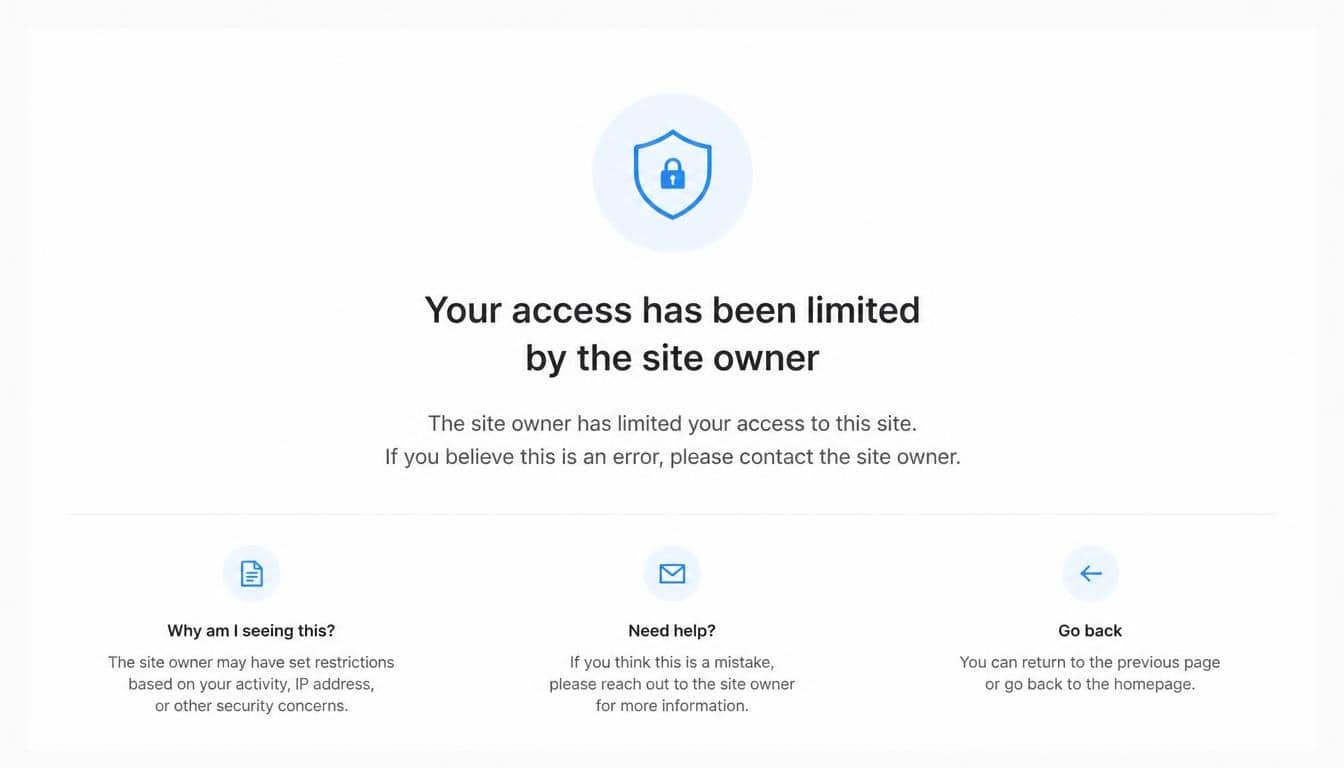
Imagine opening a website to read an article, access an important resource, or complete a simple task, only to be greeted by a frustrating message: “Your access to this site has been limited by the site owner.”
The page may also display an HTTP 503 response code, mention security reasons, or explain that access from your geographical area has been temporarily restricted. It’s confusing, especially when you haven’t knowingly done anything wrong.
This message is commonly associated with Wordfence, a popular WordPress security plugin designed to protect websites against suspicious traffic, unauthorized access attempts, and potential online threats.
Although the restriction may look alarming, it doesn’t necessarily mean your device is infected, your account has been compromised, or you’ve permanently lost access to the website.
In many cases, the restriction is simply the result of an automated security rule. A website firewall may have identified your IP address, browsing activity, or geographical location as something requiring additional attention. Sometimes, even an ordinary visitor can get caught in these security filters.
Understanding why the message appears is the first step towards resolving it. Whether you’re a regular visitor trying to open a blocked website or a WordPress administrator responsible for managing access, knowing how these restrictions work can save considerable time and frustration.
What Does “Your Access to This Site Has Been Limited by the Site Owner” Mean?
The message indicates that the website owner has enabled a security restriction that prevents certain visitors from accessing the site. This restriction is often enforced through Wordfence, which monitors website traffic and applies predefined security rules.
In simple terms, the website’s security system has decided that your connection should not be allowed to continue under its current conditions.
This doesn’t automatically mean you’ve done something harmful. Security systems sometimes identify legitimate visitors as suspicious because of their IP address, network configuration, browsing patterns, or geographical location.
A typical restriction page may include information such as:
- Access limited: Your connection has been prevented from accessing the website.
- Security reasons: The website firewall has identified a possible security concern.
- Site owner: The person or organization responsible for managing the website.
- Wordfence: The security plugin responsible for enforcing the restriction.
- HTTP response code 503: An indication that the requested service is currently unavailable.
- Access recovery: Information about possible ways to restore access.
The important thing to understand is that a temporary security restriction and a permanent account suspension are two different things. One may simply require administrator assistance or a change in security settings.
Why Does Wordfence Access Blocked Messages Appear?
A Wordfence access blocked notification can appear for several reasons. The plugin uses a website firewall and other security features to identify traffic that may pose a risk.
However, automated systems aren’t perfect. Occasionally, legitimate users get caught in the same protective rules designed to stop malicious visitors.
Here are some common explanations.
Suspicious IP Address Activity
Every internet connection uses an IP address that helps identify the network from which a request originates. Wordfence can use IP-related information when evaluating incoming website traffic.
If an IP address has been associated with repeated login failures, unusual requests, or suspicious activity, the website may restrict connections from it.
Shared networks can make this particularly confusing. For example, someone using the same public Wi-Fi network may have previously triggered a security rule, potentially affecting other visitors using that connection.
Geographic Access Restrictions
Some website owners prefer to restrict traffic from particular countries or regions. They may do this because of business requirements, security concerns, or patterns of unwanted traffic.
Consequently, a visitor can encounter a message explaining that access from your area has been temporarily limited.
This is known as a geographic access restriction or location-based security rule.
It doesn’t necessarily mean that the visitor’s country has a problem. The restriction may simply reflect the website owner’s chosen security policy.
Too Many Requests Within a Short Period
Websites sometimes receive automated requests that resemble scraping, brute-force login attempts, or other unwanted activity.
Wordfence includes traffic-monitoring and rate-limiting features that can help website owners control these patterns.
If a visitor refreshes pages repeatedly, submits forms too quickly, or makes an unusual number of requests, certain security configurations may interpret the activity as suspicious.
Firewall Security Rules
The Wordfence firewall examines incoming requests and compares them against security rules.
Depending on its configuration, it may restrict requests that appear to contain suspicious patterns or potentially harmful input.
Sometimes, an ordinary browser request or a particular website interaction can unintentionally match a security rule.
This is one reason why a restriction can occur even when the visitor has no intention of accessing anything improperly.
Previous Security Violations
If an IP address has previously triggered website security restrictions, the firewall may continue to block it for a configured period.
The restriction may remain active until its expiration or until an authorized administrator reviews and changes the relevant blocking rule.
Understanding the HTTP 503 Error and WordPress Access Restricted Message
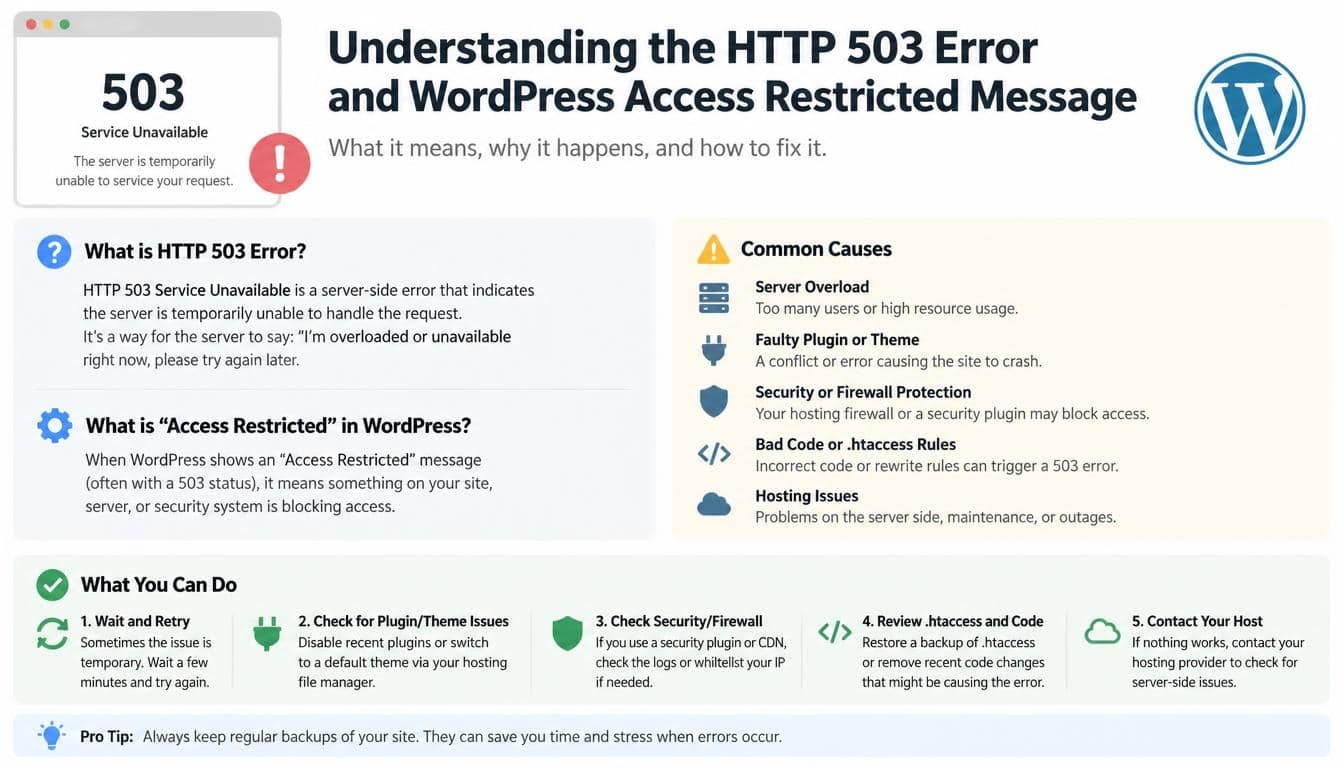
One technical detail that often confuses visitors is the appearance of an HTTP response code 503.
HTTP 503 means “Service Unavailable.” It is a standard HTTP status code indicating that a server cannot currently handle a request.
However, when this code appears alongside a Wordfence restriction message, the situation may be different from an ordinary server outage.
A WordPress website can return an HTTP 503 response when a security restriction prevents a visitor from proceeding.
In other words, the server may be operating normally for other visitors while your particular connection remains restricted.
Is HTTP 503 Always Caused by Wordfence?
No. An HTTP 503 error can have several causes, including:
- Temporary server maintenance.
- Hosting resource limitations.
- Server overload.
- Application configuration problems.
- Security plugin restrictions.
- Temporary infrastructure failures.
The surrounding message provides useful context.
If the page specifically mentions Wordfence, the site owner, or access being limited for security reasons, a Wordfence security restriction is a reasonable explanation.
If the page only displays a generic service-unavailable message, additional investigation may be necessary.
HTTP 503 Versus HTTP 403
These two response codes are often confused, but they communicate different things.
An HTTP 403 response generally indicates that the server understood the request but refused to authorize it.
An HTTP 503 response indicates that the requested service is currently unavailable.
Neither response automatically identifies the underlying problem. The website’s error message and server configuration provide the additional information needed to understand what happened.
How to Regain Access to a Website Blocked by Wordfence
If you are an ordinary visitor, you usually cannot remove a security restriction yourself. The website administrator controls the firewall and its blocking rules.
Nevertheless, there are several reasonable steps you can take before contacting the site owner.
Check Your Internet Connection
Start with the simplest possibility. Make sure your internet connection is stable and that the website address is correct.
If you’re connected through a shared network, the restriction may be associated with its public IP address rather than your individual device.
You can also check whether the problem affects other websites. This helps distinguish a website-specific restriction from a broader connectivity issue.
Wait for a Temporary Restriction to Expire
Some Wordfence blocks are configured to last for a particular period.
If the restriction is temporary, waiting may be enough to restore access.
Avoid repeatedly refreshing the blocked page, as doing so is unlikely to resolve the underlying issue.
Contact the Website Owner
This is generally the most reliable option when a security restriction continues.
Look for the website’s contact page, support email, or other official communication channel.
Explain what happened and include the information displayed on the restriction page.
You can use the following message:
Example message to a website administrator:
“Hello,
I’m trying to access your website, but I’m receiving a message saying that my access has been limited by the site owner due to security restrictions.
The page mentions Wordfence and displays an HTTP 503 response code.
I believe this may be a false positive, as I’m accessing the website for ordinary browsing purposes. Could you please review the restriction and let me know whether my IP address can be unblocked?
Thank you for your assistance.”
Providing clear information makes it easier for the administrator to investigate the issue.
Include the Block Information
If the restriction page displays a block reason, timestamp, or technical identifier, include those details in your support request.
Some Wordfence block pages provide information about the event and instructions for requesting access.
Do not share passwords, authentication codes, or other sensitive account information when requesting assistance.
How WordPress Administrators Can Resolve Wordfence Access Restrictions
For website administrators, the situation is slightly different.
If legitimate visitors are repeatedly receiving a WordPress access restricted message, the website’s security configuration may need reviewing.
Administrators should investigate the restriction before changing firewall settings or removing security protections.
Review Wordfence Blocking Tools
Wordfence provides blocking and traffic-management features through its WordPress dashboard.
An administrator can review the relevant blocking information and determine whether a particular IP address, user, or traffic pattern has triggered a restriction.
The Wordfence blocking tools are especially useful when trying to distinguish between a legitimate visitor and suspicious activity.
Look for information about:
- The reason for the block.
- The affected IP address.
- The time the restriction occurred.
- The type of security rule involved.
- Whether the restriction is temporary or permanent.
These details help identify the source of the problem without unnecessarily weakening the website’s protection.
Examine the Wordfence Firewall Configuration
The Wordfence firewall is an important part of WordPress website protection.
It helps filter potentially harmful requests before they can affect the website.
However, overly restrictive configurations can occasionally interfere with legitimate visitors.
Administrators should review firewall settings and determine whether a particular rule is generating false positives.
Changes should be made carefully, preferably after confirming the cause of the restriction.
Review Country Blocking Settings
If visitors from particular geographical regions are receiving access-denied messages, administrators should examine their location-based security settings.
Country blocking can be useful for websites that have specific regional requirements, but it should not be enabled without a clear reason.
For example, an online publication serving international readers may unintentionally exclude a large portion of its audience through an overly broad geographical restriction.
Reviewing these settings can help restore legitimate access while preserving necessary security measures.
Check Wordfence Documentation
When the reason for a restriction isn’t clear, the official documentation is a useful starting point.
The Wordfence documentation explains security features, firewall behavior, blocking options, and administrative settings.
Website owners can visit the official resource at:
https://www.wordfence.com/help/
Consulting the documentation before making major configuration changes is a sensible approach, particularly when dealing with unfamiliar firewall behavior.
Check Website and Server Logs
Sometimes, the WordPress dashboard does not provide enough information to identify the source of a restriction.
Administrators may need to review available server logs, Wordfence activity records, or hosting-provider information.
These records can help establish whether the issue originated from a firewall rule, a hosting configuration, or another website component.
The goal should always be to identify the actual cause rather than disabling security features simply to make the error disappear.
What Is a Wordfence Temporary Security Block?
A temporary security block is a restriction that prevents a particular connection or visitor from accessing a website for a configured period.
Unlike a permanent ban, it may expire automatically.
Wordfence uses security rules to help protect websites against suspicious behavior. Depending on the administrator’s settings, some restrictions can be time-based.
For instance, a website might temporarily block an IP address after repeated unsuccessful login attempts.
The duration and behavior of a block depend on the specific rule and configuration.
Does a Temporary Block Mean Your Device Is Infected?
Not necessarily.
A Wordfence restriction is not a diagnosis of your computer, smartphone, or browser.
It simply means that the website’s security system has restricted your connection or request.
Even completely ordinary visitors can experience a false positive.
There is no reason to assume your device contains malware solely because a website displays an access restriction notification.
Can the Restriction Become Permanent?
Yes, depending on the type of block and the website owner’s configuration.
Some blocks are temporary, while others may remain active until an administrator removes them.
The distinction matters because repeatedly waiting for an automatic expiration will not solve a restriction that requires manual review.
How Wordfence Protects WordPress Websites
To understand why these messages exist, it helps to look at the purpose of the security plugin itself.
Wordfence is a widely used WordPress security solution that provides several website protection features.
Its purpose is to help website owners identify suspicious activity, reduce unauthorized access, and protect their websites against common online threats.
Some of its important features include:
- Website firewall protection: Helps identify and filter potentially harmful requests.
- Login security: Provides tools for protecting WordPress login pages.
- IP address blocking: Allows administrators to restrict connections associated with unwanted activity.
- Traffic monitoring: Helps website owners understand incoming requests and suspicious patterns.
- Security scanning: Helps identify certain security problems and potentially compromised website files.
- Access management: Gives administrators tools for controlling who can interact with protected website resources.
These features are valuable because WordPress websites are frequently targeted by automated bots and other unwanted traffic.
However, security and accessibility need to work together.
A firewall that blocks every unusual request may protect a website in one sense, but it can also prevent genuine readers, customers, and subscribers from reaching useful information.
Good website security is about finding the right balance.
Common Misunderstandings About WordPress Website Access Restrictions
When visitors encounter a security block, they often assume the worst. In reality, many of these situations are less dramatic than they first appear.
Let’s clear up a few common misconceptions.
The Website Owner Has Personally Blocked Me
Not always.
Although the notification refers to the site owner, the restriction may have been triggered automatically by Wordfence.
The website owner may not even know that a particular visitor has been blocked until someone contacts them.
My Computer Has Been Hacked
A Wordfence block does not establish that your computer has been hacked.
It is a website-level security decision based on the information available to the firewall.
If you have separate reasons to suspect a device security problem, investigate those independently.
Changing Browsers Will Always Fix the Problem
Not necessarily.
If the restriction applies to your public IP address or a geographical location, switching between browsers may make no difference.
The restriction is not always connected to browser cookies or browsing history.
The Website Is Permanently Unavailable
A security restriction affecting one visitor does not mean that the entire website is offline.
Other visitors may be able to access the same website without encountering any difficulty.
This is why understanding the difference between a personal access restriction and a general server outage is important.
How Website Owners Can Prevent Unnecessary Access Restrictions
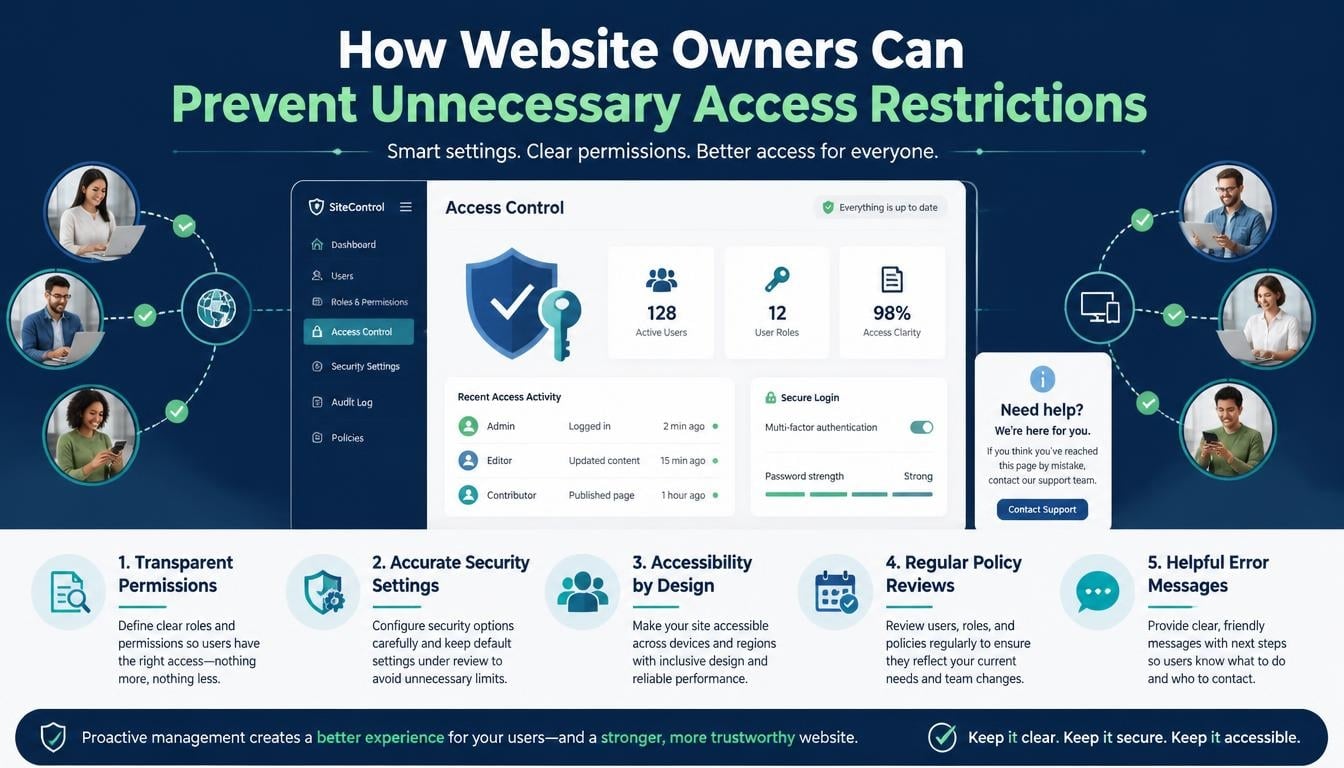
Preventing false positives is just as important as blocking unwanted traffic.
Website owners should regularly review their WordPress security plugin configuration to make sure legitimate visitors aren’t being excluded unnecessarily.
A few sensible practices can make a considerable difference.
- Keep Wordfence and WordPress updated to benefit from security improvements.
- Review blocking rules periodically.
- Avoid enabling geographical restrictions without a genuine requirement.
- Use appropriate rate limits for normal website activity.
- Investigate visitor complaints about access restrictions.
- Review security logs when legitimate users report repeated blocks.
- Test important website pages after significant security configuration changes.
- Keep an alternative support channel available for visitors who cannot access the website.
It’s also important to remember that security rules should reflect the website’s actual needs.
A small personal blog, an international news publication, and an online shopping website may have very different security requirements.
One configuration doesn’t necessarily work equally well for all three.
Frequently Asked Questions About Wordfence Access Restrictions
Why is my access to this site limited?
Your access may have been restricted because the website’s Wordfence firewall identified your connection or request as potentially suspicious.
Other possibilities include IP address restrictions, geographical blocking, repeated requests, or an administrator-configured security rule.
The exact reason should be available through the restriction page or the website administrator.
How do I fix a WordPress website access blocked by Wordfence?
If you’re a visitor, check your connection, wait if the restriction is temporary, and contact the website owner if the problem continues.
If you’re the administrator, investigate Wordfence blocking information and review the relevant firewall configuration.
What does HTTP 503 mean on a WordPress website?
HTTP 503 means that the requested service is unavailable.
When accompanied by a Wordfence access restriction message, it may indicate that the website’s security configuration has prevented your connection from proceeding.
However, HTTP 503 can also result from server maintenance, overload, and other technical problems.
Can I remove a Wordfence block without administrator access?
Generally, no.
The website administrator controls the security plugin and its blocking rules.
Visitors can request an access review, but they cannot directly modify the website’s firewall configuration.
Why does Wordfence say access from my area is temporarily limited?
The website may have location-based security restrictions enabled.
These settings can prevent connections originating from selected countries or geographical regions.
The website administrator can review whether the restriction is intentional and appropriate.
How can I contact a website owner about a security restriction?
Use the website’s official contact page or support email.
Include the restriction message, HTTP response code, timestamp, and any available block details.
A clear explanation of what you were trying to access will also help.
Is Wordfence safe to use?
Wordfence is a recognized WordPress security solution designed to help protect websites against unwanted activity.
Like any security plugin, it requires appropriate configuration and regular maintenance.
Incorrect settings can sometimes interfere with legitimate website visitors, which is why administrators should review restrictions carefully.
Read More: https://gracethemes.com/best-image-optimization-plugins-wordpress/
Final Thoughts: Understanding Website Access Restrictions Without the Confusion
Seeing the message “Your access to this site has been limited by the site owner” can certainly be frustrating, especially when you only wanted to visit a page and carry on with your day.
But a Wordfence access blocked notification is not necessarily a sign of a serious problem. In many situations, it simply reflects an automated security decision that may need a second look.
For visitors, the most practical approach is to check the connection, understand the displayed restriction, and contact the website administrator when necessary. For administrators, reviewing firewall rules, blocking information, and security configurations can help resolve false positives without compromising website protection.
The key is not to treat every access restriction as a major security incident. Sometimes, a protective system simply gets things wrong.
A well-managed WordPress website should be secure without making genuine visitors feel unwelcome. By combining sensible website security management, clear communication, and thoughtful access controls, website owners can create an environment where protection and accessibility work hand in hand.
Ultimately, the purpose of a security plugin is to keep a website safe while allowing the right people to use it. When that balance is maintained, both website owners and visitors benefit.
