

Unpair and Erase Your Apple Watch: A Complete Step-by-Step Guide
There comes a moment when your Apple Watch needs a fresh beginning. Perhaps you are upgrading to a newer model, preparing to sell your old watch, passing it along to a family member, or simply trying to fix a stubborn software problem.
Whatever brings you here, knowing how to unpair and erase your Apple Watch can save you time, protect your personal information, and make the next step feel a whole lot easier.
At first, the process may seem like a small maze of settings, passwords, and confirmation screens. But don’t worry, it is more straightforward than it looks.
The important thing is understanding that unpairing and erasing are related actions, yet they don’t always have the same consequences for account security.
This guide walks you through the complete Apple Watch reset process, from using your paired iPhone to erasing the watch directly, managing your cellular plan, and preparing the device for a new owner.
We’ll also cover common mistakes, forgotten passcodes, and what to do when Activation Lock refuses to budge.
What Does It Mean to Unpair and Erase Your Apple Watch?
Your Apple Watch keeps a surprising amount of personal information close at hand. Depending on your settings and apps, that may include activity records, health information, notifications, messages, payment cards, and other private details.
When you decide to stop using the device, simply disconnecting it from your iPhone isn’t enough.
Unpair Apple Watch means removing the established connection between your watch and your iPhone. When you unpair through the paired iPhone’s Apple Watch app, the process also erases the watch and removes Activation Lock, making it much easier to set up again or transfer to another person.
By contrast, Erase Apple Watch means clearing its content and settings. You can do this directly on the watch, even without the paired iPhone, but there is an important catch: erasing the watch this way does not remove Activation Lock.
Think of it like clearing the contents of a suitcase while leaving the ownership tag attached. The belongings are gone, but the security connection remains. That distinction matters most when you’re selling the device or giving it away.
Why You Might Need to Unpair and Erase an Apple Watch
There are several good reasons to reset an Apple Watch, and each situation calls for a slightly different approach. Knowing your reason beforehand helps you avoid unnecessary steps or account problems later.
- Selling your Apple Watch: Erase personal information and remove Activation Lock so the buyer can activate the watch with their own account.
- Giving it to a family member: Prepare the device for a clean setup without leaving your account connected.
- Upgrading to a newer model: Unpair the old watch properly and restore your information to the replacement, where supported.
- Troubleshooting software issues: A factory reset can help with certain persistent problems, although it should not be the first thing you try for every minor glitch.
- Pairing with another iPhone: Removing the existing pairing can make it easier to establish a fresh connection.
- Protecting your privacy: Before handing over a device, make sure your personal content and account association have been handled correctly.
A reset is a fresh start for the device, but it is not a magic solution for every technical issue. If your watch is merely running slowly, try restarting it and checking for software updates before taking the more drastic step of erasing everything.
How to Unpair Apple Watch From iPhone
Using the paired iPhone is generally the best method because it combines erasure with the removal of Activation Lock. It also creates a backup of your watch’s data on the iPhone as part of the normal unpairing process, giving you a better chance of restoring supported information later.
Before you begin, keep your Apple Watch and iPhone close together, make sure both have enough battery, and have your Apple Account password available. The password may be requested to turn off Activation Lock during the process.
Step-by-Step Instructions
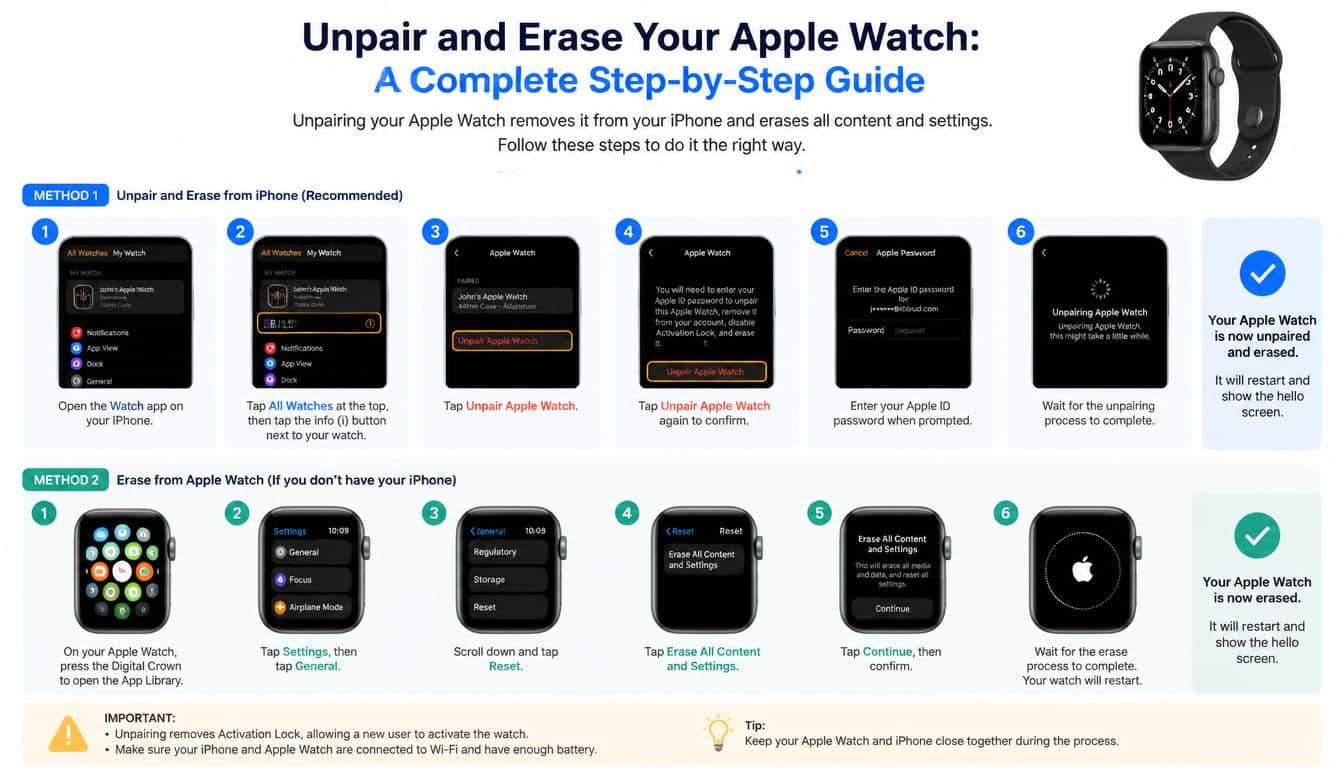
- Step 1: Open the Apple Watch app. On your paired iPhone, launch the Apple Watch app and select the My Watch tab if it isn’t already open.
- Step 2: Find All Watches. Tap All Watches near the top of the screen to view the watches associated with that iPhone.
- Step 3: Select your watch. Find the particular Apple Watch you want to remove and tap the information button beside it.
- Step 4: Choose Unpair Apple Watch. Tap the unpair option. If you use a cellular model, you may be asked whether to keep or remove the cellular plan.
- Step 5: Make your cellular choice. Keep the plan if you intend to continue using the watch with the same service arrangement, subject to carrier support. If you’re transferring ownership, you’ll generally want to remove the plan from the watch.
- Step 6: Confirm the action. Enter your Apple Account password if requested, then confirm that you want to unpair the device.
- Step 7: Wait for the process to finish. Keep the devices nearby and allow the watch to complete its erasure. Don’t interrupt the process just because the screen takes a little longer than expected.
Once the process finishes, the watch should return to its initial setup screen. The previous pairing has been removed, and Activation Lock should be disabled as part of this proper unpairing procedure.
If you plan to use another Apple Watch, you can now move on to setting up the replacement. If you’re selling the old one, you have completed the most important part of preparing it for a new owner.
How to Erase Apple Watch Without iPhone
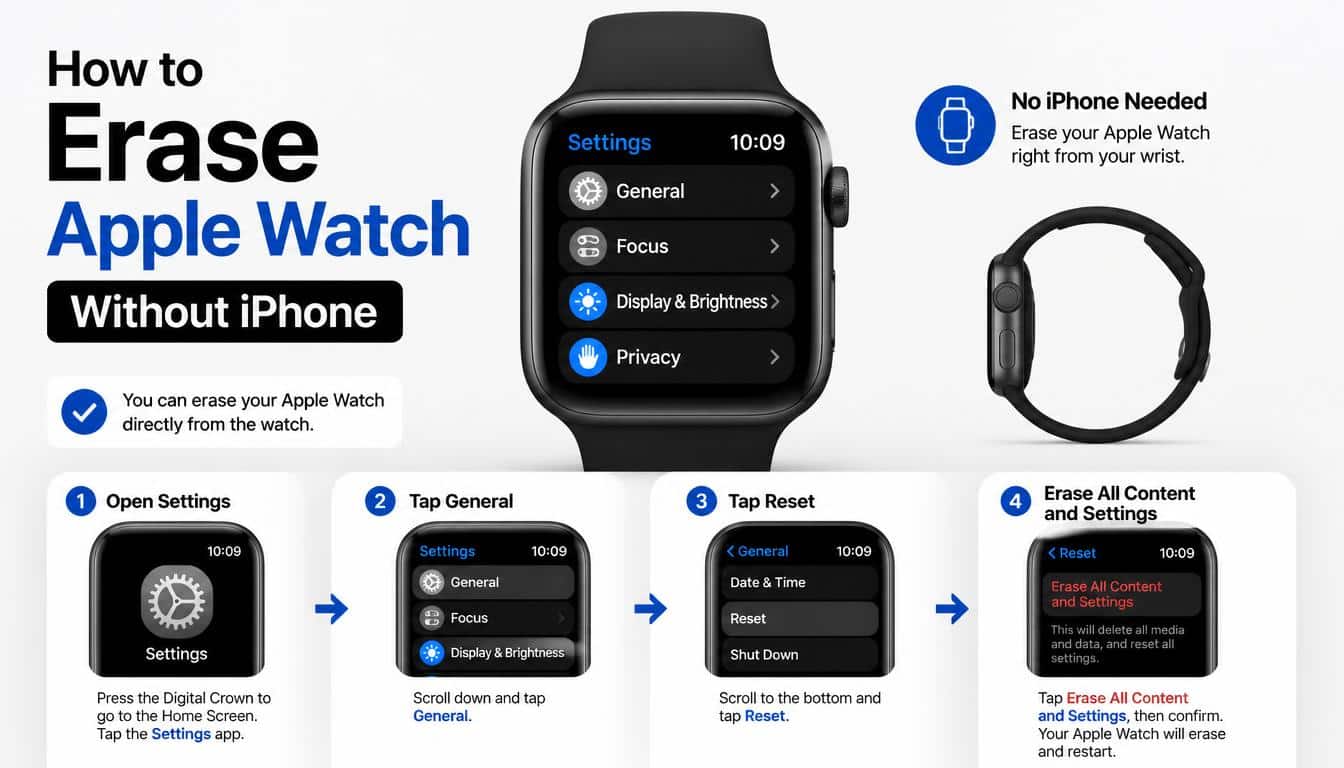
Sometimes the paired iPhone is unavailable. Perhaps it was lost, traded in, damaged, or simply left somewhere you can’t reach at the moment. Fortunately, you can still erase the watch directly from its own Settings app.
However, remember the difference: erasing Apple Watch without iPhone clears the device, but it does not automatically remove Activation Lock. If you are keeping the watch, this may be perfectly manageable. If you’re giving it away, you will need to deal with the account association separately.
Steps to Erase the Watch Directly
- Step 1: Open Settings. Press the Digital Crown to display your apps, then tap the Settings app on the Apple Watch.
- Step 2: Select General. Scroll through the settings menu and open General.
- Step 3: Find Reset. Tap Reset to view the available reset options.
- Step 4: Choose Erase All Content and Settings. This is the command that removes the stored content and restores the watch’s software settings to their initial state.
- Step 5: Enter your passcode. If the watch asks for its Apple Watch passcode, enter it to authorize the erasure.
- Step 6: Review the confirmation. If your model supports cellular service, you may be presented with an option to keep or remove the cellular plan.
- Step 7: Confirm Erase All. Follow the prompts and wait while the watch clears its data and settings.
After the reset, your watch should display the setup screen. You can begin configuring it again when you’re ready.
One thing worth repeating, because it catches people out rather often: a watch that has been erased this way may still ask for the Apple Account credentials of its previous owner during activation. The reset has removed personal content, but the security link has not necessarily disappeared.
Apple Watch Factory Settings: What Gets Erased?
Restoring Apple Watch factory settings removes the information and customizations stored on the device. The exact content involved depends on your model, software version, and configuration, but you should approach the reset as a complete wipe of the watch itself.
The process can remove or reset:
- Apps and locally stored app information.
- Personal settings, watch faces, and preferences.
- Messages, downloaded content, and other locally stored information.
- Wallet payment cards and associated device-specific configuration.
- Wi-Fi settings and other network preferences.
- Pairing information and other device settings.
Some supported information may be recoverable through an iPhone backup when you pair the watch again. Health and activity information may also be synchronized with your Apple Account through iCloud, depending on your settings. Still, don’t assume that every item will be restored automatically.
Before you begin, check that your important information has been backed up or synchronized where appropriate. If the watch contains information you cannot afford to lose, take a moment to verify your backup arrangements rather than discovering a missing record after the reset.
Does Erasing Apple Watch Delete Everything From iPhone?
No. Erasing your Apple Watch does not normally erase the corresponding information from your iPhone. Your phone remains a separate device, with its own storage, apps, and account settings.
For example, resetting the watch does not mean you must erase the messages or photos stored on your iPhone. However, certain watch-specific settings and local data will need to be restored or configured again when you pair the device.
The sensible approach is to treat the watch and phone as connected devices, not as one single storage container. That little distinction can prevent a lot of unnecessary worry.
Apple Watch Activation Lock: What You Need to Know
Apple Watch Activation Lock is a security feature designed to prevent another person from activating a watch that remains associated with your Apple Account. It helps protect your device if it is lost or stolen, even after someone erases its contents.
Activation Lock is particularly important when selling, gifting, or buying a second-hand Apple Watch. A device can appear completely empty and still require the previous owner’s credentials before setup can continue.
Does a Factory Reset Remove Activation Lock?
Not always. The method you choose determines what happens.
- When you unpair the watch through its paired iPhone and complete the process successfully, Activation Lock is removed.
- When you erase the watch directly from its Settings app, Activation Lock generally remains enabled.
- When you acquire a previously owned watch that still has Activation Lock enabled, the former owner must remove it through the appropriate account or device-management process.
This is why the phrase Disable Activation Lock deserves special attention in any guide about resetting an Apple Watch. Erasure and account unlinking are separate security matters, and the two should not be confused.
Do You Need Your Apple Account Password?
If you are unpairing through the iPhone, you may be asked to enter the password for the Apple Account associated with the watch. This verifies that you are authorized to remove the security link.
If you have forgotten your password, recover access to your account through Apple’s official account-recovery process before attempting to transfer the device. Don’t share your password with a buyer or anyone offering to remove Activation Lock on your behalf.
For a second-hand watch, contact the previous owner and ask them to remove the device from their account using Apple’s supported procedures.
If you are the legitimate owner but cannot regain access, Apple Support may be able to explain the available options and what proof of purchase is required. There isn’t a legitimate universal shortcut that bypasses the ownership check.
Apple Watch Cellular Plan: Should You Keep or Remove It?
Cellular models add one more decision to the reset process. When you unpair your watch, you may be asked whether you want to keep or remove its Apple Watch cellular plan.
The right choice depends on what happens next, not simply on whether you are erasing the device.
When to Keep the Cellular Plan
If you intend to pair the same watch again, keeping the plan may be appropriate. This can be useful when troubleshooting a device you will continue using or when you plan to restore the watch to your own setup.
Even then, check your carrier’s rules. Re-pairing, changing iPhones, or transferring a service may require additional steps depending on your provider and subscription.
When to Remove the Cellular Plan
If you are selling or giving away the watch, removing the cellular plan from the device is generally the appropriate choice. It helps prepare the watch for its new owner and avoids leaving your service arrangement attached to a device you’re no longer using.
Removing a plan from the watch does not always cancel your cellular subscription. You may still need to contact your mobile carrier to cancel the service or confirm that billing has stopped.
That small detail matters more than it sounds. You don’t want to hand over your old watch and continue paying a monthly charge for a service you no longer need.
Does Apple Watch Have a SIM Slot?
Apple Watch models with cellular connectivity use supported electronic SIM technology rather than a traditional, user-accessible physical SIM card slot. You cannot solve a cellular-plan problem by opening the case and removing a little SIM card.
There is also no dedicated physical reset button on Apple Watch. The normal erasure process is performed through the software settings or the paired iPhone’s Apple Watch app.
On Apple Watch Ultra models, the case openings serve functional purposes, including sound-related functions and, where supported, water-depth measurement; they are not reset controls.
These details are useful to remember when searching for a reset solution online, since some instructions for other devices simply don’t apply to Apple Watch.
Writing
How to Prepare Your Apple Watch for Sale or a New Owner
If your goal is to sell your Apple Watch or pass it on to somebody else, don’t stop at the first screen that says the device has been erased.
A proper transfer involves protecting your information, removing the old pairing, and making sure the next owner can activate the watch without running into account restrictions.
Follow this practical checklist before handing it over.
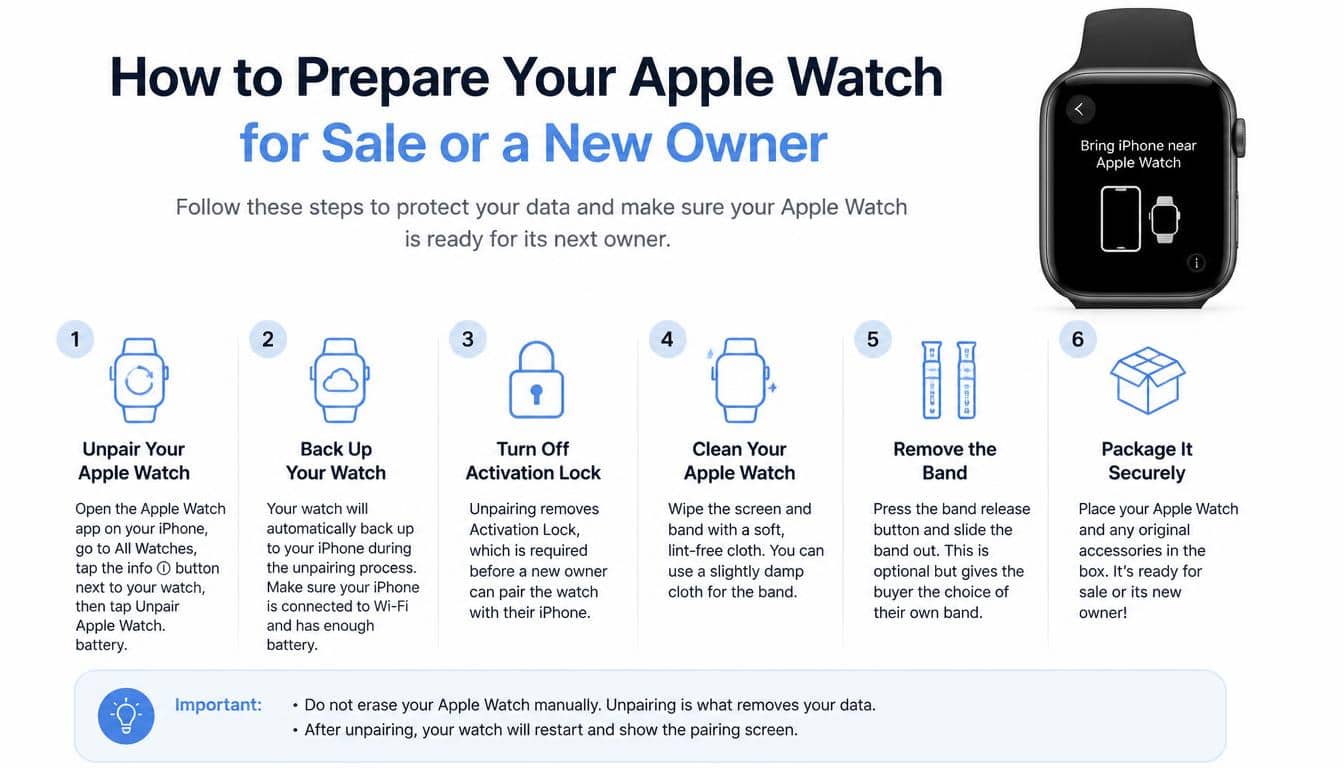
- Unpair the watch using your iPhone. This is usually the easiest way to erase the device and remove Activation Lock together.
- Check Activation Lock removal. Make sure the watch is no longer tied to your Apple Account and can proceed through its initial setup without requesting your credentials.
- Handle the cellular plan. Remove the plan from the watch if you’re transferring ownership, and contact your carrier separately if you want to cancel the subscription.
- Check your iPhone and Apple Account. Confirm that your important information is backed up or synchronized as needed.
- Remove physical accessories. Take off any personal bands, protective cases, or other accessories you don’t intend to include in the sale.
- Clean the watch carefully. Use a soft, lint-free cloth and follow Apple’s cleaning guidance for your particular model. Avoid pushing objects into openings or using cleaning methods that could damage the device.
- Keep the charger and paperwork together. If you’re including accessories, organize them neatly so the new owner knows what comes with the watch.
A little preparation makes the handover easier for everyone. More importantly, it reduces the chance that your buyer will contact you days later because the device is still asking for the previous owner’s account details.
What to Do If You Forgot Your Apple Watch Passcode
Forgetting your passcode can turn a simple reset into a frustrating afternoon. The good news is that you may still be able to erase the watch, although the exact process differs from a normal reset performed while the watch is unlocked.
If you have access to the paired iPhone, try unpairing the watch through the Apple Watch app first. Depending on the situation, you may still need account authentication to complete the process.
If the iPhone is unavailable and you cannot unlock the watch, Apple’s supported procedure allows you to erase it using the watch and its charger.
Resetting a Watch When You Cannot Enter the Passcode
- Place the Apple Watch on its charger and keep it connected to power.
- Press and hold the side button until the power controls appear.
- Press and hold the Digital Crown until the option to erase content and settings appears.
- Tap Reset, then tap Reset again when prompted to confirm.
- Wait for the erasure to complete before attempting setup again.
The exact screens can vary by watchOS version, so if the option doesn’t appear as described, consult Apple’s official support instructions for your model.
Remember that this method erases the device but does not automatically remove Activation Lock. If the watch remains linked to your Apple Account, you will need to complete the supported account-verification or device-removal process before transferring ownership.
How to Set Up Apple Watch Again After Erasing
Once the watch has been erased, setting it up again is usually straightforward. You can pair it with your own iPhone, restore supported information from a backup, or configure it as a new device.
First, make sure your iPhone is compatible with the watch and is running a supported version of iOS. Turn on Bluetooth and Wi-Fi, keep the devices close together, and switch on the Apple Watch.
Hold the iPhone near the watch until the pairing prompt appears. Follow the on-screen instructions, scan the animation if prompted, and choose whether to restore from an available backup or set up the watch as new.
If you are restoring a backup, some apps and information may take time to return. Certain settings might need to be configured again, and cellular service may require additional carrier steps.
Can You Set Up an Apple Watch Without an iPhone?
Most Apple Watch models require a compatible iPhone for their initial setup and ordinary management. Some cellular Apple Watch models can be configured for a family member through Apple’s supported Family Setup feature, where available.
However, Family Setup is not the same as using every Apple Watch independently. Certain features and services may be unavailable or work differently when a watch is managed through another person’s iPhone.
If your intention is to use the watch without your own paired iPhone, check the specific model, supported software, carrier availability, and Family Setup requirements before erasing anything. It’s much better to confirm compatibility first than discover an unexpected limitation halfway through setup.
Common Apple Watch Reset Problems and Their Solutions
Even when the procedure is simple, things can occasionally go sideways. A watch might refuse to pair, remain on a loading screen, or continue asking for account credentials after an erasure.
Here are some common issues and the sensible steps to try.
The Apple Watch Won’t Unpair
Keep the iPhone and watch close together, ensure both devices have adequate battery, and check that the iPhone is functioning normally. If the Apple Watch app appears frozen, close and reopen it before trying again.
If the iPhone is no longer available, you can erase the watch directly, but you’ll need to handle Activation Lock separately if the device is being transferred.
Activation Lock Still Appears
This usually means the watch remains associated with the previous owner’s Apple Account. Erasing its content does not remove that account association.
If it is your watch, sign in using the associated account or follow Apple’s supported process for removing the device. If you bought it second-hand, ask the seller to remove the watch from their account. A factory reset alone will not solve this problem.
The Watch Is Stuck During Erasure
Give the device time to finish, especially if it has only recently started the process. Keep it connected to power when appropriate, and avoid repeatedly forcing it to restart.
If it remains unresponsive, consult Apple’s official troubleshooting guidance for your watchOS version. A persistent issue may require additional support rather than another attempt at the same reset.
The Watch Won’t Pair After Being Erased
Check compatibility, update the iPhone if needed, and ensure Bluetooth and Wi-Fi are enabled. Restarting both devices may help with a temporary connection problem.
If the watch displays an Activation Lock screen, resolve the account association before continuing. If it shows a software or update error, follow the specific instructions on the screen rather than assuming another factory reset will fix it.
Frequently Asked Questions About Unpairing and Erasing Apple Watch
Is unpairing the same as factory resetting?
Not exactly. Unpairing through the paired iPhone also erases the watch and removes Activation Lock when completed successfully. Erasing directly through the watch’s Settings app restores factory settings but generally leaves Activation Lock enabled.
Will I lose my Apple Watch data permanently?
Information stored only on the watch may be lost when you erase it. Supported information may be recoverable from an iPhone backup or synchronized through iCloud, depending on your configuration. Check your backup and synchronization settings before proceeding.
Do I need my Apple Account password to reset my watch?
You may not need the password for every direct erasure procedure, but it is often required to disable Activation Lock during unpairing. You will also need the appropriate account credentials to activate a watch that remains linked to an account.
Should I erase my Apple Watch before selling it?
Yes. Unpair it from the paired iPhone whenever possible, make sure Activation Lock has been removed, and handle the cellular plan appropriately. This protects your personal information and gives the buyer a much smoother setup experience.
Can I reset an Apple Watch without removing Activation Lock?
Yes. Erasing the watch directly through Settings or another supported erasure procedure can clear its contents while leaving Activation Lock in place. This security feature helps prevent unauthorized use, but it means you must complete the account-removal process before transferring ownership.
Does removing the cellular plan cancel my subscription?
Not necessarily. Removing the plan from the watch and canceling the cellular subscription are separate actions. Contact your carrier to confirm the subscription status and any cancellation requirements.
Is there a physical reset button on Apple Watch?
No. Apple Watch does not have a dedicated physical reset button or a traditional user-accessible SIM slot. Use the software settings, the paired iPhone, or Apple’s documented recovery procedures instead of attempting to open the device.
How to unpair apple watch
To unpair your Apple Watch, open the Apple Watch app on your iPhone, tap My Watch > All Watches, then tap the info button next to your watch. Select Unpair Apple Watch and enter your Apple Account password to disable Activation Lock.
Reset apple watch
You can reset your Apple Watch by opening Settings > General > Reset on your watch and tapping Erase All Content and Settings. Enter your passcode if prompted and confirm to restore the watch to factory settings.
How to reset apple watch
To reset your Apple Watch, go to Settings > General > Reset > Erase All Content and Settings. Keep in mind that resetting the watch directly does not remove Activation Lock, so you may need your associated Apple Account and password to set it up again.
Unpair apple watch
Unpairing your Apple Watch erases its content, restores factory settings, and removes Activation Lock when you use the paired iPhone. Before starting, make sure you know your Apple Account password and decide whether to keep or remove your cellular plan.
How to unpair apple watch from iphone
Keep your Apple Watch and iPhone close together, open the Apple Watch app, and tap My Watch > All Watches. Tap the info button next to your watch, select Unpair Apple Watch, and follow the on-screen instructions to complete the process.
Read More: https://gracethemes.com/what-is-ip-address/
Final Thoughts: Give Your Apple Watch a Clean and Secure Start
Learning how to unpair and erase your Apple Watch is about more than clearing a screen or returning a device to its original settings.
It is about making sure your personal information is protected, your account remains secure, and your next step whether that means upgrading, troubleshooting, selling, or gifting is as uncomplicated as possible.
For most people, unpairing through the paired iPhone is the best option because it combines the erasure process with Activation Lock removal. If your iPhone is unavailable, erasing the watch directly is a useful alternative, provided you understand that the security association may remain.
Before you begin, take a moment to check your backups, remember your account credentials, and decide what should happen to your cellular plan. These small preparations can spare you a surprising amount of trouble later on.
And when everything is done, your Apple Watch is ready for its next chapter, whether that means returning to your wrist with a fresh setup or moving on to someone new. A careful reset gives you peace of mind, and that’s a pretty good feeling to carry into whatever comes next.
