
How to Turn PDFs and PowerPoint Presentations into Engaging Videos
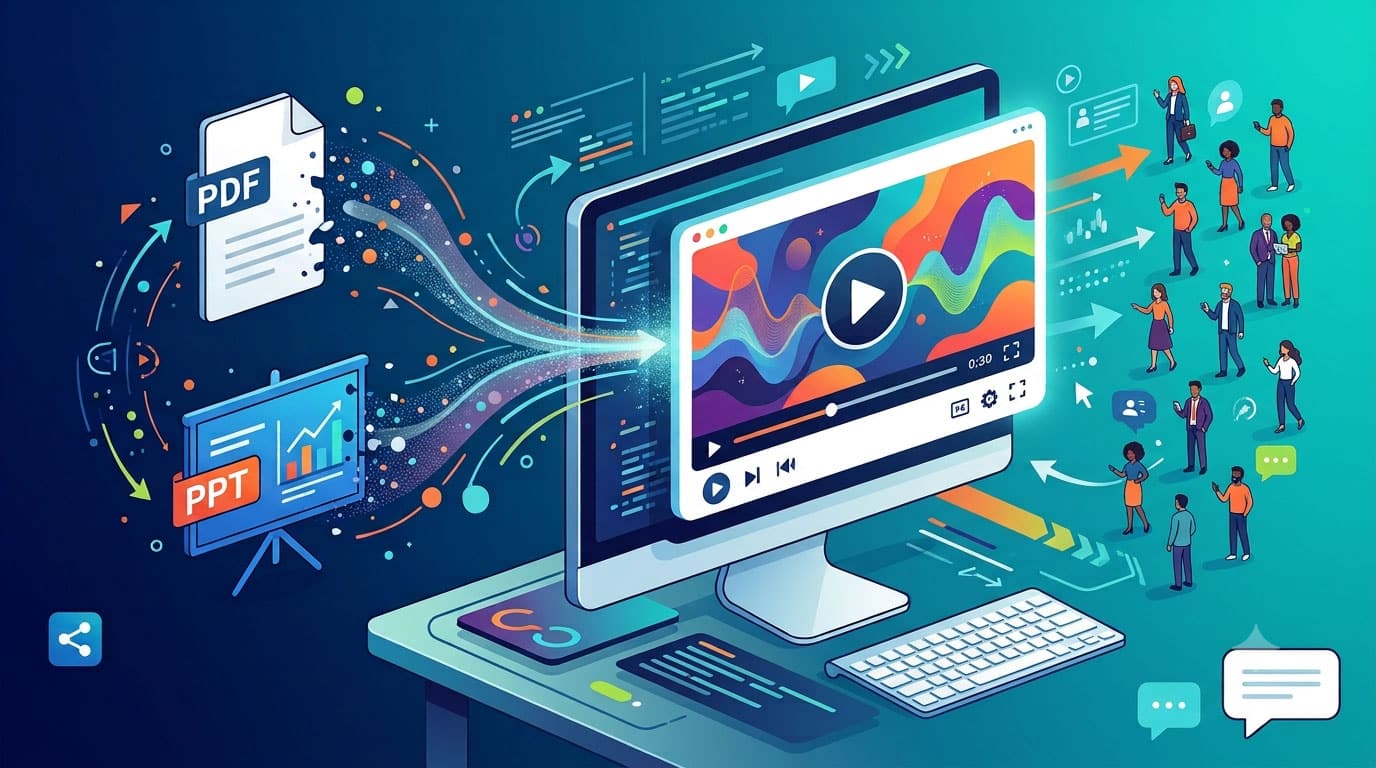
Businesses, educators, and content creators often rely on PDF documents and PowerPoint presentations to share information. These formats are useful for organizing ideas, presenting data, and explaining complex topics. However, static documents can sometimes struggle to capture attention, especially when audiences prefer watching short, engaging videos.
Turning existing documents into videos offers a practical way to make information more accessible and easier to share. Instead of creating every video from scratch, users can repurpose materials they already have and transform them into visual content for websites, social media, online courses, and marketing campaigns.
Here are some practical ways to turn PDFs and PowerPoint presentations into engaging videos.
1. Why Convert Documents into Videos?
PDFs and presentations are effective for delivering detailed information, but they require readers to actively scroll through pages or slides. Videos provide a more dynamic experience by combining visuals, movement, narration, and music.
There are several advantages to converting documents into videos:
- Better engagement: Motion, narration, and visual storytelling can make information more interesting.
- Wider distribution: Videos can be shared across YouTube, Instagram, TikTok, and other platforms.
- Easier learning: Complex concepts can be explained through visual demonstrations and step-by-step presentations.
- Content repurposing: Existing documents can become new marketing materials without rebuilding everything from the beginning.
For businesses, this approach also makes it easier to turn existing reports, product guides, and educational materials into additional content assets.
2. How to Convert a PDF into a Video
PDF documents often contain valuable information, including product descriptions, educational materials, research findings, and business reports. Turning these documents into videos can help audiences understand the key information without reading every page.
A PDF-to-video workflow generally involves the following steps:
- Choose the right PDF: Select a document with useful information, such as a product guide, tutorial, or industry report.
- Identify the key points: Extract the most important information rather than trying to include every paragraph.
- Organize the content: Arrange the information into a logical sequence that works as a video narrative.
- Add visual elements: Use relevant images, animations, transitions, and supporting graphics to make the content easier to follow.
- Include narration and subtitles: Voiceovers and captions help viewers understand the information, even when watching without sound.
- Export and review: Check the final video for readability, pacing, and visual consistency.
For users who want to simplify this process, a pdf to video generator can help transform document-based content into video presentations with AI assistance.
This approach can be particularly useful for educators creating learning materials, businesses introducing products, and marketers repurposing existing resources.
3. How to Convert a PowerPoint Presentation into a Video
PowerPoint presentations are already structured around slides, making them a convenient starting point for video creation. However, simply recording a slideshow may not produce an engaging result.
To create a more polished video, consider these steps:
- Review your slides: Remove unnecessary information and focus on the main message.
- Create a clear storyline: Make sure each slide connects naturally to the next.
- Improve visual consistency: Use consistent fonts, colors, and layouts throughout the presentation.
- Add motion and transitions: Introduce subtle animations to highlight important information without distracting viewers.
- Include voiceovers: Explain key points through narration instead of relying entirely on on-screen text.
- Add subtitles: Captions improve accessibility and make videos easier to watch on mobile devices.
- Choose the right format: Export the video in a format suitable for your intended platform.
An AI-powered ppt to video generator can make this process more convenient by helping users turn presentation content into video material without manually rebuilding every scene.
This can save time for teams that regularly create training videos, product demonstrations, educational content, and business presentations.
4. Make Your Videos More Engaging with Visual Storytelling
Converting a document into a video is only the first step. The final result should be designed around the viewing experience rather than simply reproducing the original pages or slides.
Consider the following techniques:
- Start with a strong introduction: Explain what viewers will learn or why the topic matters.
- Use relevant visuals: Replace long blocks of text with images, diagrams, and demonstrations whenever possible.
- Keep the pacing natural: Give viewers enough time to understand each point without making the video unnecessarily long.
- Highlight important information: Use text overlays, visual emphasis, and simple animations to draw attention to key details.
- Maintain a consistent style: Keep colors, fonts, transitions, and visual elements aligned throughout the video.
A good video should communicate information clearly while maintaining the audience’s attention from beginning to end.
5. Optimize Videos for Different Platforms
Once your video is ready, consider where your audience will watch it. Different platforms have different content requirements and viewing habits.
For example:
- YouTube: Use descriptive titles, relevant keywords, detailed descriptions, and suitable thumbnails.
- Instagram Reels and TikTok: Focus on vertical formats, short introductions, readable captions, and visually engaging scenes.
- Business websites: Embed videos near relevant written content to provide additional explanations and context.
- Online learning platforms: Organize videos into clear lessons and use subtitles to support different learning preferences.
It is also important to compress video files appropriately so that they load efficiently without sacrificing too much visual quality.
6. Measure Video Performance and Improve Your Content
Publishing a video is not the end of the process. Reviewing its performance helps you understand whether the content is reaching the right audience.
Some useful metrics include:
- Views: How many times the video has been watched.
- Watch time: How long viewers spend watching the content.
- Audience retention: Where viewers continue watching or stop.
- Click-through rate (CTR): How often people click after seeing the video or its thumbnail.
- Engagement: Likes, comments, shares, and other interactions.
Use these insights to identify which topics and formats resonate with your audience. If viewers consistently leave during a particular section, consider simplifying the explanation or improving the visual presentation.
Conclusion
Turning PDFs and PowerPoint presentations into videos is a practical way to repurpose existing content and reach audiences through different channels. Whether you are creating educational materials, product introductions, marketing videos, or internal training resources, AI-assisted video creation can help simplify the production process.
By selecting useful source material, organizing information into a clear storyline, adding engaging visuals, and optimizing the final video for different platforms, you can make existing documents more accessible and valuable.
The key is not simply to convert documents into videos, but to transform information into content that people actually want to watch.
