

Record the Screen on Your iPhone, iPad, or iPod touch
Have you ever tried explaining something on your iPhone and wished you could simply show someone what was happening instead of sending ten screenshots?
Perhaps you want to save a useful tutorial, demonstrate a setting to a family member, capture a memorable moment in an app, or create a short video for work.
Whatever the reason, learning how to record the screen on your Apple device can make everyday digital life a little easier, and honestly, a lot less frustrating.
The good news is that Apple includes a built-in screen recording feature on compatible devices. You don’t necessarily need to download a third-party screen recorder or pay for an extra app.
With a few taps in the Control Center, you can capture what’s happening on your display and save the resulting video to the Photos app.
This guide explains how to record the screen on your iPhone, iPad, or iPod touch, how to include microphone audio, where to find saved recordings, and what to do when the feature doesn’t work as expected.
We’ll also cover a few small details that can make the difference between a clear, useful recording and a video you’ll have to make all over again.
How to Start a Screen Recording on Your iPhone, iPad, or iPod touch
The built-in Apple screen recorder is designed to make capturing your display straightforward.
Once the recording control is available, you can start capturing a demonstration, an app walkthrough, or a series of settings changes without interrupting your work.
The precise appearance of the controls depends on your device and software version, but the general process is much the same across compatible iPhone and iPad models.
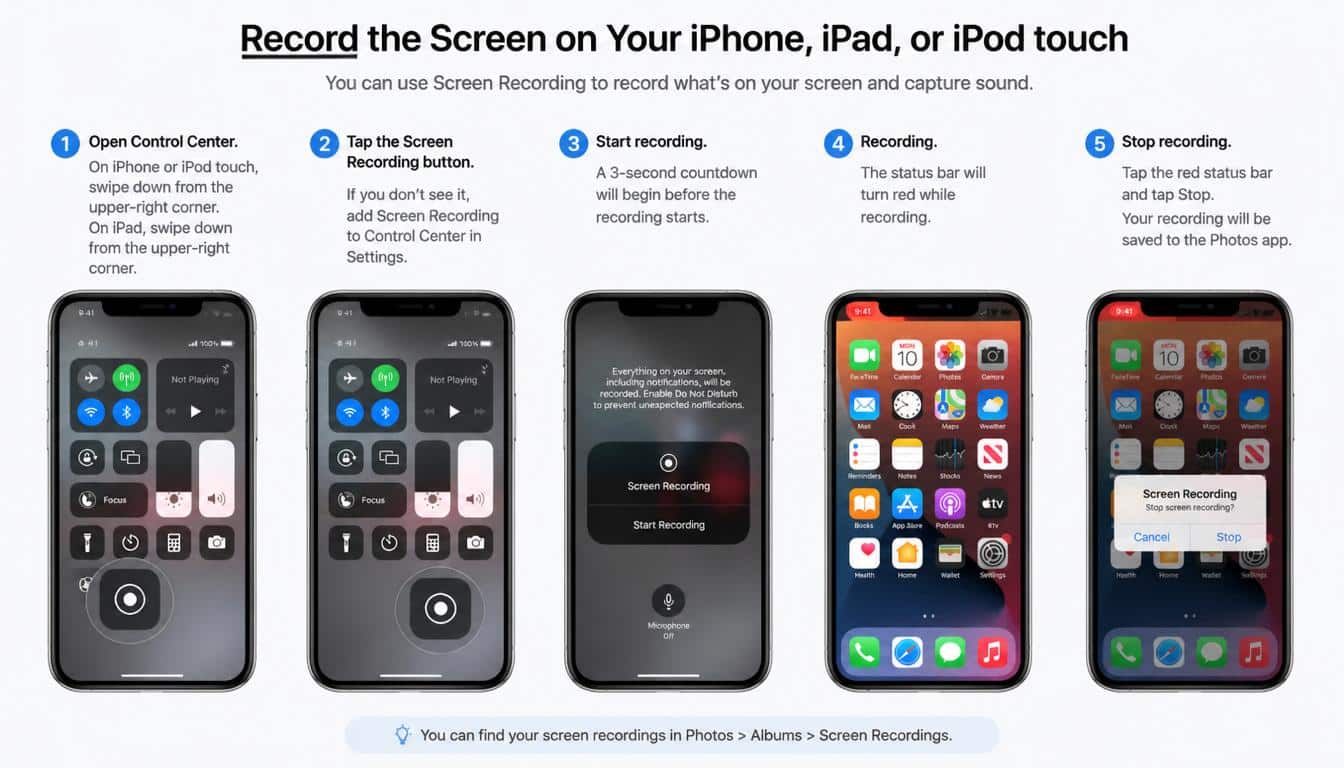
Open Control Center
Start by opening the Control Center, where Apple keeps convenient shortcuts for commonly used functions.
- On an iPhone with Face ID, or a compatible iPad, swipe down from the top-right corner of the screen.
- On an iPhone or iPod touch with a Home button, swipe up from the bottom edge of the display.
- If the gesture doesn’t work, check your device’s model and software instructions, since the available controls can vary.
Once Control Center appears, look for the Screen Recording button, usually represented by a circle inside another circle. If you see it, you’re ready to begin.
Tap the Record Button
Tap the gray Record button to start the process. A three-second countdown gives you a brief moment to leave Control Center and open the screen you actually want to capture.
After the countdown, your device begins recording eligible screen activity. You can navigate between apps, demonstrate a setting, scroll through a page, or perform the actions you want the video to show.
A small screen recording indicator may appear at the top of the display or in the status area, depending on the device and software version. This helps you recognize that the recording is active, so you don’t accidentally continue recording after the important part is finished.
Prepare Your Screen Before Recording
A little preparation can save you from having to edit the video later. Close unrelated apps, move to the exact page you want to demonstrate, and make sure the text on your display is readable.
You may also want to enable a Focus mode to reduce interruptions from notifications. Some alerts can reveal private information or cover important parts of the screen, and neither is particularly helpful in a tutorial.
For a clean iPhone screen recording, try performing the steps once before you press Record. It sounds like an unnecessary extra step, but it can make the final video noticeably clearer.
How to Record Your Screen With Audio
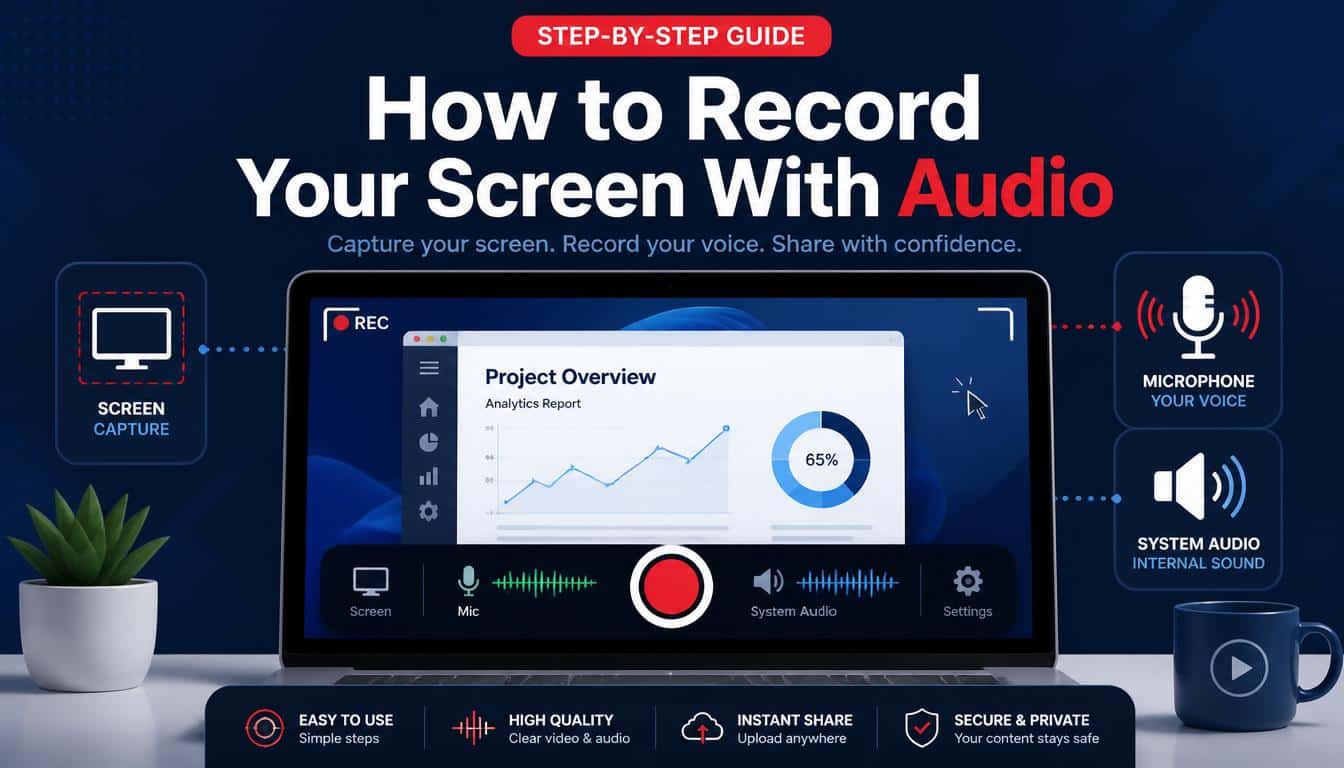
A screen recording is often more useful when viewers can hear an explanation along with the visuals. For instance, a parent might record a quick tutorial for a relative, while a teacher may demonstrate how to use an educational app and explain each step aloud.
Apple’s built-in recording feature supports screen recording with audio, but there is an important distinction between capturing microphone sound and capturing audio produced by an app.
Enable the Microphone Button
If you want to narrate your recording, you can turn on the microphone before starting.
- Open Control Center.
- Touch and hold the Screen Recording button to display the recording options.
- Find the Microphone button.
- Tap it to switch the microphone on. The control will indicate its enabled state.
- Tap the option to start recording, then wait for the countdown to finish.
Your device can now capture your voice through its microphone while recording eligible screen activity. Speak clearly and keep the device in a position where your voice can be heard without too much background noise.
This is especially useful for recording the screen with microphone audio when creating instructions, explaining a setting, or walking someone through an unfamiliar app.
Can You Capture Internal Audio?
The ability to capture app sound depends on the app and the content being played. Some apps allow their audio to be included in a screen recording, while others restrict it. Turning on the microphone doesn’t guarantee that every sound produced by your device will be recorded.
For a simple test, record a short clip containing an ordinary sound or a spoken explanation, then play it back in Photos. Check that the sound is clear before recording a longer demonstration.
If you are trying to capture a private call, a streaming video, or other protected material, remember that apps may restrict recording for privacy, copyright, or security reasons. There isn’t always a setting that can override those restrictions.
Make Your Voice Sound Clearer
You don’t need professional equipment for a useful recording. A quiet room, a steady speaking pace, and a little distance from noisy fans or traffic can do most of the work.
If you are explaining a complicated process, leave a short pause between actions. Viewers need time to see what you tapped, and a recording that rushes from one screen to the next can feel confusing even when the instructions are technically correct.
How to Stop Screen Recording
Knowing how to start a recording is only half the job. Knowing how to stop it at the right moment is just as important, particularly if you don’t want several minutes of unrelated activity included in your video.
Fortunately, Apple provides a simple way to finish recording.
Use the Recording Indicator
When your screen recording is active, look for the recording indicator or the colored status area, if your device displays one.
- Tap the recording indicator or status area when that option is available.
- Confirm the option to stop if your device asks you to.
- Alternatively, open Control Center and tap the active Screen Recording control.
Your device will end the recording and, in the usual case, save the video to the Photos app automatically. You don’t need to press a separate Save button after every recording.
The precise appearance of the stop control may vary by model and software version, so don’t worry if your screen looks slightly different from somebody else’s tutorial.
Stop at the Right Moment
A good recording usually ends just after the last important action. Leaving several minutes of idle screen time at the end makes the video feel unfinished, even if everything before it was perfect.
If you’re demonstrating how to change a setting, finish by showing the completed setting and then stop recording. For an app tutorial, allow a brief moment for the final result to appear before ending the capture.
It’s a small habit, but it makes your screen recording instructions easier for someone else to follow.
Where to Find Saved Screen Recordings on Your iPhone or iPad
Once you stop recording, you may wonder where the video went. The answer is usually the Photos app, where the recording is saved as a video that you can watch, trim, share, or organize.
Find the Video in Photos
Follow these steps to locate your saved recording:
- Open the Photos app.
- Go to your Library or the main photo and video collection.
- Look for the most recently saved video.
- Tap the thumbnail to play it and check the result.
Depending on your Photos version, you may also find a Screen Recordings category or album in the media collections. If you don’t see a dedicated album, check your main Library and recent videos instead.
The Photos app Library is the first place to look when you need to find screen recordings after finishing a capture.
Review the Recording Before Sharing It
Before sending the video to anyone, play it from beginning to end. Check that the actions are visible, the audio is understandable, and no accidental screen activity has slipped into the clip.
You can use the editing controls in Photos to trim unwanted footage from the beginning or end. This is helpful if the recording includes a moment when you were opening an app or getting ready to explain something.
If you plan to share the video through a messaging app, email, or another platform, consider whether the file contains personal details that shouldn’t be shared.
A recording can capture much more than you intended, including notifications, account information, and private messages.
Keep Useful Recordings Organized
If you record tutorials regularly, your Photos Library can become cluttered surprisingly quickly. Give yourself a few minutes now and then to remove duplicate clips and organize the videos you actually need.
You might also share important recordings to a trusted storage service or another suitable location, depending on your privacy needs. Just remember that once a recording leaves your device, its protection depends partly on the destination and how you share it.
How to Add the Record Button to Control Center
One of the most common problems with iOS screen recording is not knowing where to find the recording control. Sometimes the Screen Recording button simply isn’t visible in Control Center, but that doesn’t necessarily mean your device cannot record its screen.
The control may need to be added first, depending on your iOS or iPadOS version.
Add Screen Recording to Your Controls
On versions of iOS that allow Control Center customization directly from Control Center, try opening it and entering its editing mode. Look for the option to add a control, then select Screen Recording.
On other versions, you may need to open Settings and find Control Center, where available controls can be added or managed. The precise steps vary by software release, so use the instructions appropriate for your device.
After adding the control, open Control Center again and check that the Record button appears. You should then be able to tap it whenever you need to capture eligible screen activity.
What if the Button Is Still Missing?
If you can’t add the recording control, consider whether the device is managed by a school, employer, or family administrator. Restrictions can disable screen recording, particularly on devices intended for supervised or managed use.
Check the device’s Screen Time settings and any relevant management restrictions if you have permission to change them. If the iPhone or iPad belongs to an organization, you may need to ask its administrator for assistance.
It’s worth checking the software version as well. Instructions written for an older iOS release might describe menus that have since moved or changed.
Screen Recording on an iPad: A Practical Guide
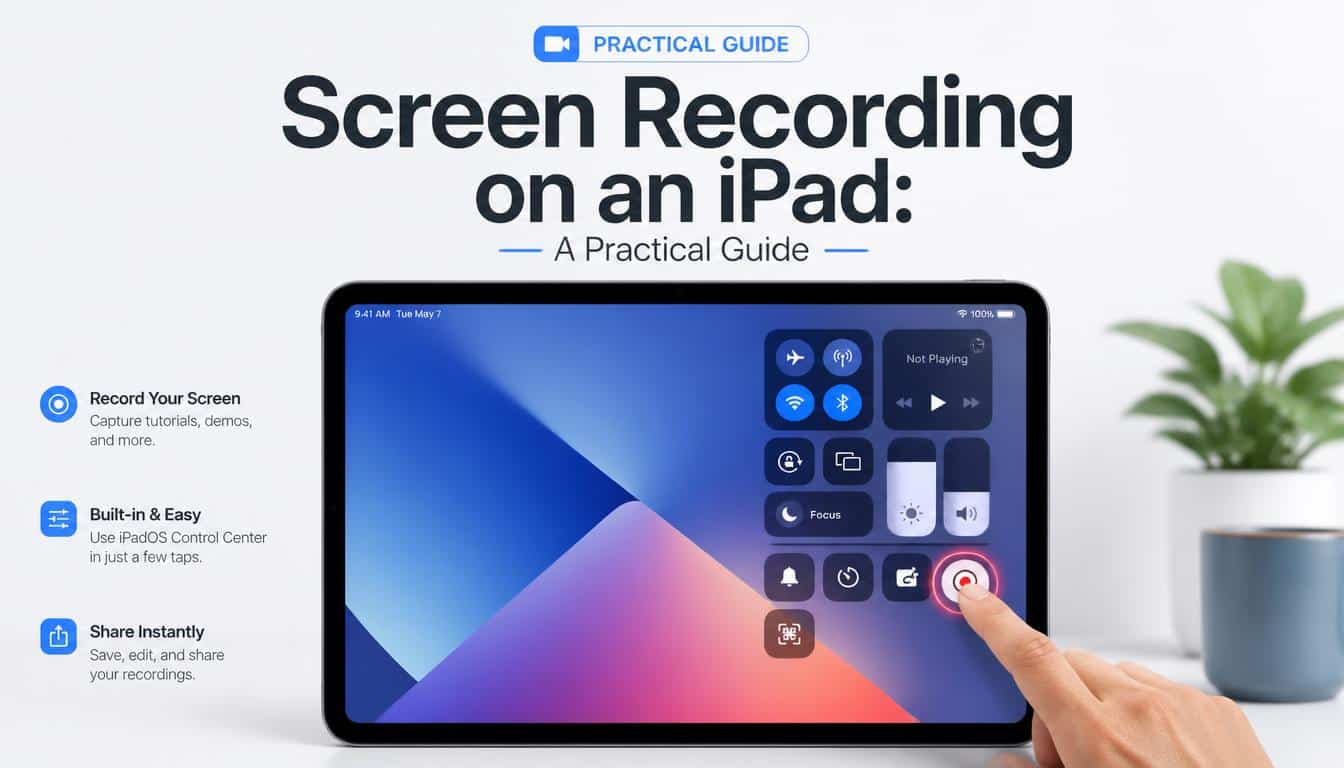
The iPad screen recording feature works much like it does on an iPhone, making it useful for demonstrations, lessons, presentations, and creative projects.
The larger display gives you more room to show menus, documents, drawings, and app interfaces. That extra space can be particularly helpful when you’re explaining something to a person who isn’t familiar with the software.
Record an App Demonstration
Open Control Center by swiping down from the top-right corner of your iPad. Tap the Screen Recording button, wait for the countdown, and begin the demonstration.
For a tutorial, consider using a simple sequence: introduce the task, show the starting screen, perform the necessary actions, and finish by displaying the completed result.
This approach feels natural to viewers because they can see both the problem and the solution.
If you’re using an Apple Pencil to demonstrate a drawing or annotation tool, make sure your hand doesn’t obscure important details. A slower pace can be more useful than a fast recording that tries to show everything at once.
Record a Lesson or Presentation
Teachers, students, and professionals can use iPad screen capture to explain digital workflows or review a sequence of actions. If microphone recording is enabled, you may narrate the process as you go.
Before starting, close documents and tabs that aren’t relevant to the demonstration. Also, avoid displaying private student details, confidential work information, or personal messages in the recording.
If the recording is intended for a class or workplace, check the applicable sharing and privacy rules before distributing it. A useful lesson should make the task easier without exposing information that viewers don’t need.
Screen Recording on an iPod touch
Compatible iPod touch models also support the built-in recording feature. Although the iPod touch is an older product line, people may still use these devices for apps, games, music-related tasks, or demonstrations.
The general iPod touch screen recording process is similar to the iPhone method, provided the device runs a compatible version of iOS.
Start and Save Your Recording
On an iPod touch with a Home button, swipe up from the bottom edge to open Control Center. If Screen Recording is available, tap the control and wait for the countdown to begin recording.
When you finish, use the recording indicator or Control Center to stop. The video should normally appear in Photos, where you can play it back and check that the important actions were captured.
If the recording button is absent, check whether the device’s software supports the feature and whether restrictions are enabled. Older devices may have different menus or limitations compared with newer iPhones and iPads.
Be Mindful of Older Software
Older iPod touch models may no longer receive the latest software updates. As a result, some apps, settings, or recording instructions found in current tutorials might not match the interface on your device.
If something doesn’t appear where expected, identify your iPod touch model and iOS version first. Matching the instructions to the actual device is usually more productive than repeatedly tapping through unfamiliar menus.
Common Screen Recording Problems and How to Fix Them
Even a built-in feature can occasionally behave in unexpected ways. The good news is that many recording problems have straightforward explanations, and a few basic checks can help you identify what’s going wrong.
The Screen Recording Button Doesn’t Respond
If tapping the Record button doesn’t start a recording, close Control Center and try again. If that doesn’t work, restart your device and check whether the problem continues.
Also review Screen Time restrictions or device-management settings if the feature appears to be disabled. On a managed device, you might not have permission to enable recording yourself.
The Video Has No Sound
If the recording is silent, first determine which sound you expected to capture. To record your voice, open the recording options and enable the Microphone button before starting.
For sound from an app, remember that not every app permits audio capture. Test with a short recording before attempting a longer one, and play the resulting clip in Photos to verify the sound.
Check the device’s microphone permissions and make sure the microphone openings aren’t obstructed if your own voice is missing. A recording that contains video but no narration can often be explained by the microphone being switched off.
Some Apps Show a Black Screen
Certain apps restrict video capture because of privacy, copyright, or security requirements. Protected streaming content and sensitive interfaces may not appear normally in a recording.
If this happens in a particular app, test the recording with an ordinary home screen or another app. If the other screen records correctly, the limitation may belong to the app or its content rather than your device.
Avoid assuming that every black screen indicates a broken recorder. Sometimes the restriction is intentional, and the appropriate solution is to use an authorized sharing or export option offered by the app.
Screen Mirroring Causes Problems
Screen mirroring and screen recording are separate features, and Apple devices may not support using them simultaneously in the way you expect. If recording fails while mirroring is active, stop mirroring and try the recording again.
If your goal is to show your device’s display on a television or computer, consider whether you need a live mirrored view or a saved video file. Choosing the right method can prevent unnecessary troubleshooting.
The Recording Doesn’t Appear in Photos
First, allow a moment for the recording to finish saving. Then open Photos and check your Library, recent videos, and any Screen Recordings category that your software version provides.
If the video still isn’t there, check whether the recording actually started and stopped, and whether the device has enough available storage. A very short test recording can help establish whether the feature is working normally.
Screen Recording Tips for Better Results
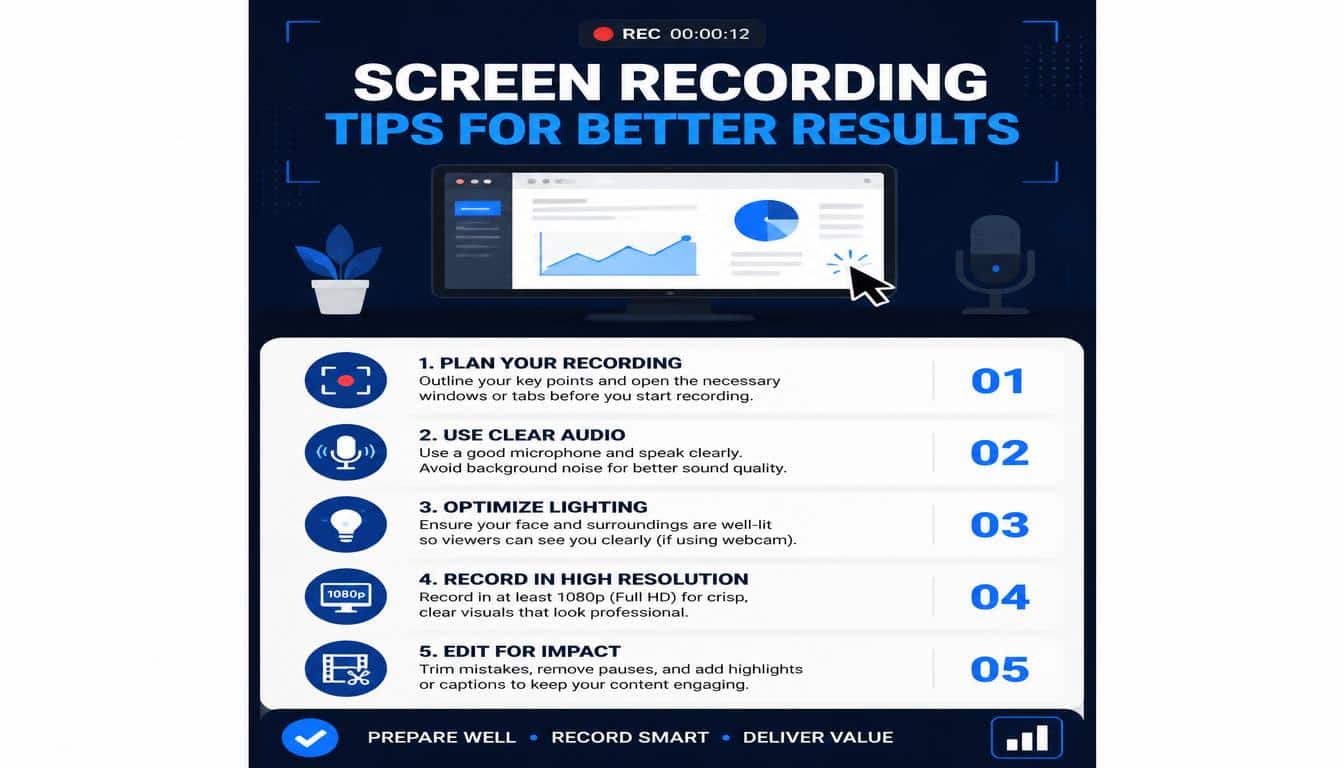
The recording controls handle the technical part, but a few thoughtful habits make the video more useful to the person watching it. You don’t have to become a professional video editor to produce something clear and easy to follow.
Keep the Recording Focused
Decide what the viewer should learn before you press Record. If you’re demonstrating a single setting, you probably don’t need to show every menu on your phone.
A short, purposeful recording is usually easier to watch than a long clip full of pauses, repeated actions, and unrelated screen activity. Keep only what helps the viewer understand the task.
Protect Your Privacy
Notifications can appear unexpectedly during a recording, and the display may show personal information that you didn’t mean to share. Consider enabling Focus, closing private conversations, and checking the screen before you start.
If you’re recording someone else’s content or sharing a demonstration that includes other people, respect their privacy and any applicable consent requirements. A few seconds of preparation can prevent an uncomfortable mistake later.
Make Text and Actions Easy to See
Move through menus at a steady pace. Avoid tapping several controls in quick succession, especially when the purpose of the recording is to teach someone how to follow the same steps.
If the video contains small text, zoom in where appropriate before recording. On an iPad, you can often take advantage of the larger display, but you should still ensure that the essential details remain visible.
Test Before Making a Long Recording
A ten-second test can reveal whether your microphone is enabled, whether the app allows recording, and whether the resulting video is saved correctly.
This is particularly helpful before a presentation, a class demonstration, or a work tutorial. Better to discover a missing microphone setting now than after you’ve explained the entire process in one perfect take.
Frequently Asked Questions About Screen Recording
Can I Record My iPhone Screen Without Downloading an App?
Yes. Compatible iPhones include a built-in screen recording feature that can be accessed through Control Center once the control is available. You generally don’t need a third-party app for ordinary screen capture.
How Do I Record My iPhone Screen With My Voice?
Open Control Center, touch and hold the Screen Recording button, and enable the Microphone button. Start the recording and speak while performing the actions you want to demonstrate.
Keep in mind that enabling the microphone captures microphone sound; it doesn’t guarantee that all internal app audio will be recorded.
Does Screen Recording Automatically Save to Photos?
Normally, yes. When you stop a recording, the resulting video is saved to the Photos app. Open Photos and check your Library or recent videos to find it.
Can I Record a Phone Call or a Streaming Video?
Recording availability depends on the app, the content, and applicable privacy or copyright restrictions. Some services block screen capture or prevent protected audio and video from being recorded.
Before capturing or sharing a conversation, consider consent and local laws. If an app offers an authorized recording or export feature, that may be the better option.
Can I Record My Screen While Using Screen Mirroring?
Simultaneous use may be restricted or may not work as expected. If the recorder fails while screen mirroring is active, stop mirroring and test the recording again.
Why Is My Screen Recording Silent?
The microphone may be switched off, the microphone may not be picking up your voice, or the app may restrict audio capture. Enable the microphone for narration and make a brief test recording to check the result.
Can I Edit a Screen Recording After Saving It?
Yes. You can open the video in Photos and use its editing tools to trim unwanted footage from the beginning or end. For more advanced editing, you may choose a compatible video-editing app, depending on your needs.
Writing
how to screen record on iphone
To screen record on your iPhone, swipe down from the top-right corner to open Control Center. Tap the Record button, wait for the three-second countdown, and exit Control Center to start recording your screen.
screen record iphone
You can easily record your iPhone screen using the built-in Screen Recording feature. Once you finish recording, tap the red recording indicator or open Control Center and tap the Record button to stop.
how to record your screen
Open Control Center by swiping down from the top-right corner of your screen. Tap and hold the Record button if you want to enable the microphone, then tap Start Recording and wait for the countdown.
how to screen record
To screen record, open Control Center and tap the gray Record button. After the three-second countdown, your iPhone will begin capturing your screen, and the finished video will be saved in the Photos app.
how to add screen record on iphone
If the Screen Recording button is missing, open Control Center and add Screen Recording to your available controls. Once added, you can tap the Record button whenever you want to capture your iPhone screen.
How to Make Screen Recording More Useful in Everyday Life
Once you know the basics, screen recording can become a practical little tool for many ordinary tasks. You can show a relative how to change a setting, demonstrate how an app works, preserve a software bug for technical support, or explain a digital process to a colleague.
It can also help when written instructions aren’t enough. Instead of trying to describe which menu appears after each tap, you can show the actual sequence and add spoken explanations where useful.
The key is to record with a clear purpose. Before you begin, ask yourself what the viewer needs to see, whether sound will help, and whether any personal information should be hidden. Those three questions alone can improve many recordings.
Read More: https://gracethemes.com/force-restart-iphone/
Final Thoughts
Learning to record the screen on your iPhone, iPad, or iPod touch doesn’t require special technical knowledge. Open Control Center, use the Screen Recording button, enable the microphone when narration is needed, stop the recording when you’re finished, and look for the saved video in Photos.
If the process doesn’t work immediately, check whether the recording control has been added, review restrictions, test your audio, and remember that some apps intentionally limit capture.
Most problems become easier to understand once you identify which part of the process is failing.
Above all, think of screen recording as a way to make digital communication more human. A short video can explain a tricky setting, preserve a useful demonstration, or help someone feel more confident using a device.
With a little preparation and a clear purpose, your Apple device can do more than display information; it can help you share knowledge in a way that feels simple, personal, and genuinely useful.
Have you discovered a particularly helpful use for screen recording on your iPhone or iPad? Share your favorite tip or experience in the comments, because a small trick that saves one person a few minutes might save someone else an entire afternoon.
