

Force Restart iPhone: A Complete Guide to Fixing a Frozen or Unresponsive iPhone
There is something particularly frustrating about picking up your iPhone to answer an important call, send a quick message, or check a map, only to discover that the screen has stopped responding.
You tap it once, then twice, and maybe a little harder than necessary, but nothing happens. The phone seems perfectly happy to ignore you, and honestly, that can be annoying when you need it most.
Fortunately, an unresponsive iPhone does not always mean something serious has gone wrong. Sometimes, a temporary software glitch causes an app to freeze, the screen to become stuck, or the device to stop responding to ordinary commands.
In these situations, learning how to Force restart iPhone devices can save you a lot of unnecessary worry.
A force restart is a practical troubleshooting method that uses the physical buttons on your device to make it restart when the usual controls are unavailable.
Whether you own a newer iPhone without a Home button or an older model with a physical Home button, the correct button combination can often get things moving again.
In this guide, you’ll discover how to perform an iPhone force restart, which button sequence works for different models, what to do when your iPhone won’t turn off, and how to troubleshoot problems if the familiar Apple logo never appears.
We’ll also cover the difference between restarting and resetting your device, because those terms sound similar but don’t always mean the same thing.
What Does It Mean to Force Restart an iPhone?
A force restart is a way to restart your iPhone when it cannot respond to normal commands. Instead of using the touchscreen or opening the power-off slider, you use a specific combination of physical buttons to trigger a restart.
Imagine your phone is a busy little office where every employee has suddenly stopped answering their emails.
A force restart is rather like closing the office for a moment and reopening it so the systems can start working again. It isn’t a perfect solution for every problem, but it can clear certain temporary software issues.
A normal Restart iPhone procedure usually involves opening the shutdown controls, switching the device off, and turning it back on. A force restart is different because it does not depend on the screen responding.
Here are a few situations where this procedure may help:
- Your iPhone not responding issue prevents you from opening apps or using the touchscreen.
- Your iPhone frozen screen remains stuck on an app, loading animation, or the Lock Screen.
- Your phone appears to be running, but it won’t respond to taps or swipes.
- Your iPhone won’t turn off because the normal shutdown controls are unavailable.
- Your iPhone becomes stuck during an ordinary operation and does not recover on its own.
One important distinction: a force restart does not normally erase your photos, messages, apps, or other personal data. However, any unsaved work may be lost, and a force restart cannot repair every hardware or software fault.
How to Force Restart iPhone Without a Home Button
Most modern iPhone models without a physical Home button use the same basic button sequence. It may feel slightly unusual the first time you try it, especially if the screen is completely black, but the process is straightforward once you know the order.
For these models, the Volume up button, Volume down button, and Side button work together to initiate the restart.
Follow These iPhone Force Restart Steps
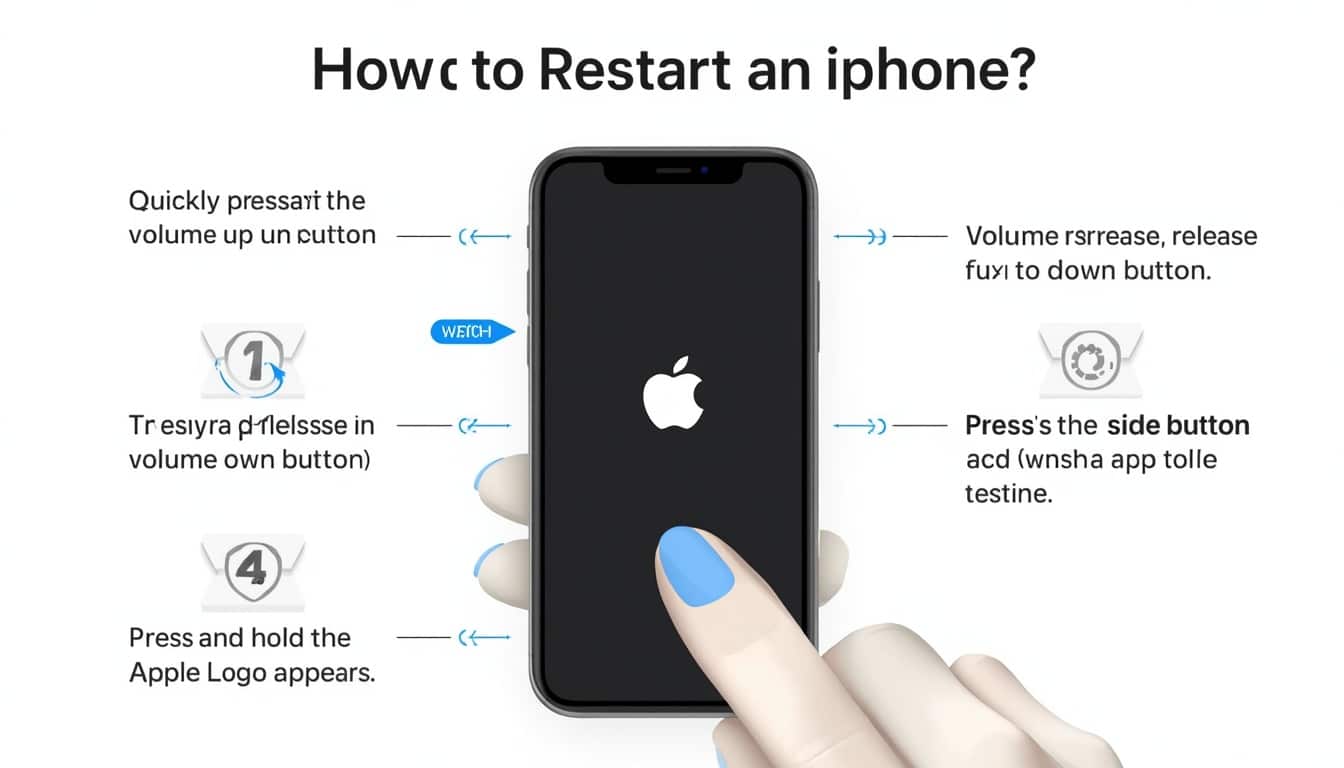
- Press and quickly release the Volume up button. Give it a short, decisive press rather than holding it down.
- Press and quickly release the Volume down button. Do this immediately after releasing Volume up.
- Press and hold the Side button. Keep holding it even if the screen remains black for several seconds.
- Wait for the Apple logo. It may take a little while to appear, so try not to release the Side button too early.
- Release the Side button when the Apple logo appears. Your iPhone should continue its startup process.
The timing matters here. The two volume buttons should be pressed and released quickly in the correct order, followed by holding the Side button. Pressing all three buttons together is not the same procedure and may not produce the desired result.
If your iPhone screen frozen problem was caused by a temporary software glitch, the device may return to normal after restarting. Give it a moment to finish booting before deciding whether another troubleshooting step is needed.
Which iPhone Models Use This Method?
This sequence applies to the iPhone 8 and later models, including the second-generation and third-generation iPhone SE, which have a Home button but use this particular force-restart combination.
It also applies to models such as the iPhone X, iPhone XR, iPhone XS, the iPhone 11, 12, 13, 14, 15, 16, and 17 families, including newer models that follow the same button arrangement.
If you’re unsure about your exact model, check the model name in Settings when the phone is working or consult the relevant Apple Support article for your device. Button arrangements and instructions can differ between generations, so identifying your model first is a sensible step.
How to Force Restart an iPhone With a Home Button
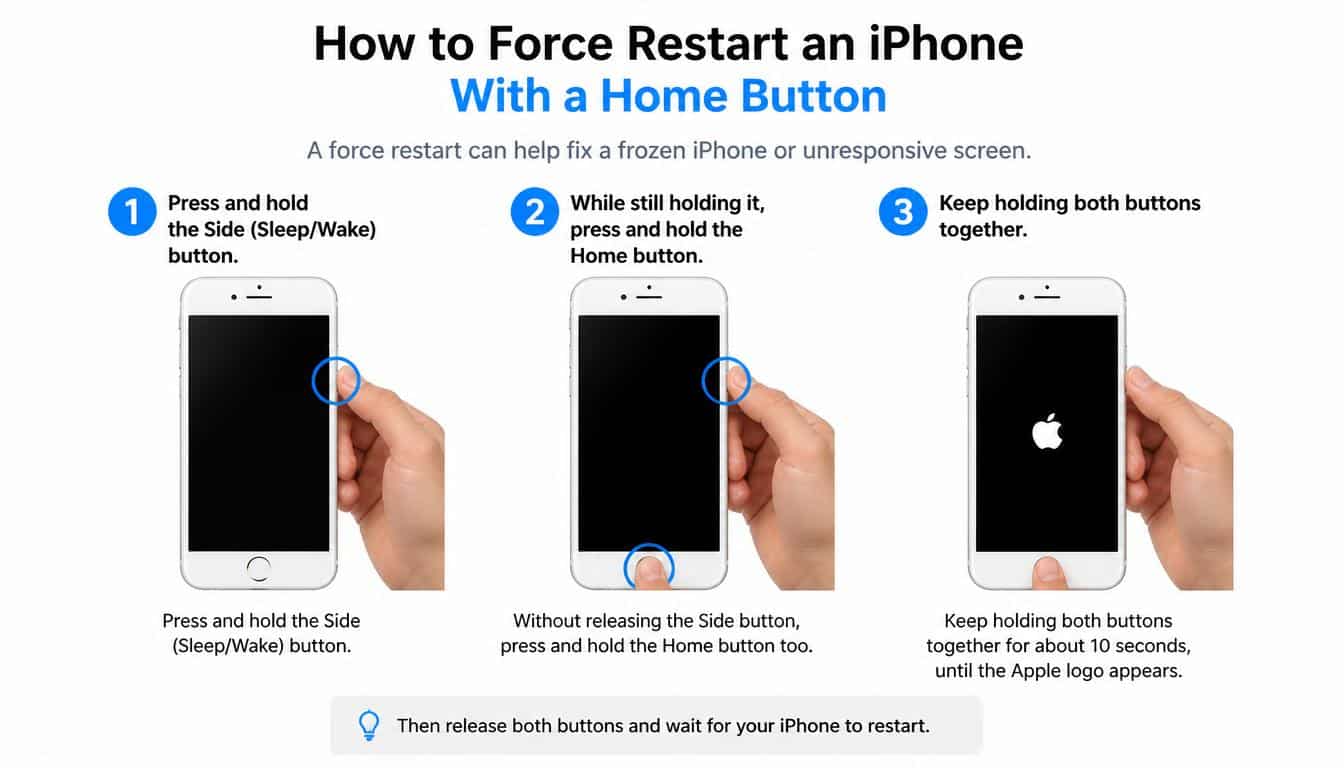
Older iPhones use a different sequence, and this is where people sometimes get caught out. If your phone has a physical Home button, you should not automatically assume that the modern volume-button sequence is correct.
The procedure depends on which generation you own.
iPhone 7 and iPhone 7 Plus
These two models use a combination of the Volume down button and the Side button.
- Press and hold the Volume down button.
- At the same time, press and hold the Side button.
- Keep holding both buttons until the Apple logo appears.
- Release the buttons and allow the iPhone to restart.
The Home button on these models is not part of the force-restart combination. That’s a small detail, but an important one when you’re trying to get a frozen device working again.
iPhone 6s, iPhone 6s Plus, and Earlier Compatible Models
For the iPhone 6s family and earlier models that use the traditional physical Home button, the sequence is different.
- Press and hold the Home button.
- While holding it, press and hold the Side button or Top button, depending on the model.
- Continue holding both buttons until the Apple logo appears.
- Release the buttons and wait for the device to finish starting.
This method is useful for older devices that may still be serving as a backup phone, a family member’s everyday device, or a trusted companion for calls and messages.
Remember that the physical Home button combination is not universal across every iPhone generation. If you’re uncertain, look up your specific model on the iPhone Support website rather than trying random combinations.
Force Restart iPhone When Frozen: Common Situations and Solutions
A frozen screen can appear in several ways. Sometimes the display remains visible but ignores every touch. In other cases, an app gets stuck, the screen goes black, or the device appears to be caught in a never-ending loading process.
The right response depends on what your iPhone is doing.
When the Touchscreen Stops Responding
If the screen is visible but taps and swipes no longer work, a force restart is a reasonable first step. The method works through the hardware buttons rather than relying on touchscreen input.
Follow the button sequence for your model, wait for the Apple logo, and let the phone boot completely. Once it starts, check whether the touchscreen responds normally.
If the same issue returns regularly, consider whether a particular app, a recent iOS update, or another software problem might be contributing to the behaviour.
When an App Freezes but the Phone Still Works
Sometimes the problem is not the entire iPhone. Perhaps one app refuses to close, a video remains stuck, or a game stops responding while the rest of the device still works.
If you can navigate away from the app, try closing it and opening it again. A full force restart may not be necessary for a single application problem.
However, if the frozen app prevents you from using the device at all, you can force reboot iPhone using the appropriate hardware-button combination. After restarting, check whether the app needs an update.
When the Screen Is Black
A black screen does not always mean your iPhone has run out of power. The display may be unresponsive, the software may have stalled, or the battery may genuinely be depleted.
Try the force-restart procedure for your model. If nothing happens, connect the phone to a reliable charger and let it charge for around 30 minutes before trying again.
A damaged display or faulty internal component can also produce a black screen. If the phone vibrates, rings, or makes sounds while the display remains blank, professional inspection may be needed.
When the iPhone Gets Stuck on the Apple Logo
Seeing the Apple logo can be reassuring, but it is not a guarantee that startup will finish successfully. If the logo appears and the phone continues booting normally, give it time.
If the device repeatedly returns to the logo, remains stuck there for an extended period, or shows a progress bar that does not move, the problem may involve iOS startup rather than a simple temporary freeze.
At that point, repeated force restarts are unlikely to be the best long-term solution. You may need to explore recovery options through a computer or contact Apple Support.
What to Do When Your iPhone Won’t Turn Off
It’s a peculiar feeling when a phone refuses to switch off, especially when the screen appears frozen and the usual power controls are inaccessible. You might keep pressing the Side button, hoping the shutdown slider will appear, only to get absolutely nowhere.
When your iPhone won’t turn off, start by identifying whether the screen is responding at all.
If the touchscreen still works, try the normal shutdown procedure. On many modern iPhones, you can press and hold the Side button and either volume button until the power-off slider appears. You can also use the shutdown control in Settings where available.
If the phone is completely unresponsive, use the correct force-restart sequence instead.
A force restart is not exactly the same as shutting down and leaving the phone off. It triggers a restart, so the device generally boots back up rather than remaining powered down.
If your goal is to leave the phone switched off, wait until it has restarted and then use the normal shutdown controls. If those controls still fail, investigate whether the buttons or software are malfunctioning.
What If Your iPhone Won’t Turn On After a Force Restart?
When an iPhone won’t turn on, it’s tempting to conclude that the device has reached the end of its life. Try not to jump to that conclusion just yet, because a drained battery, a charging problem, or a temporary software issue can all prevent startup.
Work through the following checks carefully.
Charge the Device
Connect your iPhone to a working charger and wall outlet. Leave it charging for approximately 30 minutes before attempting another force restart.
If the battery is deeply discharged, the phone may need a little time before it can display the charging indicator or respond to the power buttons.
Inspect the Charging Accessories
Try another compatible cable, power adapter, or outlet if you have one available. A faulty cable can make the phone appear completely lifeless when the actual problem is simply that it isn’t receiving power.
Check the charging port for visible debris, but don’t insert metal objects or use liquids to clean it. If the port appears damaged, seek professional assistance.
Repeat the Correct Button Sequence
Once the phone has had time to charge, repeat the force-restart procedure for your particular model. Make sure you press and release the volume buttons in the correct order if your device uses that combination.
Hold the Side button for long enough to give the restart process a chance to begin. Releasing it after only a second or two may not be enough.
Look for Signs of Hardware Damage
If the phone was recently dropped, exposed to liquid, or subjected to unusual heat, there may be a physical problem that a restart cannot fix.
Do not continue charging a device that is visibly damaged, unusually hot, swollen, or suspected of having a damaged battery. Disconnect it if safe to do so and contact a qualified repair provider.
Contact Apple Support if Necessary
If the phone remains completely unresponsive after charging and trying the correct button sequence, visit the official Apple Support website .
Apple’s support resources can help you identify appropriate next steps for startup problems, recovery mode, and potential hardware faults. An authorised service provider can also assess whether the issue requires repair.
iPhone Hard Reset vs. Force Restart: Are They the Same?
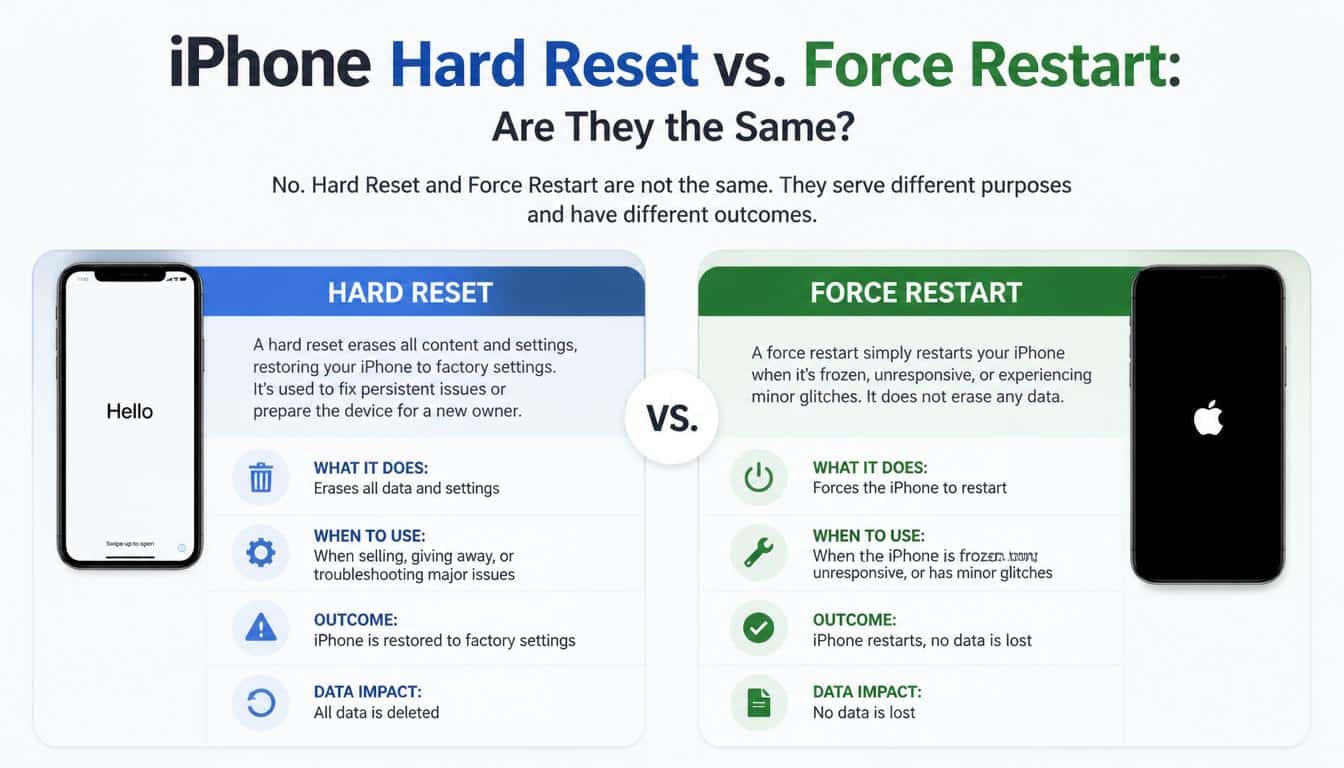
The phrase iPhone hard reset is used casually in different ways, which can cause a fair bit of confusion. Some people use it to describe a force restart, while others mean erasing the phone and restoring it to factory settings.
These are two very different actions, so it’s worth understanding the distinction before pressing any buttons.
A force restart simply restarts the device using its hardware buttons. It is intended to help when iOS or the touchscreen becomes unresponsive, and it does not normally erase stored personal data.
A factory reset, on the other hand, removes personal information and settings from the device as part of the erasure process. It may be appropriate in some situations, but it is not the first thing you should try when your phone freezes.
Here is a simple comparison:
| Feature | Force restart | Factory reset |
| Main purpose | Recover from an unresponsive device | Erase the device and its settings |
| Uses physical buttons | Yes, for the restart sequence | Not necessarily |
| Normally erases personal data | No | Yes |
| Requires a responsive screen | No | Often, unless using a recovery method |
| Best first step for a temporary freeze | Often yes | No |
If you are simply trying to get a frozen phone working again, start with a force restart rather than looking for a factory-reset option. It’s the less disruptive approach and usually makes more sense for a temporary software glitch.
iPhone Restart Troubleshooting: What to Check After the Phone Reboots
Getting your iPhone to restart is a good first step, but it doesn’t always explain why the problem occurred. If the phone works normally afterwards, take a few minutes to check whether everything is behaving as expected.
Check for iOS Updates
If your phone repeatedly freezes, check whether an iOS update is available under Settings. Software updates can address bugs and compatibility issues, although not every update fixes every problem.
Before installing a major update, ensure that the device has sufficient battery power and that your important data is backed up.
Update Problematic Apps
If one particular application keeps freezing, open the App Store and check whether an update is available. You may also try closing the app and launching it again.
If the issue started immediately after installing an app, pay attention to whether the same behaviour happens whenever you use it.
Review Available Storage
Very limited free storage can contribute to performance problems. If your iPhone becomes responsive again, review the storage information in Settings and consider removing unnecessary downloads or applications.
Avoid deleting important files in a hurry, especially if you don’t have a backup.
Check Battery and Device Temperature
An ageing battery or unusually high temperature can affect how your iPhone performs. If the device becomes very hot, allow it to cool naturally in a safe place, away from direct sunlight.
If shutdowns, restarts, or freezes happen frequently, check the Battery section in Settings for available battery-health information.
Back Up Important Information
Once the phone is working, make sure important photos, contacts, messages, and other data are backed up through iCloud or a computer.
A force restart is generally safe for personal data, but recurring startup issues can sometimes indicate a more serious underlying fault. Having a recent backup gives you more options if further troubleshooting becomes necessary.
Common Mistakes to Avoid When You Force Restart an iPhone
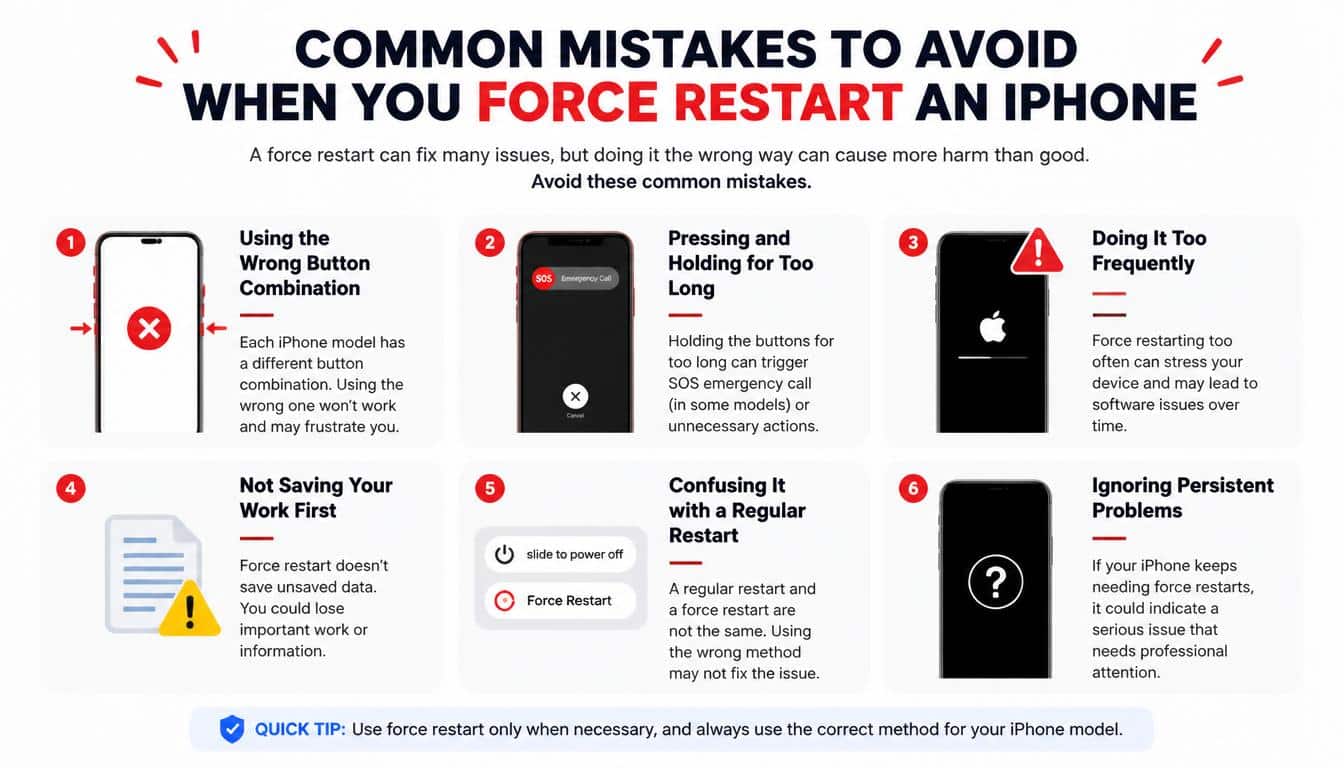
The restart procedure is simple enough, but a few small mistakes can make it seem as though the method doesn’t work.
- Holding the volume buttons for too long: On models that use the modern sequence, press and quickly release Volume up, then Volume down. The long hold comes afterwards.
- Pressing the buttons in the wrong order: The sequence matters. Follow the instructions for your exact model instead of experimenting.
- Releasing the Side button too early: Keep holding it until the Apple logo appears, unless you encounter signs of damage or another safety concern.
- Assuming a black screen always means a dead phone: The battery may be depleted, the display may have failed, or the operating system may be stuck.
- Trying the same sequence on every model: iPhone 7 models and older Home-button models use different combinations.
- Factory-resetting the phone unnecessarily: A force restart is not the same as erasing your device. Avoid destructive recovery steps unless they are genuinely needed.
- Ignoring repeated freezes: If the issue keeps returning, look beyond the immediate restart and investigate software updates, battery condition, storage, and possible hardware faults.
The most useful habit is to make one careful attempt using the right sequence, then observe what happens. Randomly pressing buttons over and over rarely provides useful information and can make an already frustrating situation feel worse.
When Should You Seek Professional iPhone Support?
A force restart can resolve temporary software hangs, but it cannot repair a broken button, a damaged display, or a failing battery. Knowing when to stop troubleshooting is just as important as knowing which buttons to press.
Consider contacting Apple Support or a qualified repair professional if:
- The iPhone repeatedly freezes even after restarting.
- The Apple logo appears, disappears, and returns in a continuous loop.
- The screen remains black while the phone appears to be running.
- The hardware buttons do not respond consistently.
- The device was dropped or exposed to liquid before the issue began.
- Your iPhone will not charge or start after trying a known-working charging setup.
- The phone becomes unusually hot, has a swollen battery, or shows signs of physical damage.
You can start with the official iPhone Support website for model-specific instructions and troubleshooting resources.
If a computer-based recovery procedure becomes necessary, read the instructions carefully before proceeding. Some recovery options may require updating or restoring iOS, and certain restore procedures can erase data.
If your information is not backed up, ask about the available options before choosing a destructive step.
Frequently Asked Questions About Force Restarting an iPhone
Will a force restart delete my photos and messages?
No, a standard force restart does not normally erase your photos, messages, apps, or other personal information. It simply restarts the device. Unsaved activity may be lost, and data risks are different if you later perform a restore or factory reset.
How long should I hold the Side button?
On iPhone models that use the Volume up, Volume down, and Side button sequence, continue holding the Side button until the Apple logo appears. It can take several seconds, so avoid releasing it prematurely.
Can I force restart an iPhone if the touchscreen is completely frozen?
Yes. That’s one of the main reasons the procedure is useful. The button combination does not depend on the touchscreen responding.
What if the Apple logo never appears?
First, confirm that you are using the correct sequence for your model. If the phone remains unresponsive, charge it for around 30 minutes and try again. If there is still no response, investigate the charging accessories and consult Apple Support.
Is force restarting an iPhone bad for the battery?
An occasional force restart is not generally harmful to the battery. However, frequently needing to force restart a phone suggests that you should investigate the underlying issue rather than treating the restart as a permanent fix.
Can I force restart my iPhone without a working power button?
Usually, the standard force-restart procedure requires a functioning Side, Top, or other specified hardware button. If that button is broken or unresponsive, the normal combination may not work. Check Apple’s support guidance for your model or arrange a repair.
Does a force restart fix every frozen iPhone?
No. It can help with temporary software problems, but it won’t resolve every cause of a frozen screen, a failed battery, a broken display, or a hardware fault. Persistent problems need further troubleshooting.
How to restart iphone
To restart your iPhone, turn it off and then turn it back on using the side button and volume buttons, or go to Settings > General > Shut Down. Wait a few seconds before turning it back on.
How to reset iphone
To reset your iPhone’s settings, go to Settings > General > Transfer or Reset iPhone > Reset, then choose the reset option you need. If you want to erase all your data, select Erase All Content and Settings instead.
How to hard reset iphone
To hard reset your iPhone, use the appropriate button combination for your model to force it to restart. This process does not normally erase your data and is useful when your iPhone is frozen or unresponsive.
Hard reset iphone
A hard reset forces your iPhone to restart when it stops responding or the screen freezes. On compatible models, quickly press and release Volume Up, quickly press and release Volume Down, then press and hold the Side button until the Apple logo appears.
How to force restart iphone
To force restart your iPhone, quickly press and release the Volume Up button, then the Volume Down button, and hold the Side button until the Apple logo appears. Release the Side button when the logo appears.
Read More: https://gracethemes.com/what-is-a-chief-technical-officer-and-how-to-become-one/
Final Thoughts: Get Your iPhone Working Again With Confidence
When your iPhone freezes, it can feel as though a small but essential part of your day has suddenly been put on hold. Messages remain unanswered, important calls may be missed, and even a simple task becomes unnecessarily complicated. The good news is that you don’t always need a repair appointment or a complicated technical solution to get moving again.
Learning how to Force restart iPhone models gives you a straightforward first step when the screen stops responding or the usual shutdown controls fail. Remember the essential rule: newer models generally use the Volume up, Volume down, and Side button sequence, while the iPhone 7 family and older Home-button models require different combinations.
Once your phone restarts, pay attention to whether the problem returns. A one-time freeze may be nothing more than a temporary software hiccup, while repeated failures deserve a closer look at iOS, apps, charging, battery health, and possible hardware damage.
Most importantly, don’t panic or jump straight to erasing your device. Start with the simplest appropriate troubleshooting step, protect your important data, and turn to Apple Support when the problem needs more than a restart.
A little knowledge can make a frustrating moment much easier to handle. The next time your iPhone decides to stop cooperating, you’ll know what to try, what to avoid, and when it’s time to ask for help.
