
Plan the Headshot Workflow Before Building a WordPress Team Page
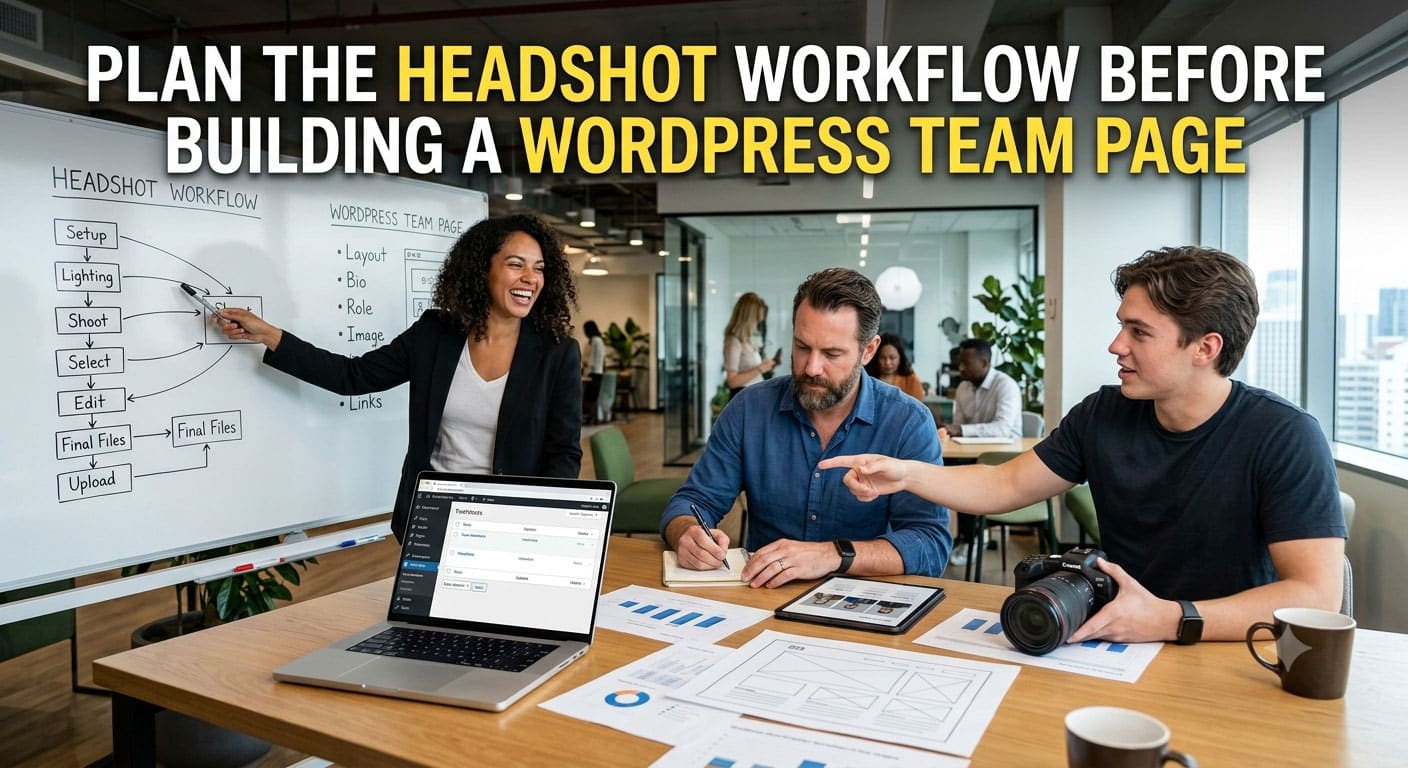
A WordPress team page can look finished in a design file and still become inconsistent after the real portraits arrive. One person submits a studio photo, another sends a cropped phone picture, and a third provides an image with half the office in the background. The theme may place every file inside the same card, but identical dimensions do not create a coherent visual system.
The useful question is not simply whether every team member has a photo. It is whether the portrait workflow gives WordPress assets that remain clear, consistent, and easy to replace. Before uploading anything to the Media Library, define the visual rules, create one approved direction, and test it inside the actual theme.
Define the Portrait Contract Before Collecting Photos
Start with the component that will display the portraits. Record its aspect ratio, smallest rendered size, largest rendered size, and expected crop on mobile. Decide whether the face should sit near the center or leave room for text beside it. These choices create an asset contract for every image that follows.
The contract should also cover visual tone. A formal company directory may need restrained clothing, neutral backgrounds, and even lighting. A creative agency may allow more color and variation while still keeping similar framing. Consistency does not require every portrait to look identical. It requires the differences to feel deliberate inside the same interface.
Review one portrait in three places before approving the direction: the full team grid, an individual biography page, and the narrowest mobile layout. A crop that works in a large profile can cut into hair or shoulders inside a compact card. Finding that problem early is easier than correcting an entire library later.
Create One Approved Portrait Direction
Do not generate or retouch every headshot at once. Begin with one representative image and treat it as a visual prototype. The first approval should answer practical questions about crop, clothing, background contrast, lighting, and how much space remains around the face. Professional-Headshot.ai allows a visitor to generate and download one watermarked preview for free without signing up, so a team can test that direction before deciding whether it needs a watermark-free download or the additional Pro and Ultimate workflow.
Start with a Clear Reference Photo
A recent photo with a clearly visible face gives the workflow a useful starting point. If a team member has no suitable studio portrait, Professional-Headshot.ai can help turn an existing photo into a professional headshot while its agent arranges the clothing, background, and lighting around the reference. Preferences are optional: an editor can describe the intended role and visual direction or leave the choices to the agent. This can reduce the need to coordinate a separate photo session for every update.
The source still matters. Choose an image that is sharp enough to show facial details and free from heavy filters or extreme angles. More reference photos can provide additional guidance, but a larger upload set does not repair a poor visual brief. Approve the purpose and composition before increasing the number of inputs.
Write a Bounded Visual Brief
Describe the page context instead of stacking style adjectives. “Approachable portrait for a WordPress consulting team page, neutral background, simple jacket, head-and-shoulders crop” gives reviewers concrete details to inspect. Words such as premium, cinematic, or unforgettable sound ambitious but do not establish a reliable crop or background.
Keep the background compatible with the theme. A very bright portrait can disappear against a white card, while a dark background may merge into a dark-mode section. Test the intended background tone beside the real typography, borders, and spacing rather than approving it in an isolated image viewer.
Review a Checked Shortlist
Generating several images is not the same as preparing an editorial choice. In Pro and Ultimate, the agent checks candidates for visible problems such as distorted glasses, unnatural eyes or teeth, and changes to facial features. It attempts to repair or replace affected photos and leaves out results that still fail those checks. This reduces the chance that an obviously flawed candidate reaches the WordPress review stage, although the editor and the person pictured should still approve the final portrait.
For each scene, Pro and Ultimate provide one recommended headshot and two alternatives. A scene represents a particular combination of clothing, background, and lighting. Put that focused set into the real team component and compare the crop, expression, contrast, and fit with adjacent profiles. The value is not an endless gallery; it is a smaller set that connects generation to an actual publishing decision.
Prepare the Files for WordPress
The approved portrait is a source asset, not automatically the final web file. Create a delivery version that matches the component’s aspect ratio and does not carry unnecessary pixels. WordPress can generate responsive image sizes, but it should not be used as an excuse to upload oversized originals to every profile.
Keep width and height metadata available so the browser can reserve space before the image loads. This reduces layout movement in the team grid. Use a modern image format supported by the project’s media pipeline, and confirm that compression does not soften eyes, glasses, hair, or the boundary between the subject and background.
File names should support maintenance. A stable convention using the person’s name, role, and revision date is more useful than a collection of files called final, final-new, and final-2. When a portrait changes, editors should be able to identify the active asset without opening every item in the Media Library.
Build the Team Component Around Real Content
Place the approved portrait inside the actual WordPress component with the real name, role, biography length, and destination link. Placeholder text hides layout problems. A long job title can change the card height, while a short biography may leave the portrait carrying too much visual weight.
Control Cropping at Each Breakpoint
If the component uses a fixed frame, define how the image fills it and where the focal point sits. A centered crop often works, but some portraits need a small vertical adjustment to preserve hair and shoulders. Store that adjustment as content data or a documented component option instead of embedding unexplained CSS for one person.
Check the image at every supported breakpoint. Desktop, tablet, and mobile cards may use different proportions even when they share the same source. The pass condition is that the face remains clear and the composition still feels intentional wherever the theme places it.
Keep Text and Images Independent
Names, roles, and biographies belong in editable WordPress fields, not inside the image. Search engines, screen readers, translators, and future editors all need access to that text. The portrait should support the profile rather than become the only place where essential information appears.
Alternative text should reflect the page context. On a team directory, the person’s name and role may be useful when the portrait communicates identity. Decorative duplicates can use empty alternative text when adjacent text already provides the same information. Avoid generic labels such as “professional image,” which add little value.
Test Performance in the Real Theme
A clean portrait grid can still load poorly when every image is delivered at its original resolution. Test the page with a cold cache and a slower mobile connection. Confirm which file size the browser requests, whether dimensions are reserved, and whether the page remains readable while images are still arriving.
Portraits below the first screen can usually load later. A portrait that is part of the opening section may need different priority. Apply loading behavior according to position rather than giving every team image the same treatment. The theme, caching layer, CDN, and image plugin should cooperate instead of producing several competing versions of the same file.
Inspect the visual result after optimization as well as the transfer size. Aggressive compression can create halos around hair or blocky gradients in a simple background. A smaller file is not a successful release when the face looks visibly damaged at the rendered size.
Plan for New Hires and Profile Updates
The workflow is complete only when another editor can repeat it. Document the accepted source-photo characteristics, portrait brief, aspect ratio, export range, file naming rule, and WordPress fields. Include the review breakpoints and identify who approves a replacement.
Keep the person involved in the final selection. A technically consistent image can still be the wrong portrait if the expression or presentation does not feel appropriate to them. Obtain permission to publish the selected photo and provide a clear way to request replacement or removal.
When a new team member joins, run one portrait through the same checks instead of redesigning the visual system. If the new photo requires a different crop or background, decide whether the exception improves the full page or only solves one isolated asset. A maintainable team page favors rules that survive the next update.
Refine the Portrait without Restarting the Workflow
Sometimes the face and expression work while one design detail does not. With Pro or Ultimate, an editor can select a portrait and request a change in ordinary language, such as keeping the expression and jacket while replacing the background with a light gray tone. Outfit and expression changes can be requested in the same way.
The original photos continue to guide the edit, and earlier versions remain available for comparison during the storage period. For a growing WordPress team page, that makes a focused correction more practical than beginning a new visual direction every time one portrait conflicts with the established component.
Use Three Release Gates
Before publishing the page, review each portrait through three gates. This turns a general request for consistency into a repeatable decision that designers, developers, and content editors can apply.
| Gate | What to inspect | Pass condition |
| Source | Reference-photo clarity, optional preferences, and the free watermarked preview | The agent has enough facial detail to propose clothing, background, and lighting, and the preview confirms that the direction is worth testing |
| Component | The recommended result and two alternatives, crop, contrast, real profile content, and mobile breakpoints | One candidate supports the real WordPress component without hiding content or losing the subject |
| Release | Visible-issue checks, responsive delivery, reserved dimensions, alternative text, permission, and replacement process | The chosen portrait passes human review, loads appropriately, and can be maintained after launch |
A portrait should not advance merely because it looks polished in an image viewer. If it fails the component gate, compare an alternative or revise the background, outfit, expression, or crop. If it fails the release gate, correct the portrait, delivery, or editorial workflow before publishing. Automated checks can remove some visibly flawed candidates, but they do not replace the final review by the editor and the person pictured. The page is ready only when the same asset works as a portrait, a component, and a maintainable WordPress file.
Release the Page Only After the Portrait System Passes
The strongest WordPress team page is not the one with the most polished portrait in isolation. It is the one where every image supports the same component, remains recognizable at real breakpoints, loads at an appropriate size, and can be replaced without rebuilding the layout.
Define the asset contract first, approve one portrait direction, prepare web-ready files, and test them inside the actual theme. Professional-Headshot.ai contributes more than the initial image: its agent can choose the clothing, background, and lighting, Pro and Ultimate can check candidates and provide a recommended result with alternatives, and a selected portrait can be refined through an ordinary-language request. WordPress still needs a disciplined image workflow, but these stages give an editor a clearer path from an everyday reference photo to a reviewed team-page asset. Treat the headshot as part of the interface, and the page will remain coherent long after its first launch.
