

How to Use Keyboard Shortcuts on Mac: The Complete Guide
A Mac has a curious little talent: it can make complicated work feel surprisingly simple, once you know how to speak its keyboard language.
You might spend your mornings writing emails, afternoons editing documents, or late evenings moving between a dozen browser tabs, wondering where all those hours have gone.
A few well-chosen keyboard shortcuts can change that experience more than you’d expect.
Learning how to use keyboard shortcuts on Mac isn’t about becoming a computer expert overnight.
It’s about making everyday tasks smoother, reducing unnecessary clicks, and keeping your attention on the work that matters.
Instead of reaching for the mouse whenever you want to save a file or find a sentence, your fingers begin to handle these little jobs almost without asking.
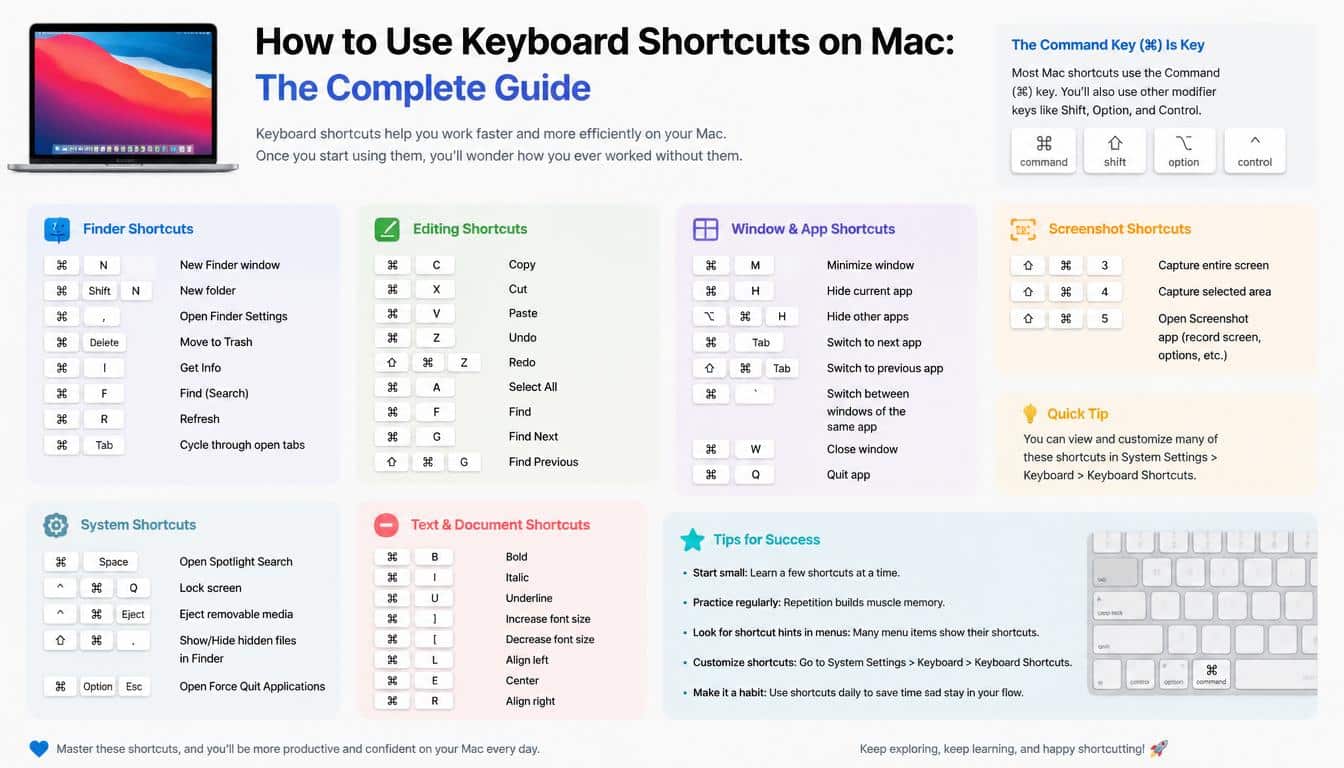
This Mac Keyboard Shortcuts Guide takes you through the essentials, from understanding the Command key to capturing screenshots, switching between applications, editing text, and creating your own shortcuts.
Whether you’re using a MacBook, iMac, Mac mini, Mac Studio, or Mac Pro, you’ll find practical techniques worth learning, even if you’ve only recently moved from Windows.
Understanding Mac Keyboard Shortcuts Before You Begin
A keyboard shortcut is a combination of keys that performs an action without requiring you to navigate through menus. Pressing Command and C copies selected text, for example, while Command and S saves a document in most applications.
The beauty of macOS keyboard shortcuts is that many of them work consistently across different apps. Once you learn the basics in TextEdit, you can often use the same commands in Safari, Notes, Mail, Preview, and plenty of other applications. It’s a small investment of attention that keeps paying you back.
Know Your Mac Keyboard Modifier Keys
Before memorizing combinations, get familiar with the symbols printed on an Apple keyboard. These are the keys that usually work alongside letters, numbers, or arrow keys to trigger an action.
- Command (⌘): The primary modifier for many everyday commands, including copying, pasting, saving, and opening files.
- Option (⌥): Also called the Alt key equivalent on Mac, it can reveal alternative actions or change how another key behaves.
- Control (⌃): Used for particular system commands, contextual actions, and navigation features.
- Shift (⇧): Often changes a command’s behavior or lets you select text while moving the cursor.
- Fn or Globe key: Depending on your keyboard and settings, it can access function keys, emoji, dictation, or other features.
You don’t need to memorize every symbol today. Start with Command, Shift, and Option, because these three will appear in a large number of useful Mac shortcut keys.
How to Read Mac Shortcut Symbols
When a guide displays ⌘C, it means you should hold Command and press C. When it shows ⇧⌘3, hold Shift and Command, then press 3. Release the keys after the command registers, unless the shortcut requires you to hold them longer.
On many Mac keyboards, Command sits beside the Space bar, making it easy to reach with your thumb. The Option key is nearby, too, so modifier combinations quickly become comfortable with a little practice.
Essential Mac Keyboard Shortcuts for Everyday Use
If you learn only a handful of commands at first, make them the ones you use repeatedly. Copying, pasting, undoing mistakes, and saving files are ordinary tasks, but they’re also the moments when keyboard shortcuts save you from a surprising amount of unnecessary movement.
Here is a practical Mac keyboard shortcuts cheat sheet to keep nearby while you build the habit.
| Action | Shortcut |
| Copy selected content | ⌘C |
| Paste copied content | ⌘V |
| Cut selected content | ⌘X |
| Undo the last action | ⌘Z |
| Redo an action | ⇧⌘Z |
| Select all | ⌘A |
| Find text or content | ⌘F |
| Save a document | ⌘S |
| Open a file | ⌘O |
| Create a new document or window | ⌘N |
| Print the current document | ⌘P |
| Close the current window | ⌘W |
| Quit the current application | ⌘Q |
These are the basic Mac keyboard shortcuts you’ll encounter in many everyday applications, although individual apps may handle certain commands differently.
Imagine you’re preparing a report and accidentally delete a paragraph. Rather than searching through menus in mild frustration, press Z.
Need to move a sentence into another document? Select it, press ⌘C, switch documents, and press ⌘V. The whole process becomes a tidy sequence instead of a mouse-driven detour.
One important distinction: ⌘W usually closes a window or document, whereas ⌘Q quits the application. They aren’t interchangeable, and learning the difference will save you a bit of confusion when several windows are open.
How to Use Keyboard Shortcuts on Mac to Manage Apps and Windows
Working on a Mac often means juggling a browser, messaging app, spreadsheet, music player, and perhaps a document you promised to finish yesterday. The challenge isn’t always doing the work; sometimes it’s simply finding the right window again.
Fortunately, Mac window management shortcuts let you move around without losing your train of thought.
Switch Between Open Applications
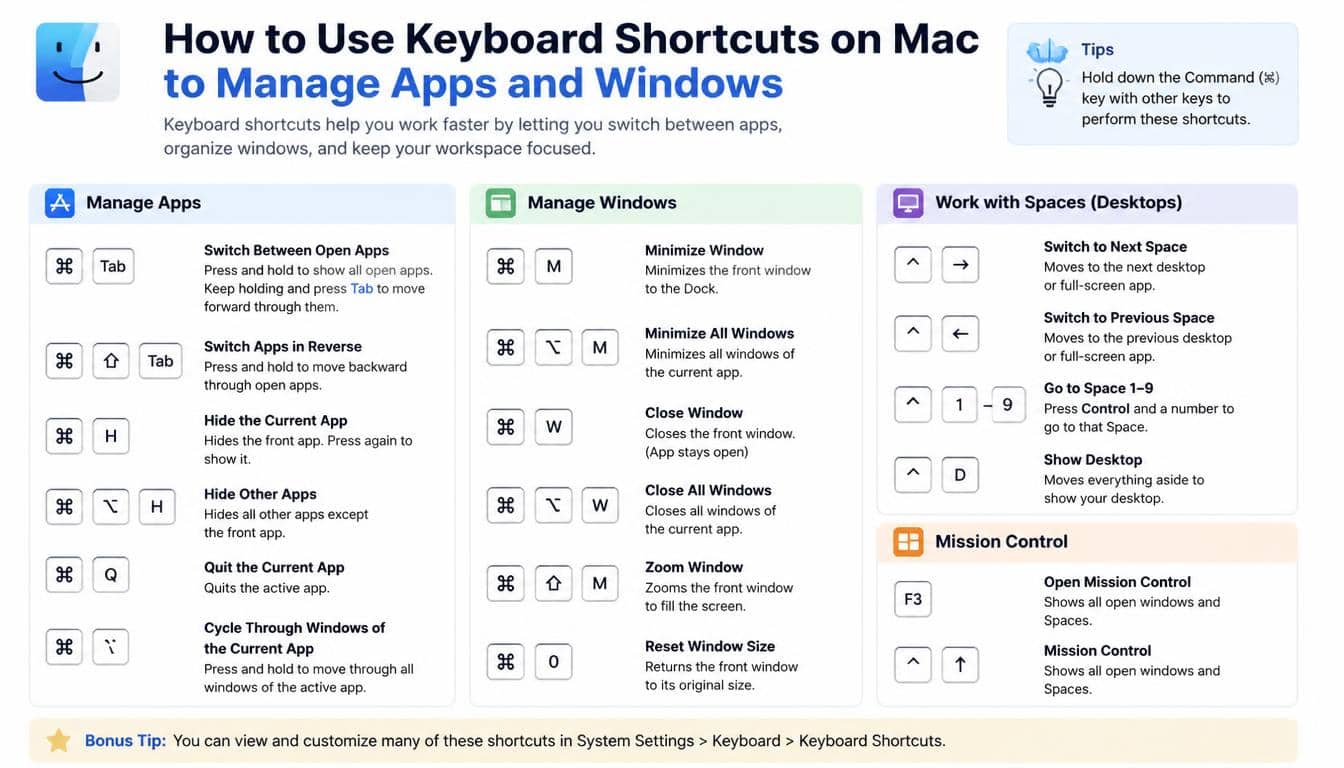
Press ⌘Tab to display the application switcher. Keep holding Command and tap Tab to move through the open apps, then release the keys to switch to the selected one.
This is one of the most useful shortcuts for anyone who regularly moves between different tasks. You can read a message, return to your spreadsheet, and open a browser reference without repeatedly searching the Dock.
To switch between windows belonging to the same application, use ⌘` (Command and the grave accent key), where supported. The exact key position depends on your keyboard layout, so check which physical key produces the grave accent on your device.
Hide, Minimize, and Maximize Windows
- Hide an application: ⌘H hides the current app’s windows without quitting it.
- Minimize a window: ⌘M sends the current window to the Dock.
- Enter or leave full-screen mode: ⌃⌘F works in applications that support the command.
- Show Mission Control: Control and the Up Arrow (⌃↑) displays an overview of open windows and desktops on supported configurations.
Hiding an application can be especially useful when your screen has become a crowded little city of open windows. The app remains available, but the desktop looks calmer.
Use Mission Control and Virtual Desktops
Mission Control helps you see open windows and move between your workspaces. Press ⌃↑ to open the overview on a typical Mac keyboard configuration, or use the trackpad gesture configured in System Settings.
You can create separate desktop Spaces for different kinds of work. One desktop might hold your writing tools, another your research tabs, and a third your personal apps. Switch between Spaces using the configured Control-plus-arrow shortcuts, or the gestures available on your Mac.
The point isn’t to create a dozen desktops and admire your organizational ambition. Two or three purposeful spaces are usually more helpful than a digital maze.
Finder Shortcuts for Files, Folders, and Documents
Finder is where you browse files, locate downloads, organize folders, and occasionally discover documents you forgot you had. Once you know a few Finder keyboard commands, managing files becomes much less fiddly.
Here are some useful combinations to remember:
- N: Open a new Finder window.
- N: Create a new folder.
- Delete: Move the selected file to the Trash.
- Space: Open Quick Look for a selected file.
- I: Open the Get Info window for a selected item.
- F: Search for files or other content in Finder.
- O: Open the selected file or folder, depending on the context.
- 1, ⌘2, ⌘3, or ⌘4: Change Finder’s view in supported configurations.
Suppose you’ve downloaded a folder full of documents and need to identify one without opening every file. Select a document and press Space. Quick Look gives you a preview, which is often enough to identify the right item.
If you’re organizing a project, create folders with ⇧⌘N and give them descriptive names before the files start multiplying. It’s a modest habit, but future-you will appreciate it when a deadline is approaching.
Remember that ⌘Delete moves an item to the Trash; it doesn’t necessarily erase it permanently. That’s a useful distinction when your fingers move faster than your judgement.
Spotlight and System Utilities: Find Things Faster
Some of the most valuable Apple keyboard shortcuts don’t edit documents at all. They help you locate information, launch applications, or recover from technical trouble.
Open Spotlight With Command and Space
Press ⌘Space to open Spotlight on many standard macOS configurations. Type an app name, a document title, a calculation, or another search term, then choose the result you need.
Rather than opening Finder, browsing the Applications folder, and hunting for a program, you can type its name and launch it directly. For simple calculations, Spotlight can also provide answers without requiring you to open a calculator.
If ⌘Space doesn’t work, check your keyboard shortcut settings. Another app or a customized system configuration may have assigned the same combination to something else.
Force Quit an Unresponsive Application
When an application freezes, repeatedly clicking its window rarely makes the situation better. Press ⌥⌘Esc to open the Force Quit Applications window, select the unresponsive app, and choose Force Quit.
Use this command carefully. Unsaved changes in the affected app may be lost, so give it a moment to recover first if it appears to be temporarily busy.
For more detailed troubleshooting, Activity Monitor can show CPU use, memory consumption, and running processes. You can find it through Spotlight by searching for “Activity Monitor.”
Explore System Settings
System Settings is where you can customize keyboard behavior, accessibility options, trackpad gestures, and many other parts of macOS. On older Mac operating systems, the corresponding interface is called System Preferences.
There’s no single universal shortcut for every setting, so Spotlight is often the easiest way to reach the one you’re looking for. Search for the setting by name instead of clicking through multiple categories.
Screenshot Shortcuts on Mac: Capture Anything on Your Screen
Screenshots are handy for documenting an error, sharing instructions with a colleague, saving a visual reference, or showing a friend exactly which button they need to press. The built-in Mac screenshot keyboard shortcuts make the process remarkably straightforward.
Capture the Entire Screen
Press ⇧⌘3 to capture the entire screen. On standard macOS configurations, the screenshot is saved as a file, usually on the desktop unless you’ve changed the destination.
If you’re using multiple displays, the capture behavior can depend on your system setup. Check the resulting files to make sure you’ve captured the right content.
Capture a Selected Area
Press ⇧⌘4 to turn the pointer into a selection crosshair. Drag across the part of the screen you want to capture, then release to take the screenshot.
This is particularly useful when you want to share a small part of a document without exposing unrelated windows or private information elsewhere on the screen.
After pressing ⇧⌘4, you can also press Space to switch to window-capture mode on supported configurations. Move the camera-style pointer over a window and click to capture it.
Open the Screenshot Toolbar
Press ⇧⌘5 to open the screenshot toolbar. It provides options for capturing the whole screen, a window, or a selected area, along with screen-recording controls and other capture settings.
The toolbar is useful when you want more control over the process. You can choose where captures are saved, set a timer, and configure available recording options.
Copy a Screenshot to the Clipboard
If you want to paste a screenshot directly into a message or document rather than create a separate file, add Control to the relevant screenshot shortcut. For example, Control-Shift-Command-3 copies a full-screen capture to the clipboard on supported macOS versions.
Afterward, press ⌘V in a compatible destination. This can be quicker than creating a file, locating it, and attaching it manually.
Text Navigation Shortcuts for Faster Writing and Editing
Keyboard shortcuts aren’t only about moving files or opening applications. They can transform the way you write, particularly when you’re editing long emails, articles, reports, or other documents.
Once you learn text navigation shortcuts, you can move through paragraphs with greater precision and select words without repeatedly reaching for the mouse.
Move the Cursor Without Using the Mouse
The arrow keys move the insertion point through text. Modifier keys change how far the cursor travels, although the exact behavior can vary by app and text field.
- Option + Left or Right Arrow: Often moves the cursor by one word.
- Command + Left or Right Arrow: In many text editors, moves to the beginning or end of the current line.
- Command + Up or Down Arrow: Often moves to the beginning or end of a document.
- Control + A: In many standard text fields, moves to the beginning of the line or paragraph.
- Control + E: In many standard text fields, moves to the end of the line or paragraph.
These combinations are especially helpful when correcting a sentence in the middle of a long paragraph. Instead of clicking at an approximate position, you can move the cursor exactly where you need it.
Select Text With Keyboard Shortcuts
Add Shift to a cursor movement command to select text as you move.
For instance, Shift plus an arrow key selects characters in the corresponding direction. Option-Shift plus an arrow key commonly selects text word by word, while Command-Shift plus an arrow key can select to a line boundary in supported editors.
This makes editing more controlled. You can highlight a phrase, replace a word, or remove a section without accidentally selecting half the page.
Make Text Editing Feel Natural
Imagine you’re revising an email and notice a clumsy sentence near the beginning. Use the relevant cursor movement shortcut, select the phrase, type the replacement, and press ⌘S if the application supports saving that document.
The goal is not to eliminate the mouse from your life entirely. It’s to use whichever method keeps you focused, especially when repeated editing begins to interrupt your thinking.
How to Create Custom Keyboard Shortcuts on Mac
Eventually, you may notice that an application has a menu command you use constantly but no convenient shortcut for it. That’s where custom keyboard shortcuts on Mac can be useful.
macOS allows you to assign shortcuts to many application menu commands through System Settings, although not every command or app supports customization in the same way.
Create an App-Specific Shortcut
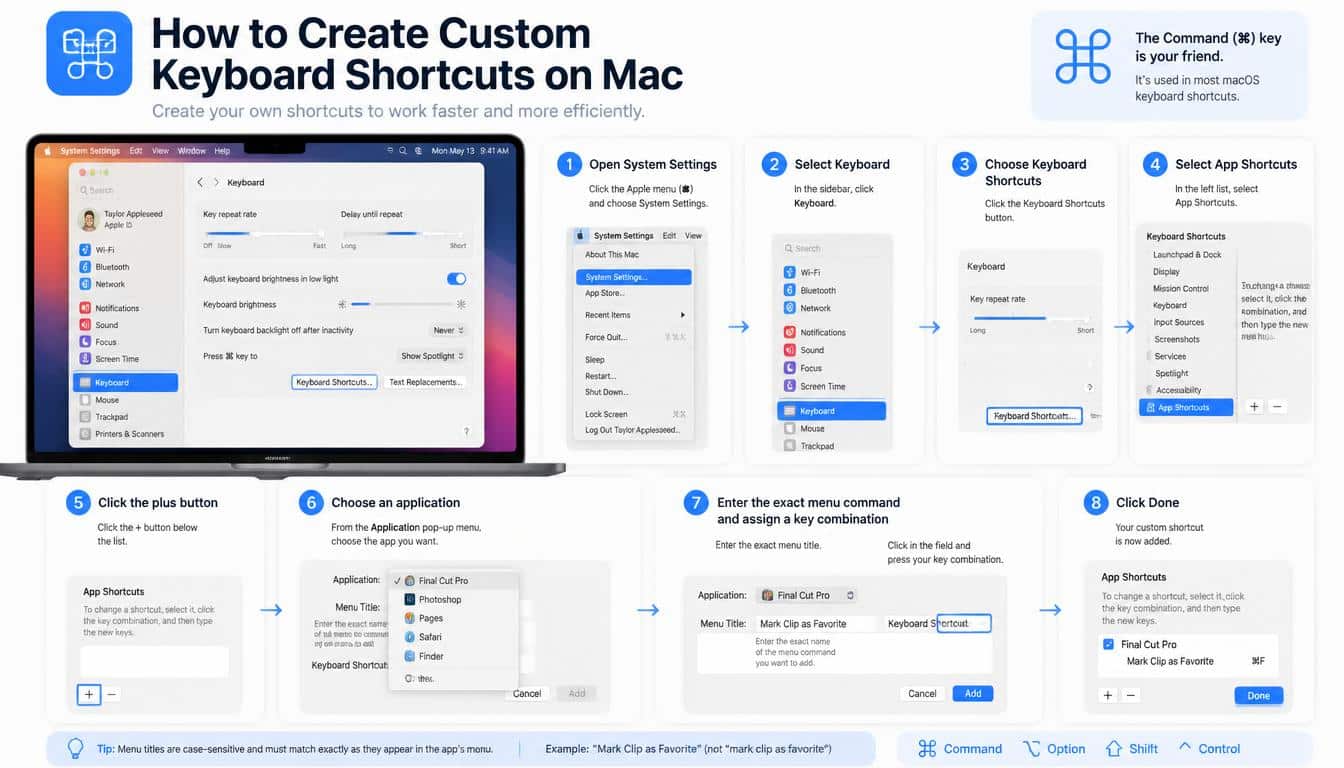
To create a custom shortcut on a supported version of macOS:
- Open the Apple menu and select System Settings.
- Navigate to Keyboard.
- Open Keyboard Shortcuts.
- Look for App Shortcuts in the sidebar.
- Select the option to add a shortcut.
- Choose the application, or select All Applications if the command should apply more broadly.
- Enter the menu command’s name exactly as it appears in the app.
- Click the keyboard shortcut field and press your preferred key combination.
- Confirm the change and test the shortcut in the relevant application.
Menu command spelling matters. If the command is named “Export as PDF…” in the app, entering a different name may prevent your shortcut from working.
Avoid combinations already used for important system functions or commands within the application. Otherwise, your clever shortcut may cause more confusion than convenience.
Customize Modifier Keys
If the default keyboard layout feels awkward, macOS also offers modifier-key customization for supported keyboards. You can change how certain keys behave, which may be useful if you’re connecting an external keyboard with a different layout.
Check System Settings under Keyboard for the available modifier-key options. The exact controls can vary depending on the macOS version and connected hardware.
MacBook, iMac, and External Keyboard Shortcuts
A common question is whether MacBook keyboard shortcuts work on an iMac, Mac mini, Mac Studio, or Mac Pro. In general, the standard macOS commands remain the same across these computers.
The main differences usually come from the physical keyboard, function-key settings, connected accessories, or the application you’re using. A MacBook’s built-in keyboard may have different function-row behavior from an external Apple keyboard or a third-party model.
What If You’re Switching From Windows to Mac?
Windows users often expect the Ctrl key to perform the role that Command handles on a Mac. For common editing commands, the adjustment is usually simple:
- Windows Ctrl+C becomes Mac ⌘C.
- Windows Ctrl+V becomes Mac ⌘V.
- Windows Ctrl+Z becomes Mac ⌘Z.
- Windows Alt is broadly comparable to the Mac Option key, though their functions are not identical.
- Windows Alt+Tab and Mac ⌘Tab both help switch applications, but the key combinations differ.
Give yourself time to adjust. Your hands may instinctively reach for Control during the first few days, and that’s perfectly normal. Repetition will gradually make the Apple keyboard layout feel less unfamiliar.
Boost Productivity With Better Keyboard Habits
Knowing a hundred shortcuts doesn’t automatically make you productive. In fact, trying to memorize too many at once can leave you spending more time recalling commands than completing your work.
A better approach is to choose shortcuts that remove friction from tasks you already perform every day.
Build Muscle Memory Gradually
Start with copy, paste, undo, save, app switching, and screenshots. Use these commands deliberately until they become familiar, then add more advanced shortcuts when you encounter a real need for them.
You can also keep a small Mac keyboard shortcut reference near your workspace. A short, relevant cheat sheet is often more helpful than a huge list you never consult.
Protect Your Focus
If you work on writing or research, fewer interruptions can make a noticeable difference. Switch between applications with ⌘Tab, use Spotlight to launch tools, and move through text with keyboard commands rather than constantly changing your grip.
Some people use the Flowtime Technique, working in focused stretches and taking breaks when their concentration naturally fades.
Keyboard shortcuts can complement that approach by reducing small interruptions, although they won’t replace good planning or regular rest.
The best workflow is the one that suits your actual habits, not an elaborate productivity system that looks impressive but becomes another task to manage.
Explore AI-Assisted Typing Carefully
Writers who spend hours composing emails, notes, or documents may also explore text expansion and AI-assisted typing tools. These can suggest phrases, complete sentences, or help reduce repetitive typing, depending on the product.
Cotypist is one name worth researching in the context of AI-assisted typing and autocomplete for Mac. Before choosing any typing assistant, check its current features, compatibility,
pricing, privacy policy, and how it handles your text. Product capabilities and paid-plan details can change, so verify them directly rather than relying on old descriptions.
Tools such as GitHub Copilot serve a different primary purpose, focusing largely on coding assistance. They shouldn’t automatically be treated as interchangeable with general-purpose typing or text-expansion software.
Whatever tool you use, keep control over the final message. AI suggestions can save time, but they still need your judgement, especially when the writing involves personal information, sensitive details, or a particular voice.
How to Remember Mac Keyboard Shortcuts Without Feeling Overwhelmed
There’s no need to turn learning shortcuts into an examination. The easiest method is to connect each combination with an action you already understand.
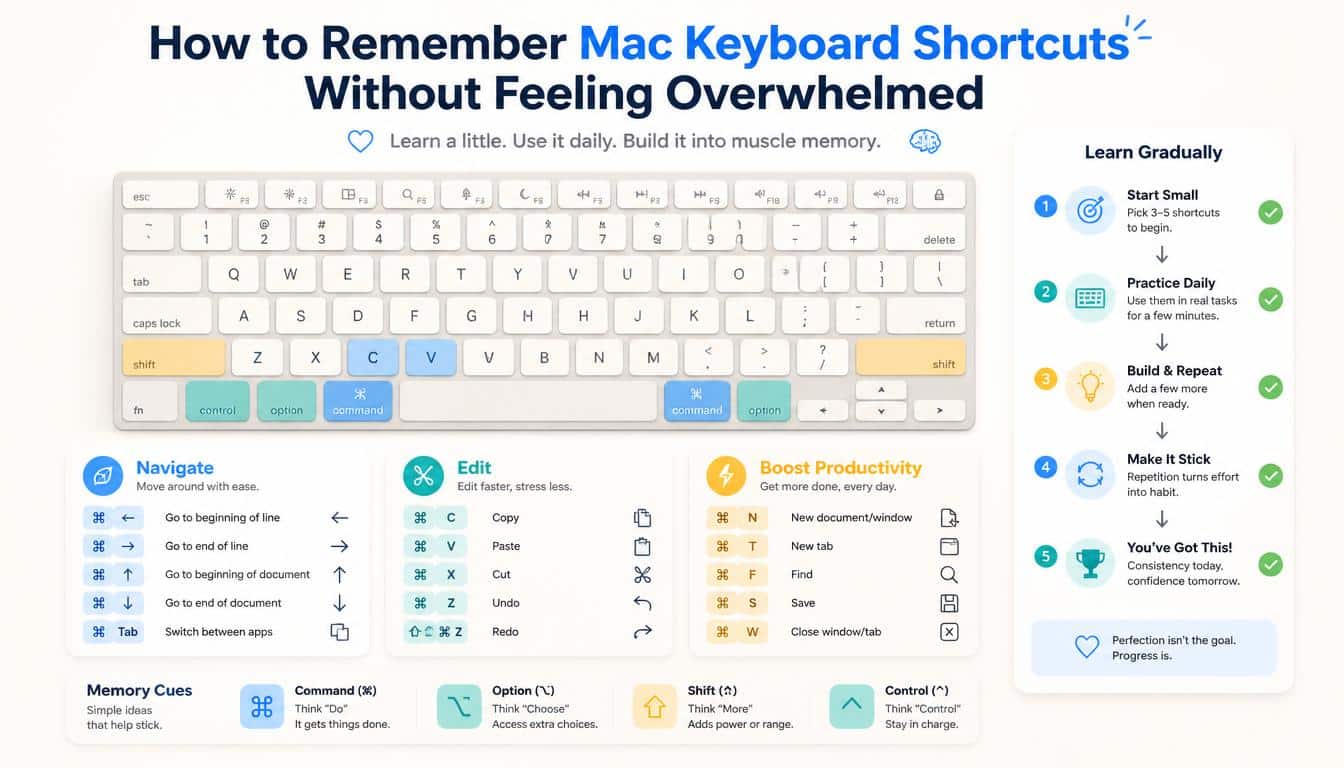
For example, remember ⌘S when saving a document, ⌘F when finding a phrase, and ⌘Z when reversing a mistake. Whenever possible, learn a shortcut at the moment you need it instead of memorizing an entire chart in advance.
Here are a few habits that can help:
- Learn three to five shortcuts at a time.
- Practise them in applications you already use.
- Repeat the same commands over several days.
- Keep a short reference list of your most useful combinations.
- Add advanced shortcuts only when they solve a genuine problem.
- Check an application’s menus when you forget a command; shortcuts are often displayed beside menu items.
You can practise in TextEdit, for example, by creating a document, typing a few sentences, selecting a phrase, copying it, pasting it elsewhere, and undoing a change. This simple exercise introduces several core commands without requiring special software.
Over time, the keyboard begins to feel less like a collection of buttons and more like a direct way to communicate with your computer.
Frequently Asked Questions About Mac Keyboard Shortcuts
What are the most useful Mac keyboard shortcuts?
Start with ⌘C for copy, ⌘V for paste, ⌘Z for undo, ⌘S for save, ⌘Tab for switching apps, and ⌘Space for Spotlight. These commands cover common tasks and are easy to practise throughout the day.
How do I copy and paste on a Mac?
Select the text, file, or other supported content you want to copy, then press ⌘C. Move to the destination and press ⌘V. To move selected content rather than duplicate it, use ⌘X where cutting is supported.
What is the Alt key called on Mac?
The closest general equivalent is the Option key, marked ⌥. However, Option and Windows Alt do not perform exactly the same functions in every application.
How do I switch between apps on Mac?
Press ⌘Tab and keep Command held while you select the application you want. Release Command to switch to it. You can also click an application in the Dock if that feels easier.
How do I force quit an app using the keyboard?
Press ⌥⌘Esc, select the unresponsive application, and choose Force Quit. Remember that unsaved changes may be lost when you force an application to close.
How do I take a screenshot on a Mac?
Use ⇧⌘3 for a full-screen screenshot, ⇧⌘4 for a selected area, or ⇧⌘5 for the screenshot and screen-recording toolbar. Available options may vary slightly by macOS version.
How do I find keyboard shortcuts in an app?
Open the application’s menu bar and inspect menus such as File, Edit, View, and Window. Many commands display their associated shortcuts beside the menu item. You can also consult the application’s official help documentation.
Do keyboard shortcuts work the same on every Mac?
Most standard macOS shortcuts work across MacBook, iMac, Mac mini, Mac Studio, and Mac Pro computers. Some commands vary by application, keyboard layout, system settings, or macOS version.
Can I create my own keyboard shortcuts?
Yes. Open System Settings, navigate to Keyboard, and look for Keyboard Shortcuts and App Shortcuts. You can assign combinations to supported menu commands, provided the shortcut doesn’t conflict with another command.
Read More: https://gracethemes.com/what-is-the-metaverse/
How to Make Your Mac Keyboard Shortcuts Work for You
The most effective way to use Mac keyboard shortcuts is to build a collection that fits your daily routine.
A writer may rely on text navigation and document commands, a designer may use screenshots and window management, and a student may spend most of the day switching between research, notes, and assignments.
Begin with the tasks that interrupt you most often. If saving files is a constant chore, practise ⌘S. If you lose time moving between applications, learn ⌘Tab. If screenshots are part of your work, start with ⇧⌘3, ⇧⌘4, and ⇧⌘5.
Keep your favourite commands visible until you remember them naturally. You can even create a personal shortcut sheet with only the combinations you use, rather than trying to master every feature in macOS.
Most importantly, give yourself permission to learn slowly. A shortcut that saves two seconds may not seem remarkable on its own, but a habit repeated dozens of times a day can make computer work feel considerably more comfortable.
Your Mac doesn’t need to become a mysterious machine full of hidden tricks. Learn a few commands, practise them in real situations, and add more when the opportunity comes.
Before long, your fingers will know the way, your workflow will feel smoother, and you’ll spend a little less time managing the computer and a little more time doing what you sat down to accomplish.
Have a favourite Mac keyboard shortcut that makes your day easier? Share it with other readers, along with the task you use it for. Someone else might discover that one small combination is exactly what they’ve been missing.
