

How to Reset Your AirPods and AirPods Pro
AirPods are one of those little everyday gadgets that quickly become part of your routine. You pop them in while travelling, listen to music while working, take calls during a busy afternoon, or simply enjoy a few quiet moments without disturbing anyone.
But what happens when your trusted wireless earbuds suddenly refuse to connect, one AirPod stops working, or the charging case seems to have developed a mind of its own?
It’s frustrating, especially when everything was working perfectly yesterday. Sometimes the problem is nothing more than a temporary Bluetooth glitch. Other times, your AirPods may need a complete reset to get things back on track.
The good news is that resetting them is usually pretty straightforward. Whether you own the original AirPods, AirPods 2, AirPods 3, AirPods 4, AirPods 5, or one of the AirPods Pro models, there is a method you can follow to restore their factory settings.
In this guide, we’ll explain how to reset AirPods, how to perform an AirPods factory reset, how to reconnect them to your iPhone or iPad, and what to do when the familiar amber and white status lights don’t appear.
We’ll also cover the newer double-tap reset method, which works differently from the traditional setup-button procedure.
Let’s get those earbuds working again!
Why Would You Need to Reset Your AirPods?
Before jumping into the instructions, it’s worth understanding why a reset might be necessary. Not every AirPods problem requires a factory reset, but there are certain situations where starting fresh can make a noticeable difference.
You might need to reset AirPods if:
- Your AirPods refuse to connect to your iPhone, iPad, or Mac.
- Only one earbud produces sound while the other remains silent.
- Your AirPods keep disconnecting during calls or music playback.
- The charging case doesn’t seem to recognize one or both earbuds.
- You’re experiencing repeated Bluetooth pairing problems.
- Your AirPods appear in Bluetooth settings but won’t connect.
- You’re preparing to give your AirPods to someone else.
- You’ve tried basic troubleshooting without getting anywhere.
A reset clears the existing configuration and pairing information stored by the AirPods. It gives the earbuds a fresh starting point, which can help resolve certain software-related connection problems.
However, remember that resetting cannot repair physical damage, worn-out batteries, or defective charging contacts. If your earbuds have a hardware problem, you’ll need a different solution.
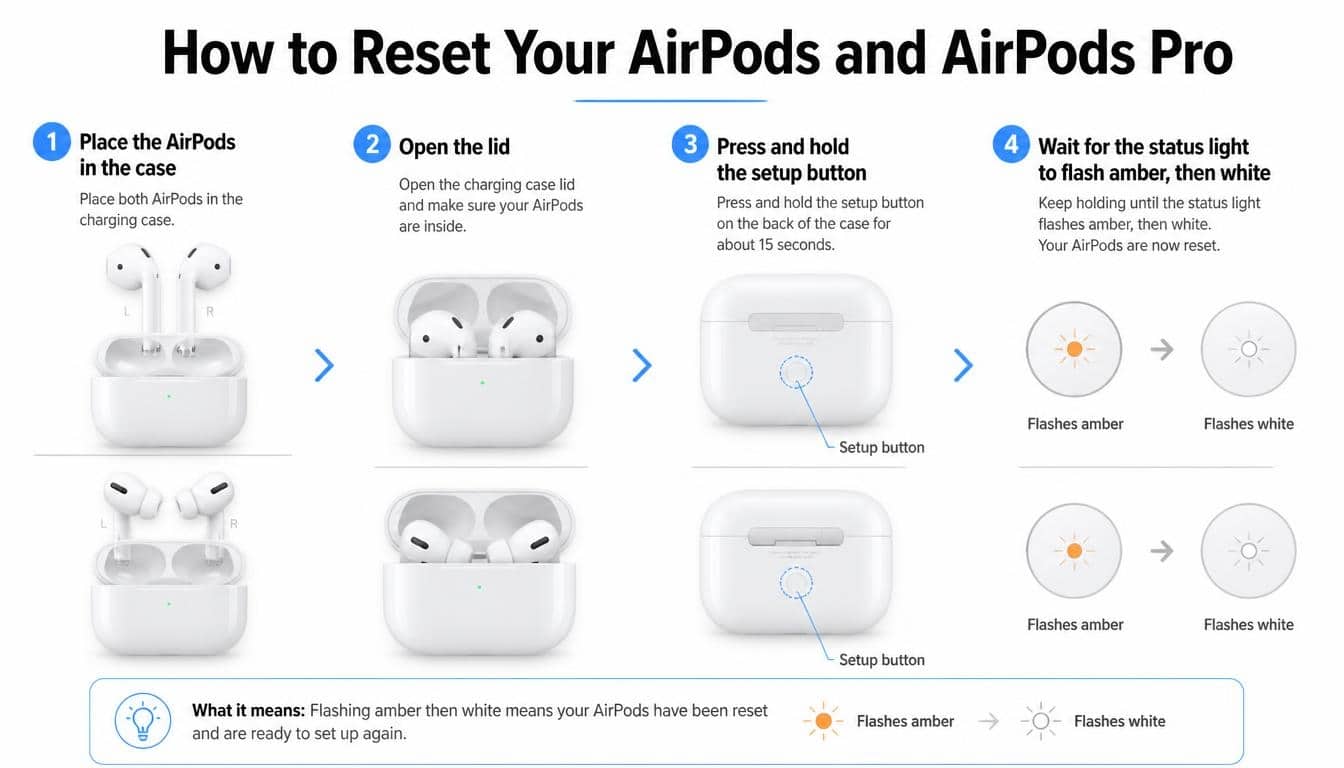
How to Reset AirPods 1, 2, 3 and AirPods Pro 1 and 2
If you own the original AirPods, AirPods 2, AirPods 3, AirPods Pro 1, or AirPods Pro 2, the traditional reset procedure is the one you’ll need.
These models use a small setup button on the back of their charging case. The process involves removing the old Bluetooth connection, holding the setup button, and waiting for the status light to change.
Here’s how to do it properly.
Step 1: Put Your AirPods in Their Charging Case
Start by placing both AirPods inside their AirPods charging case. Make sure they’re sitting correctly in their respective charging spaces.
Close the case lid and leave it closed for approximately 30 seconds.
This short waiting period allows the earbuds to settle before you begin the reset procedure. It might seem like an insignificant detail, but following the recommended sequence can help prevent unnecessary troubleshooting later.
If your AirPods are completely out of battery, charge the case and earbuds before continuing.
Step 2: Forget AirPods from Your iPhone or iPad
Now you’ll need to remove the existing Bluetooth pairing from your Apple device.
- Open the Settings app on your iPhone or iPad.
- Select Bluetooth.
- Find your AirPods under the My Devices
- Tap the More Info button (the small information symbol) beside their name.
- Select Forget This Device.
- Confirm your selection when prompted.
This removes the existing pairing record from your device.
If your AirPods don’t appear in the My Devices list, don’t panic. You can simply skip this part and move to the next step.
One useful thing to remember: forgetting the device and resetting the earbuds are related but different actions. Removing the Bluetooth connection doesn’t automatically perform a factory reset.
Step 3: Open the Case and Press the Setup Button
After waiting 30 seconds, open your charging case while keeping both AirPods inside.
Look at the back of the case. You’ll find a small circular button known as the AirPods setup button.
Press and hold this button for approximately 15 seconds.
Don’t release it too early just because the light starts changing. Keep watching the status indicator.
On most compatible cases, the light will first flash amber and then flash white. This sequence indicates that the reset process has been completed successfully.
If your charging case has an internal status light, check inside the case rather than expecting the indicator to appear on the front.
Step 4: Reconnect Your AirPods
Once the status light flashes white, your AirPods are ready to pair again.
Keep both earbuds inside the charging case and leave the lid open. Bring the case close to your iPhone or iPad.
A setup animation should appear on your device. Follow the instructions on the screen to complete the connection.
That’s it! Your AirPods should now be ready for use again.
How to Reset AirPods 4, AirPods 5 and AirPods Pro 3
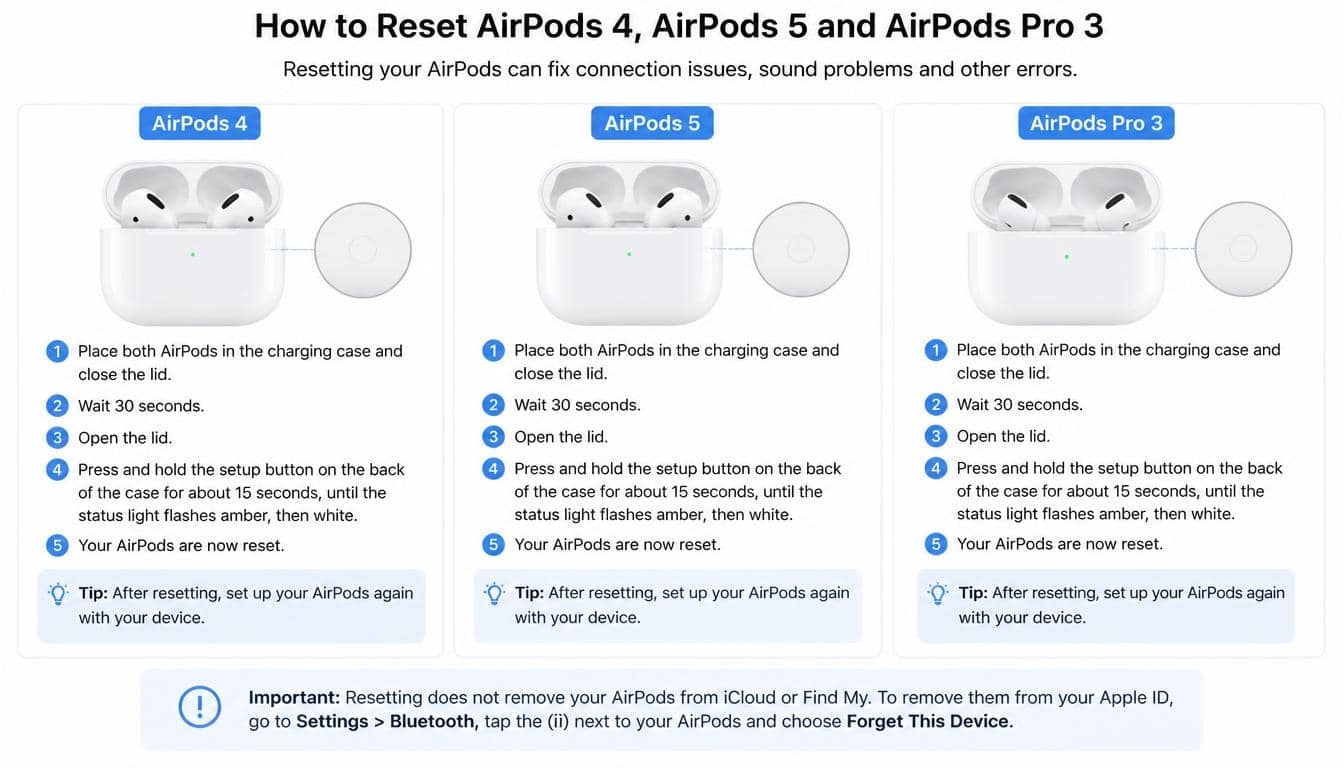
Newer AirPods models use a slightly different reset method. Instead of relying on the traditional physical setup button on the back of the charging case, they use a series of double taps on the front of the case.
This applies to AirPods 4 (all models), AirPods 5 (both models), and AirPods Pro 3 according to Apple’s current reset instructions.
The procedure might feel a little unusual the first time, but it’s not difficult once you understand the timing.
Step 1: Prepare Your AirPods for Reset
Place both earbuds inside their charging case.
Close the lid and wait approximately 30 seconds.
Next, open Bluetooth settings on your iPhone or iPad and remove the existing pairing if your AirPods appear under My Devices.
Select the More Info button next to their name, choose Forget This Device, and confirm.
If the AirPods aren’t listed, you can skip this step.
Once you’ve finished, open the charging case and get ready to use the front-case touch controls.
Step 2: Double-Tap the Front of the Charging Case
With the lid open, look at the front of the charging case where the status indicator is located.
When the status light is on, double-tap the front of the case.
You aren’t looking for a traditional mechanical button here. Instead, the case recognizes the double-tap interaction.
Wait for the status light to flash white.
When it does, double-tap the front of the case again.
Step 3: Complete the Third Double-Tap
After the second interaction, watch the indicator carefully.
When the status light starts flashing faster, double-tap the front of the charging case for a third time.
This completes the required sequence.
Wait for the status light to flash amber and then white.
The amber flashing light followed by the white flashing light indicates that the reset has been completed.
Keep the case open and bring it close to your iPhone or iPad. Follow the on-screen instructions to reconnect your earbuds.
A small tip: don’t rush through the double taps. Each interaction depends on the status light reaching the correct stage. If you tap randomly or too quickly, you may not complete the sequence successfully.
What Does the Amber and White Flashing Light Mean?
The little status indicator on your AirPods case is more useful than it looks. It provides information about charging, pairing, and resetting.
Understanding its colours can save you from repeating the same steps unnecessarily.
Amber Flashing Light
An AirPods amber flashing light during a reset means the reset sequence is progressing.
For the supported reset procedures, the indicator should flash amber before changing to white.
If the light continues flashing amber without reaching the white stage, the reset may not have completed successfully.
Check that both AirPods are correctly positioned inside the case and that the case has sufficient charge. Then try the procedure again.
White Flashing Light
A flashing white AirPods light generally indicates that the earbuds are ready for Bluetooth pairing.
After a successful factory reset, the amber-to-white sequence is the confirmation you’re looking for.
When the white light appears, bring the open case close to your iPhone or iPad and follow the setup instructions.
It’s important not to confuse a white pairing light with the amber-and-white reset confirmation. The sequence matters.
What If the Light Doesn’t Flash White?
Sometimes the status indicator refuses to cooperate. You might follow every instruction correctly and still fail to get the expected white flashing light.
Apple recommends trying the reset procedure again after a short waiting period.
Here’s what to do:
- Put both AirPods inside their charging case.
- Close the lid.
- Wait approximately 20 seconds.
- Open the lid again.
- Repeat the appropriate reset method for your model.
- Watch carefully for the amber and white flashing sequence.
For older models, press and hold the rear setup button for approximately 15 seconds.
For newer models, repeat the three-stage double-tap procedure on the front of the case.
If the light still doesn’t behave as expected, check whether the case is charged and whether both earbuds are making proper contact with the charging points.
How to Reconnect AirPods to Your iPhone or iPad After a Reset
Completing the reset is only half the job. Now you need to reconnect your earbuds so you can get back to listening.
Fortunately, how to reconnect AirPods is fairly simple.
Follow these steps:
- Make sure Bluetooth is enabled on your iPhone or iPad.
- Place both AirPods inside their charging case.
- Open the charging case lid.
- Hold the case close to your Apple device.
- Wait for the AirPods setup animation to appear.
- Tap Connect.
- Follow any additional instructions displayed on the screen.
Once the connection is established, put your AirPods in your ears and play some audio.
Check both earbuds individually. You want to make sure the left and right sides are producing sound properly.
If the setup animation doesn’t appear, open Settings, select Bluetooth, and check whether your AirPods are available in the list of nearby devices.
For newer models, use the front-case double-tap pairing control. For older models, press and hold the setup button until the status light flashes white.
You can also reconnect AirPods to an iPad using essentially the same process.
How to Reset AirPods When They Won’t Charge
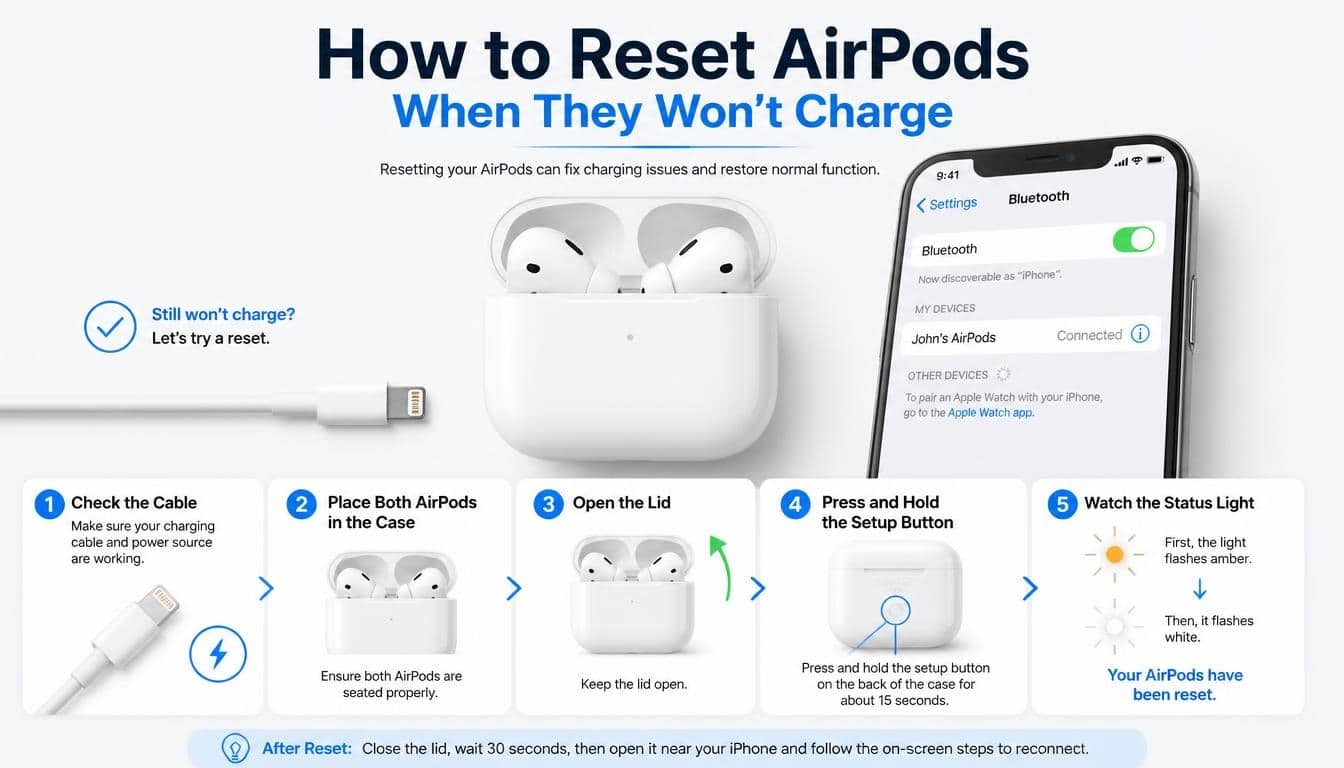
One of the more annoying problems is discovering that your AirPods won’t charge. You place them inside their case, close the lid, and somehow the battery percentage refuses to move.
Before attempting an AirPods factory reset, check a few basic things.
First, make sure the charging case itself has enough power. A completely drained case cannot properly carry out the reset procedure.
Next, remove any dust or debris around the charging contacts. Use a clean, dry, soft-bristled brush or lint-free cloth where appropriate. Avoid putting liquids or sharp objects inside the charging case.
Also check that both earbuds are sitting correctly in their individual slots.
If your AirPods still won’t charge, try this:
- Charge the case using a compatible cable or wireless charger, depending on your model.
- Check whether the charging indicator responds.
- Remove and carefully reposition each earbud.
- Leave them charging for a while.
- Attempt the model-specific reset once there’s sufficient battery power.
A reset may help if the issue involves a software or pairing problem. However, if the battery or charging hardware is damaged, resetting won’t magically restore it.
AirPods Reset Troubleshooting: Common Problems and Solutions
Even when you follow the instructions carefully, things don’t always work on the first attempt. That’s just how technology behaves sometimes.
Here are a few common AirPods troubleshooting situations and what you can do about them.
My AirPods Won’t Connect After Resetting
If your AirPods won’t connect after a factory reset, begin by checking Bluetooth on your device.
Turn Bluetooth off, wait a few seconds, and turn it back on.
Restart your iPhone or iPad if necessary.
Then place your AirPods inside their case, open the lid, and repeat the pairing procedure.
Also check whether your iPhone or iPad has an available software update. Outdated software can sometimes contribute to connectivity problems.
Only One AirPod Is Working
If one earbud works while the other stays silent, make sure both are charged.
Remove them from the case and check the charging contacts for dirt or debris.
Place both earbuds back in the case and allow them to charge.
Afterward, perform a reset using the instructions for your model.
If the same earbud continues to produce no sound, you may be dealing with a battery, speaker, or hardware issue rather than a Bluetooth problem.
My AirPods Keep Disconnecting
Repeated disconnections can be irritating, especially when you’re halfway through a phone call.
Try moving closer to your connected device and reducing possible Bluetooth interference.
Make sure your device has updated software, then restart your AirPods by placing them inside their case and closing the lid for at least 10 seconds.
If the issue continues, consider a full reset.
The AirPods Setup Button Doesn’t Work
If you have an older AirPods model and the setup button seems unresponsive, first check whether the charging case has sufficient battery.
Make sure the lid is open and both earbuds are inside.
Press the button firmly and hold it for approximately 15 seconds.
If nothing happens, inspect the case for physical damage. A damaged button may require professional service.
Remember, AirPods 4, AirPods 5, and AirPods Pro 3 use the newer front-case double-tap procedure for resetting. Don’t waste time looking for a traditional rear setup button on these models.
Can You Reset AirPods Without an iPhone?
Yes, you can perform the physical reset procedure without having your iPhone nearby.
The reset itself is controlled through the charging case, using either the rear setup button or the front-case double-tap sequence, depending on the model.
However, forgetting the previous Bluetooth connection is a separate step.
If you don’t have your iPhone available, you can skip that part and perform the reset directly through the case.
You can then pair the AirPods with another compatible Bluetooth device.
For an Android phone, open Bluetooth settings and select your AirPods when they appear in the available devices list. The pairing experience may differ from Apple’s automatic setup animation, but basic Bluetooth audio should work.
Some AirPods features are designed specifically for Apple devices, so the available settings and functionality may be more limited on non-Apple hardware.
Does Resetting AirPods Delete Everything?
A factory reset returns the AirPods to their original pairing state and clears their existing configuration.
In practical terms, you’ll need to reconnect them to your devices.
However, resetting your AirPods does not delete photos, messages, contacts, or other information stored on your iPhone or iPad.
It also doesn’t repair battery damage, physical defects, or charging hardware.
If you’re giving your AirPods to someone else, remember that forgetting the device and completing the reset are important parts of preparing them for a new owner.
If the earbuds are associated with another person’s Apple Account through Find My, the previous owner may also need to remove them from their account. A factory reset alone doesn’t necessarily remove that association.
How to Make Your AirPods Work Properly After a Reset
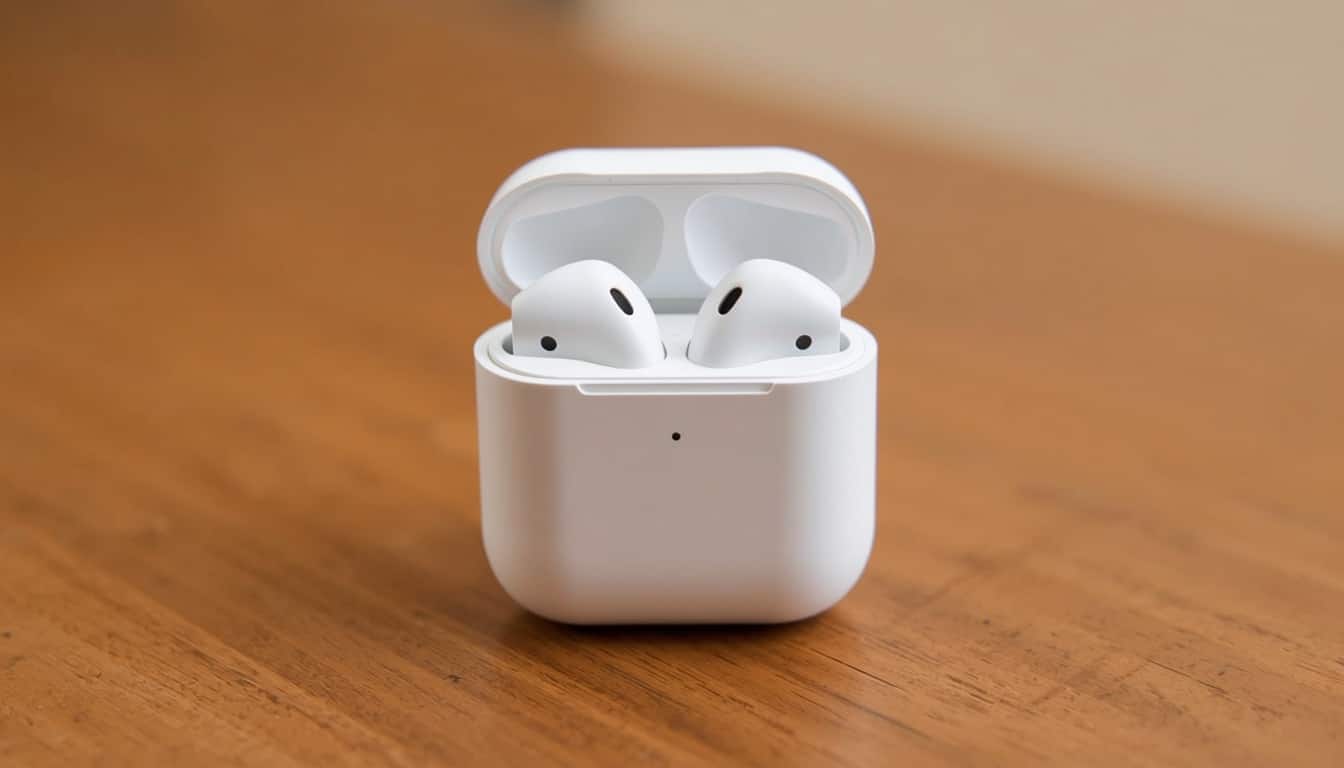
Once your AirPods are connected again, take a few moments to check that everything is functioning as expected.
Play a song and listen to both earbuds. Make a short test call, check the microphone, and confirm that the charging case recognises both earbuds.
If you use AirPods Pro, test the available listening modes, including Active Noise Cancellation and Transparency mode.
It’s also a good idea to check your device’s software updates and keep the charging case clean.
A little basic care can prevent plenty of annoying problems down the road.
Most importantly, don’t assume every issue requires a factory reset. Sometimes a quick restart, a fresh Bluetooth connection, or a little cleaning is all that’s needed.
Frequently Asked Questions About Resetting AirPods
How Long Does It Take to Reset AirPods?
The actual reset procedure usually takes less than a minute once your AirPods are prepared.
Allow approximately 30 seconds for the initial waiting period, then complete the setup-button or double-tap sequence. Reconnecting them to your device takes a little additional time.
Can I Reset AirPods Without Losing My Bluetooth Connection?
A factory reset clears the existing pairing configuration, so you’ll generally need to reconnect your earbuds afterward.
If you’re only experiencing a temporary connection issue, try restarting your AirPods first rather than immediately performing a full reset.
How Do I Reset AirPods Pro 2?
Place both AirPods Pro 2 earbuds inside their charging case, close the lid, and wait 30 seconds.
Forget the AirPods from your iPhone’s Bluetooth settings if they’re listed.
Open the case, press and hold the setup button on the back for approximately 15 seconds, and wait for the status light to flash amber and then white.
Reconnect them by holding the open case close to your iPhone.
How Do I Reset AirPods 4?
AirPods 4 use the newer double-tap procedure.
Place both earbuds in their case, close the lid for 30 seconds, and forget the existing Bluetooth connection if necessary.
Open the lid and double-tap the front of the case while the status light is on. Double-tap again when it flashes white, then double-tap a third time when it flashes faster.
Wait for the amber and white flashing sequence to confirm the reset.
What If My AirPods Won’t Reset at All?
Check the charging case battery, make sure both earbuds are seated properly, and repeat the correct procedure for your model.
If the status light never responds or the setup controls remain unresponsive, contact Apple Support or visit an authorised service provider.
The problem may involve damaged hardware rather than a software issue.
Should I Reset My AirPods Regularly?
No. There’s no need to reset your AirPods regularly when they’re working properly.
A reset is a troubleshooting measure, not routine maintenance. Use it when you’re experiencing persistent connection or configuration problems, or when preparing the earbuds for a new owner.
How to reset airpods
To reset your AirPods, place them in the charging case, close the lid, and wait 30 seconds. Then open the lid and follow the reset instructions for your AirPods model.
Reset airpods
You can reset your AirPods by removing them from your iPhone or iPad’s Bluetooth settings and using the setup button or touch controls on the charging case, depending on your model.
Reset airpods pro
To reset AirPods Pro, put both earbuds in their charging case and close the lid for 30 seconds. Open the lid and follow the appropriate reset procedure until the status light flashes amber and then white.
How to reset airpods pro
Open Bluetooth settings on your iPhone or iPad, select your AirPods Pro, and tap Forget This Device. Then reset them using the charging case and reconnect by following the on-screen instructions.
How to restart airpods
To restart your AirPods, place them inside the charging case, close the lid, and wait for about 30 seconds. Open the lid and reconnect them to your device.
Read More: https://gracethemes.com/what-is-dns/
Final Thoughts: Get Your AirPods Back to Working Like New
Knowing how to reset AirPods and AirPods Pro can save you plenty of frustration when your wireless earbuds suddenly stop behaving the way they should.
Whether you’re using AirPods 1, AirPods 2, AirPods 3, AirPods 4, AirPods 5, AirPods Pro 1, AirPods Pro 2, or AirPods Pro 3, the most important thing is to follow the correct reset procedure for your particular model.
Older models use the familiar setup button on the back of the charging case, while newer models rely on three double-tap interactions on the front.
Keep an eye on the amber and white status lights, make sure your case has sufficient battery, and remember to reconnect your earbuds after completing the reset.
And if the problem refuses to disappear, don’t keep repeating the same steps endlessly. Persistent charging or hardware problems may need professional attention.
Your AirPods are meant to make everyday listening easier, not turn a simple playlist into a technical adventure. With the right instructions and a little patience, you can often get them back to working properly without much fuss.
Found this guide helpful? Share it with someone struggling with an AirPods connection problem, or leave a comment describing which AirPods model you’re using and what issue you encountered. Your experience might just help another person get their favourite earbuds working again!
