
How to Password Protect a Page in WordPress
If you’ve ever built a website, you’ve probably had that tiny moment of panic you publish a page, refresh your site, and suddenly realize something wasn’t meant for everyone to see. Maybe it was a client proposal still waiting for approval.
Maybe it was a work-in-progress landing page. Or perhaps it was a private family photo gallery that should stay within a small circle. It happens more often than people admit, honestly.
The good news is that WordPress makes protecting content surprisingly simple. You don’t always need an expensive plugin or complicated server configuration to keep sensitive pages away from public visitors.
In many cases, a built-in feature is all it takes to place a password between your content and the rest of the internet.
In this guide, you’ll learn how to password protect a page in WordPress, when to use the built-in option, when a plugin makes more sense, and how to strengthen your website’s overall security.
Whether you’re a blogger, freelancer, small business owner, agency, or someone managing a membership website, understanding page protection is an important part of keeping your content secure.
Why Password Protect a WordPress Page?
Not every page on a website is supposed to rank on Google or be available to every visitor. Some content is created for a specific audience, while other pages simply aren’t ready for public viewing.
Here are some common situations where password protection is useful:
- Sharing client documents without creating separate user accounts.
- Publishing private event information for invited guests.
- Protecting reports, invoices, or project updates.
- Keeping development pages hidden during redesigns.
- Creating temporary review pages before launch.
- Restricting access to downloadable resources.
- Protecting internal documentation for employees.
Instead of deleting pages or constantly switching them between draft and published status, password protection provides a simple middle ground.
Understanding WordPress Page Visibility
Before protecting a page, it helps to understand how WordPress Page Visibility Settings work.
Every page or post in WordPress can generally have one of three visibility options:
Public
Anyone can access the page if they know the URL, and search engines may index it unless instructed otherwise.
Private
A Private Page is only visible to users with the appropriate permissions, such as an Administrator or Editor. Regular visitors won’t be able to view it.
Password Protected
A Password Protected Page remains published, but visitors must enter the correct password before they can view the content.
For many website owners, this third option offers the ideal balance between convenience and privacy.
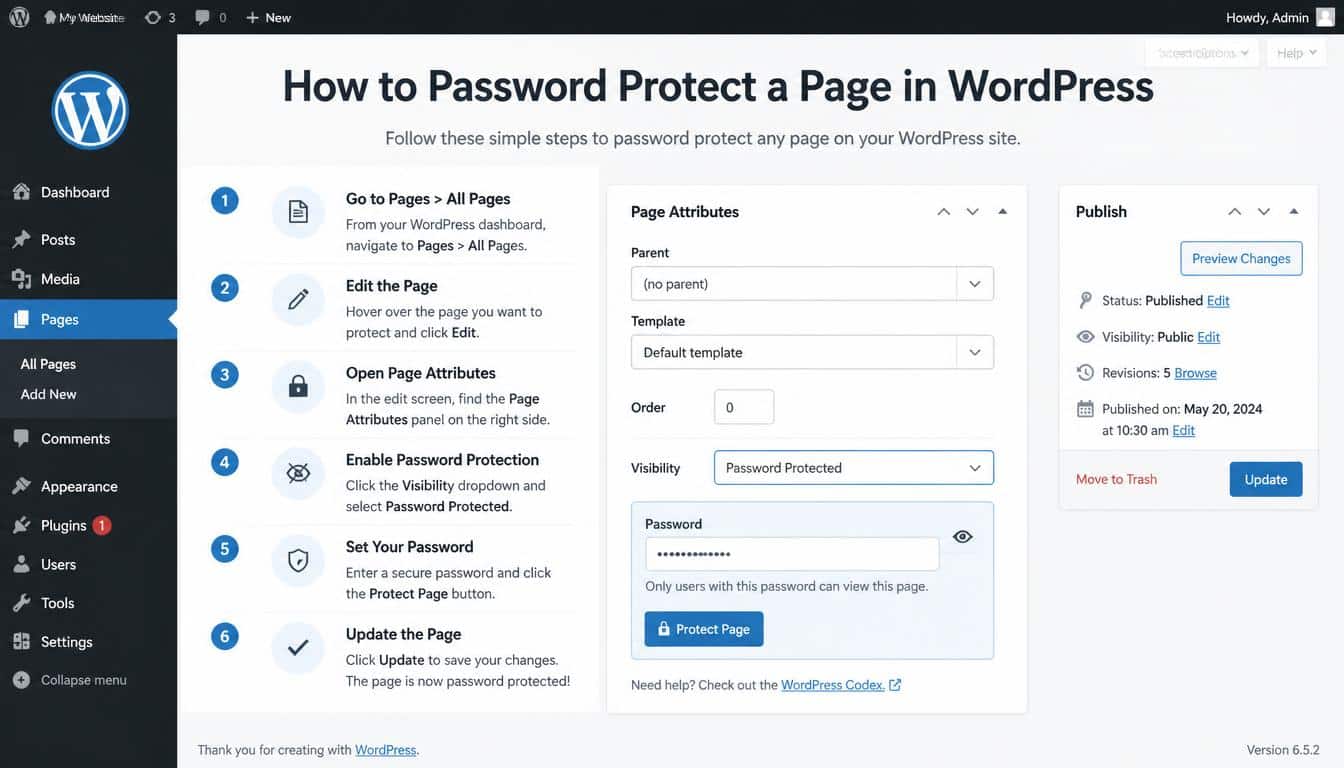
How to Password Protect a Page in WordPress Without a Plugin
One of the best things about WordPress is that it already includes Native WordPress Password Protection. You don’t need additional software for basic page protection.
Follow these steps.
Step 1: Log Into WordPress
Sign in to your WordPress dashboard using your administrator account.
Step 2: Open the Page
Go to:
Pages → All Pages
Choose the page you want to protect.
This works equally well for a WordPress Page or a WordPress Post.
Step 3: Open the Visibility Settings
Inside the WordPress Block Editor, locate the Page settings panel on the right-hand side.
Find the Visibility option.
Click it to reveal additional settings.
Step 4: Select Password Protected
You’ll typically see three options:
- Public
- Private
- Password Protected
Choose Password Protected.
Step 5: Enter a Strong Password
Create a password that isn’t easy to guess.
Avoid examples like:
- 123456
- password
- admin123
- your business name
Instead, combine:
- Uppercase letters
- Lowercase letters
- Numbers
- Symbols
For example:
Project2026!Review
Step 6: Save or Update the Page
Click Update or Publish.
Your page is now protected.
Anyone visiting it will first see a password prompt before accessing the content.
What Visitors See
When someone opens a password-protected page, they won’t immediately see the page content.
Instead, they’ll see:
- The page title
- A password field
- A submit button
Only after entering the correct password does WordPress display the protected content.
This simple authentication layer is sufficient for many everyday use cases.
Password Protecting Posts vs. Pages
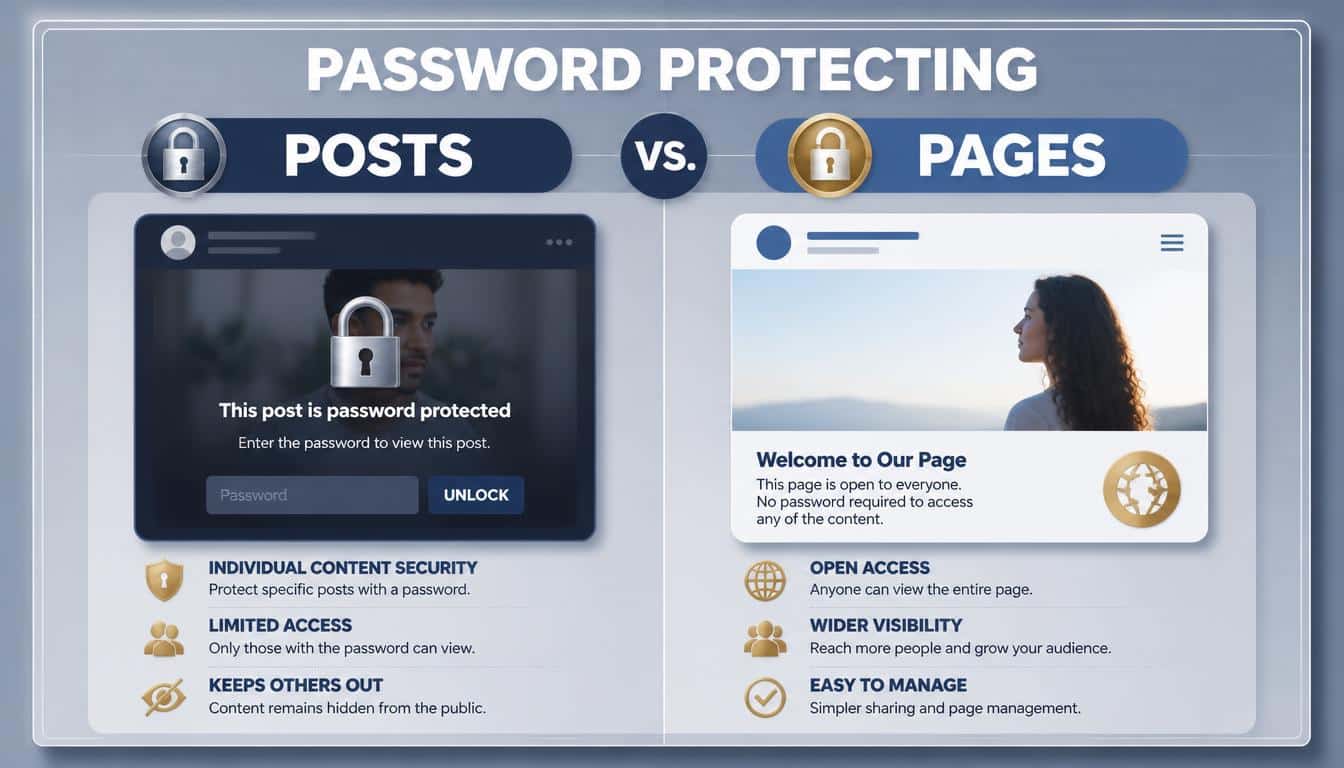
The process is almost identical.
For a Blog Post:
- Open Posts.
- Edit the desired post.
- Change Visibility.
- Select Password Protected.
- Save.
This makes it easy to publish exclusive articles, subscriber previews, or client announcements without exposing them publicly.
Password Protected vs. Private Pages
People often confuse these two options.
A password-protected page:
- Anyone with the password can access it.
- No WordPress account is required.
- Easy to share with clients.
A private page:
- Requires specific user permissions.
- Usually intended for staff members.
- Cannot be viewed by ordinary visitors.
If you’re sending a page to a customer or freelancer, password protection is usually the simpler option.
When Built-In Protection Is Enough
The native WordPress feature is ideal when you need to protect:
- Client presentations
- Design drafts
- Internal documents
- Family photo galleries
- Event information
- Temporary review pages
- Early product launches
It takes less than a minute to configure and doesn’t slow down your website with additional plugins.
Best Practices for Better Security
Although password protection adds an important layer of privacy, it shouldn’t be your only security measure.
Consider these best practices:
- Use unique passwords for protected pages.
- Change passwords periodically if they’re shared with multiple people.
- Remove protection once the content becomes public.
- Avoid sending passwords through insecure channels.
- Keep WordPress, themes, and plugins updated.
You should also secure your WordPress login with strong credentials and enable two-factor authentication whenever possible.
This helps reduce the risk of unauthorized access to your website, even if someone attempts to guess your administrator password.
Best WordPress Password Protection Plugins
While the built-in feature is excellent for many situations, it isn’t always flexible enough. Maybe you want to protect only part of a page, create members-only content, or assign different passwords to different groups.
That’s where a dedicated WordPress security plugin or content protection plugin becomes useful.
Here are some popular options.
Passster
Passster is designed specifically for protecting content. Instead of locking an entire page, it allows you to secure individual sections using shortcodes or blocks.
This is particularly useful if you want visitors to preview part of an article before entering a password.
Some notable features include:
- Partial content protection
- Multiple passwords for one page
- Password expiration
- Time-based access
- Protected downloads
- Custom password forms
It’s a solid choice for freelancers sharing design drafts or agencies providing client-only resources.
Content Control
Content Control focuses more on restricting content based on user roles or login status.
It allows you to:
- Restrict content to logged-in users
- Display different content for different visitors
- Hide selected blocks
- Create members-only pages
This is useful for membership websites, online courses, and private communities.
All-In-One Security (AIOS)
If your goal extends beyond protecting pages, All-In-One Security (AIOS) offers a broader security solution.
Besides page protection, it includes features such as:
- Brute force protection
- Login lockdown
- File change detection
- Firewall features
- Login activity monitoring
- User account security
The premium edition adds even more advanced tools for larger websites.
Restrict Access by User Role
Sometimes passwords aren’t the ideal solution.
Imagine running an online business with:
- Customers
- Employees
- Editors
- Contributors
- Administrators
Instead of distributing passwords, you can use User Role Management to decide exactly who can access specific content.
Common role-based restrictions include:
- Only administrators can view internal documentation.
- Clients can access project reports.
- Paid subscribers unlock premium articles.
- Employees can download company resources.
- Editors review unpublished content.
This creates a much cleaner workflow and reduces password sharing.
Password Protect Only Part of a Page
A feature many website owners overlook is partial content protection.
Instead of hiding an entire page, you can:
- Show the introduction publicly.
- Lock premium sections.
- Restrict downloadable files.
- Hide bonus videos.
- Protect pricing documents.
- Secure member resources.
This approach works particularly well for educational websites, premium blogs, and digital product businesses.
Visitors can still discover the page while exclusive material remains protected.
Protecting Downloads and Media Files

Many people password protect the page but forget about the files themselves.
Imagine uploading:
- PDFs
- ZIP archives
- Client reports
- Product manuals
- Media files
If someone discovers the direct file URL, they may bypass your protected page entirely.
For sensitive downloads:
- Store files outside the public uploads directory when possible.
- Use plugins that secure downloads.
- Restrict media access by user role.
- Generate temporary download links if available.
This creates another layer of protection for confidential resources.
Server-Level Protection
Sometimes the built-in WordPress feature isn’t enough.
Businesses often need Server-Level Authentication, which protects content before WordPress even loads.
Two common methods include:
Using .htpasswd
On Apache servers, the .htpasswd system requires visitors to authenticate before accessing selected directories.
Benefits include:
- Faster authentication
- Strong protection
- Reduced bot traffic
- Independent of WordPress
This method is commonly used for staging websites and internal company portals.
Directory Privacy in cPanel
Many hosting providers include Directory Privacy within cPanel.
This allows you to:
- Password protect folders.
- Secure development environments.
- Protect staging sites.
- Restrict access to internal directories.
Configuration usually takes only a few minutes and doesn’t require editing code.
Protecting Staging Websites
A staging site is essentially a copy of your live website used for testing updates.
Unfortunately, many staging environments remain publicly accessible.
That can expose:
- Unfinished designs
- Customer information
- Plugin configurations
- Internal testing pages
Good practice includes:
- Password protecting the staging site.
- Blocking search engines.
- Restricting administrator access.
- Using server authentication whenever possible.
SEO Considerations for Password Protected Pages
One common question is:
Can Google index password-protected pages?
Generally, search engines cannot access content hidden behind a password because they can’t complete the authentication process.
However, they may still discover:
- The page URL
- The page title
- Limited metadata
If complete privacy matters, consider additional SEO precautions.
Use Noindex
Many SEO plugins, including Yoast SEO and Rank Math, allow you to add a Noindex directive.
This tells search engines not to include the page in search results.
Review robots.txt
Your robots.txt file can discourage crawlers from visiting certain sections of your website.
Keep in mind that robots.txt is not a security feature. It only provides instructions to search engines and won’t stop determined visitors from accessing a URL they already know.
Remove Internal Links
Avoid linking to protected pages from public navigation menus or homepage content.
The fewer public references there are, the lower the chance of accidental discovery.
Strengthening Overall WordPress Security
Password-protecting pages is only one part of securing a website.
Consider implementing these additional practices:
Enable Two-Factor Authentication
Two-factor authentication (2FA) adds an extra verification step after entering a password.
Even if someone steals your password, they still need the second authentication factor to log in.
Prevent Brute Force Attacks
Hackers often use automated software to guess passwords.
Reduce this risk by:
- Limiting login attempts.
- Using strong administrator passwords.
- Enabling login lockdown.
- Monitoring failed login activity.
Many security plugins include these protections by default.
Keep Everything Updated
Always update:
- WordPress core
- Themes
- Plugins
Outdated software remains one of the most common causes of website compromises.
Use Reliable Hosting
Your hosting provider plays a significant role in website security.
Choose a reputable host that offers:
- Daily backups
- Malware scanning
- Web application firewalls
- SSL certificates
- Secure server infrastructure
A strong hosting environment complements your page-level protections.
Common Mistakes to Avoid
Even experienced WordPress users occasionally overlook simple issues.
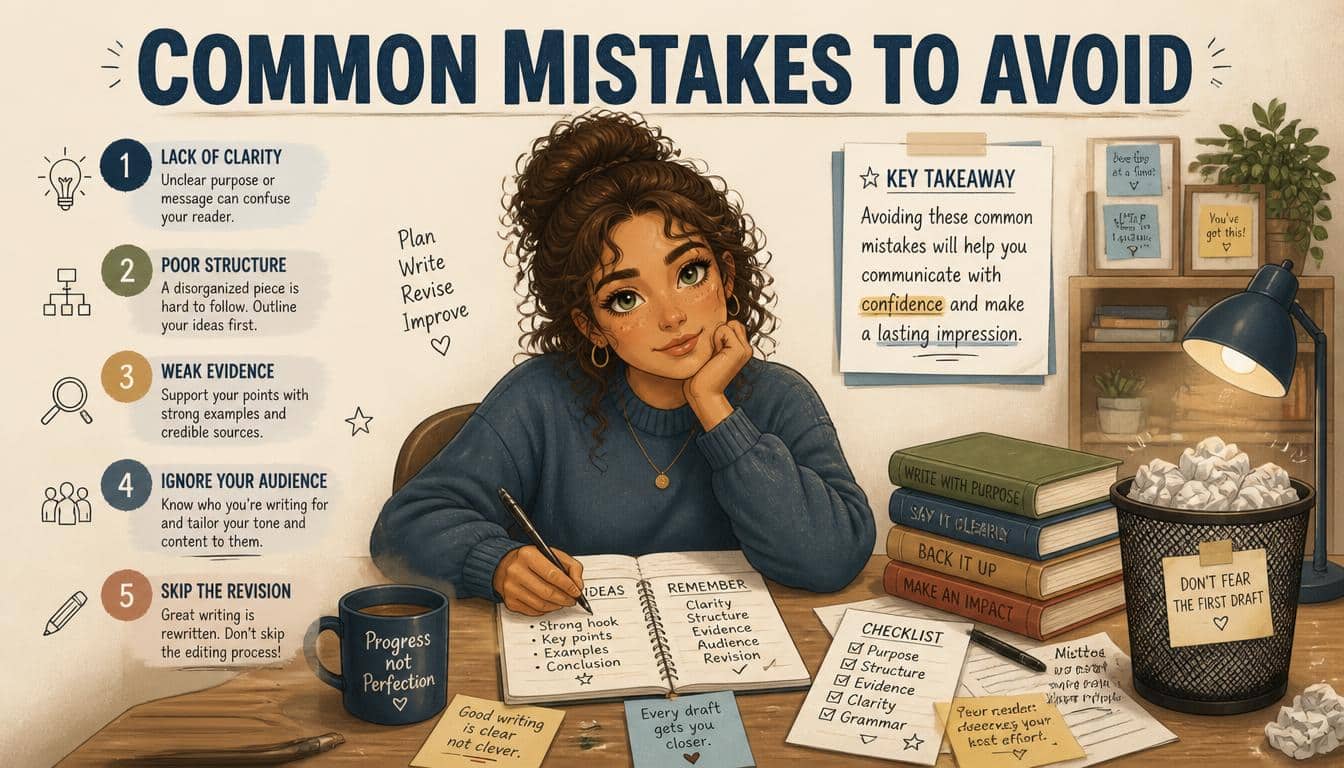
Avoid these common mistakes:
- Using weak or easily guessed passwords.
- Sharing passwords through unsecured messaging platforms.
- Forgetting to update passwords after projects end.
- Assuming password protection alone secures downloadable files.
- Leaving staging websites publicly accessible.
- Ignoring WordPress updates.
- Relying solely on robots.txt for privacy.
Small oversights can undermine otherwise effective security measures.
Frequently Asked Questions
Can I password protect a WordPress page without a plugin?
Yes. WordPress includes a built-in password protection feature that lets you secure individual pages and posts directly from the Visibility settings in the editor.
What’s the difference between a private page and a password-protected page?
A private page is only accessible to users with the appropriate WordPress permissions, while a password-protected page can be viewed by anyone who knows the password, even without a WordPress account.
Can I password protect only part of a page?
Not with WordPress’s native feature. To protect specific sections of content, you’ll typically need a plugin such as Passster or Content Control.
Will password-protected pages appear in Google?
Search engines generally cannot view content behind a password prompt, though they may still discover the page’s URL or title. Applying a noindex directive through an SEO plugin provides an additional layer of privacy.
Password protect WordPress page
Password protecting a WordPress page lets you limit access to specific content without affecting the rest of your website. Visitors must enter the correct password before they can view the page.
Password protected page WordPress
A password protected page in WordPress is ideal for sharing private content such as client documents, members-only resources, or draft pages. It uses WordPress’s built-in visibility settings and requires no additional plugin.
WordPress password protected page
A WordPress password protected page provides a simple way to keep sensitive content private while allowing authorized users to access it with a password. For more advanced control, you can also use dedicated security or content restriction plugins.
How to password protect WordPress page
To password protect a WordPress page, open the page editor, change the Visibility setting to Password Protected, enter your password, and update or publish the page. Visitors will need that password to access the content.
How to password protect a webpage
If you’re using WordPress, you can password protect a webpage by selecting the Password Protected visibility option before publishing. This ensures only people with the password can view the page.
Read this Blog: https://gracethemes.com/free-church-websites/
Conclusion
Learning how to password protect a page in WordPress is one of the simplest ways to safeguard content that isn’t meant for everyone.
Whether you’re sharing client documents, preparing a new product launch, creating members-only resources, or testing a redesign on a staging site, WordPress offers both built-in tools and advanced options to meet different security needs.
For many websites, the native password protection feature is more than enough. As your requirements grow, plugins, user-role restrictions, and server-level authentication can provide finer control and stronger protection.
Pair these measures with good password practices, two-factor authentication, regular updates, and dependable hosting to create a more secure website overall.
Ultimately, effective security isn’t about hiding everything it’s about giving the right people access at the right time while keeping sensitive information out of the wrong hands.
Review your existing pages, identify content that deserves an extra layer of protection, and choose the method that best fits your workflow.
A few minutes spent securing your WordPress site today can save you significant time and concern later.
