

How to Factory Reset Your iPhone, iPad, or iPod touch
A phone can hold years of little moments: photographs from a family gathering, messages you meant to keep forever, notes scribbled in the middle of a busy day, and apps that quietly become part of your routine.
Yet there comes a time when you need to wipe the device clean. Perhaps you’re selling your iPhone, passing an iPad to a family member, troubleshooting a stubborn software problem, or preparing an old iPod touch for a fresh start.
Whatever brings you here, knowing how to factory reset your iPhone, iPad, or iPod touch can make the whole process much less stressful.
The good news is that Apple provides built-in tools to erase a device, and you generally don’t need special software or technical expertise to use them.
Still, a factory reset isn’t just another button to tap. It removes personal information, apps, and settings from the device, so a little preparation goes a long way.
Let’s walk through the process, from protecting your data to choosing the right reset option and setting up your device again afterward.
What Does a Factory Reset Actually Do?
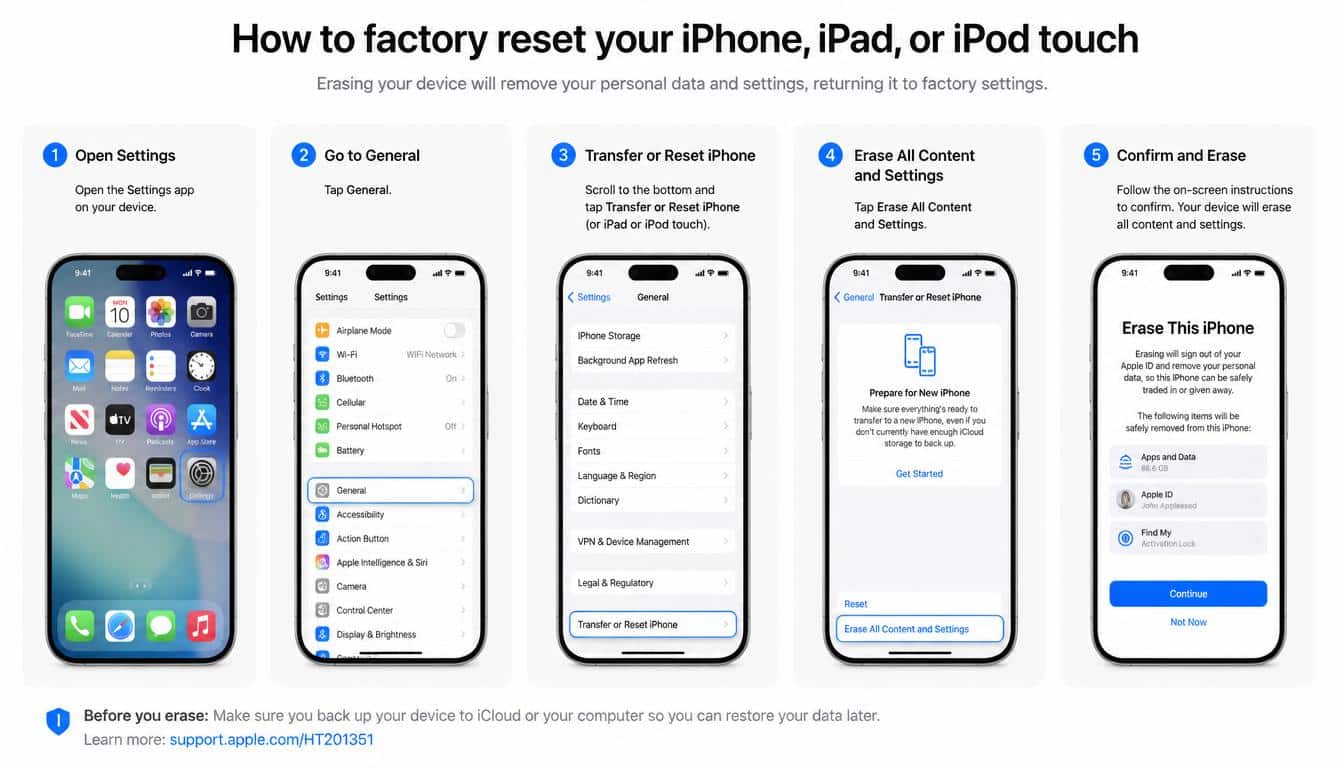
A factory reset returns your device to a clean, initial setup state by removing the information and settings stored on it. On a compatible iPhone or iPad, the main option for this is called Erase All Content and Settings.
Think of it as clearing out a house before handing over the keys. Your photographs, downloaded apps, saved settings, messages, and other personal information are removed from the device.
The installed operating system remains available so the next owner can set it up, rather than receiving a completely unusable gadget.
A factory reset is different from simply restarting your phone. Restarting turns the device off and on again, while resetting all settings changes preferences without necessarily deleting your personal content. Choosing the full erase option is the more comprehensive step.
Here are a few common reasons people decide to reset a device to factory settings:
- You’re selling or giving away your iPhone or iPad.
- Your device is experiencing persistent software problems that ordinary troubleshooting hasn’t resolved.
- You want to prepare an iPhone for a new owner or move your information to another device.
- You’re handing an iPad to a child or another family member and want to begin with a clean setup.
- You want to remove personal data before disposing of an old device.
One important distinction deserves attention: erasing your device doesn’t automatically mean every copy of your information elsewhere disappears.
Content stored in iCloud or another online service may remain there, depending on how it’s managed. That is why backing up and understanding what you’re deleting matters before you begin.
Before You Factory Reset Your iPhone, iPad, or iPod touch
The actual reset is usually straightforward. The preparation is where a few extra minutes can save you a great deal of frustration later.
Back Up Your iPhone or iPad
If there is one step you shouldn’t rush past, it’s making a backup. A reset can remove the only local copy of a treasured photograph, a document, or information you forgot was still on the device.
You can back up your iPhone through iCloud or a compatible computer. For an iCloud backup, connect to Wi-Fi, open Settings, tap your name, choose iCloud, and look for iCloud Backup. The exact labels may differ slightly depending on your software version.
- Open Settings on your iPhone or iPad.
- Tap your name to access your Apple Account settings.
- Select iCloud and then iCloud Backup.
- Tap Back Up Now, if the option is available.
- Keep the device connected to Wi-Fi until the backup finishes.
Check the displayed date and time of the latest successful backup before proceeding. Seeing the button respond doesn’t necessarily mean your backup has finished, and that little detail is worth checking.
Alternatively, you can create a backup using Finder on a supported Mac or the Apple Devices app on a Windows PC. Follow the instructions for your computer and make sure the backup process completes successfully.
Make Sure Your Important Information Is Safe
A backup is helpful, but it is still sensible to check your most important information separately. Confirm that your photographs have synced or been backed up, that essential documents are accessible, and that you know how to sign in to your important accounts.
If you’re moving to a new iPhone, you may prefer Apple’s device-to-device transfer process. That can make it easier to bring your information across before erasing the old phone.
Remember, services that sync information to the cloud and services that create backups don’t always work in the same way. For instance, deleting synced content while signed into an account may affect other devices, depending on the service and the action you take. Don’t assume that everything you see on one device has a separate backup.
Know Your Device Passcode and Apple Account Password
Depending on the device and the settings enabled, you may be asked for your device passcode or Apple Account password during the erase process.
Your device passcode is the code you use to unlock your iPhone or iPad. Your Apple Account password is associated with your Apple account and may be required for security-related steps, including disabling certain protections.
Check that you can access your account before starting. If you have forgotten your password, use Apple’s official account recovery process rather than relying on random websites offering quick fixes. It is much easier to resolve account access while you still have time and patience.
Consider Your eSIM and Cellular Plan
Newer iPhones may use an eSIM, a digital SIM that connects your phone to your mobile carrier. During a factory reset, you may be offered a choice to keep or delete the eSIM, depending on your device and software version.
If you’re keeping the phone and simply troubleshooting it, retaining the eSIM may be the sensible choice. If you’re selling or giving away the device, deleting the eSIM may be appropriate, but you should understand how your carrier handles transferring or reactivating the line.
Deleting an eSIM from your phone does not necessarily cancel your mobile subscription. Your carrier may need to help you transfer the number or activate the cellular plan again on another device.
Unpair Your Apple Watch Before Erasing Your iPhone
If your iPhone is paired with an Apple Watch and you’re preparing to sell or give away the phone, consider unpairing the watch first. Unpairing through the Watch app is generally the recommended way to prepare the devices for a change of ownership.
Open the Watch app on your iPhone, go to All Watches, tap the information button beside your watch, and choose Unpair Apple Watch. Follow the prompts and keep the devices nearby during the process.
Unpairing can also create a backup of your watch’s data as part of the process. If you’re keeping the watch, you can later pair it with your new iPhone. If you’re selling the watch as well, make sure it is separately prepared for its new owner.
How to Factory Reset an iPhone Using Settings
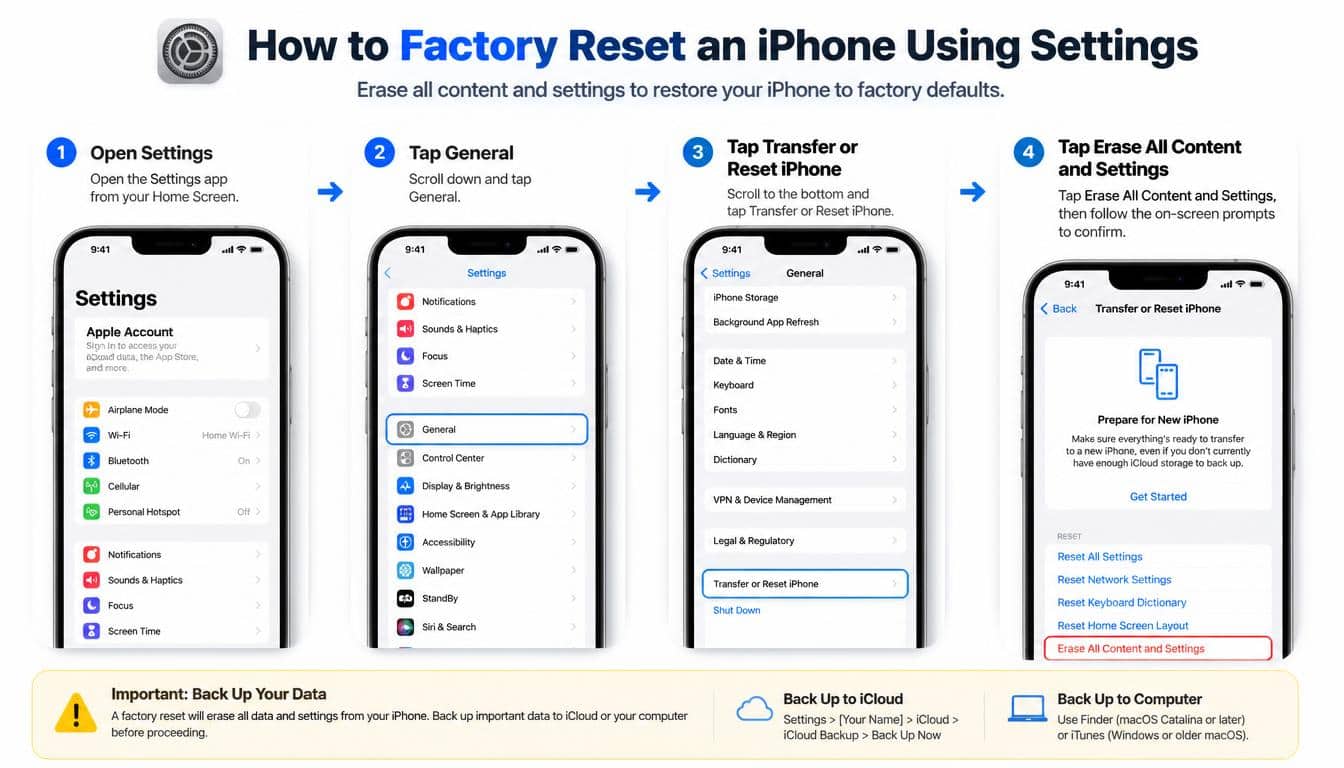
For an iPhone that you can unlock and access normally, using Settings is usually the easiest method. You don’t need to download a reset utility, connect the phone to a computer, or hunt through a maze of menus.
The steps below apply to modern iPhones, although menu wording can vary slightly between iOS versions.
Step-by-Step iPhone Reset Instructions
- Step one: Open Settings. Find the Settings app on your Home Screen or in your App Library.
- Step two: Select General. Scroll down until you see the General menu and tap it.
- Step three: Open Transfer or Reset iPhone. Scroll toward the bottom of the General screen and choose Transfer or Reset iPhone.
- Step four: Select Erase All Content and Settings. This is the option that removes your personal data and settings, rather than merely adjusting individual preferences.
- Step five: Review the information shown. Your iPhone may display details about what will be removed and offer options relating to your eSIM or other settings.
- Step six: Tap Continue. Follow the prompts and enter your device passcode if requested.
- Step seven: Complete the security checks. Depending on your configuration, you may need to enter your Apple Account password to turn off Find My or complete other security requirements.
- Step eight: Confirm the erase. Read the final confirmation carefully and proceed only when you’re ready to remove the device’s local content.
Your iPhone will begin erasing its data. It may restart during the process, so don’t panic if the screen changes or the Apple logo appears. Leave the device alone while it completes the operation.
When the reset finishes, you should see the Hello screen, which is the welcome screen used during initial setup. That is the sign that the device is ready to be configured again.
If you’re selling the phone, you can leave it at the Hello screen for its new owner. There’s no need to enter your personal details and set it up all over again just to demonstrate that it works.
How to Factory Reset an iPad
An iPad follows much the same process as an iPhone. The menu labels are similar, and the most important thing is to select the full erase option rather than a setting that only changes network preferences or other configuration details.
Before you start, check that your documents, schoolwork, creative projects, and photographs are safely stored or backed up. An iPad can quietly collect an enormous amount of useful information, especially if you use it for drawing, studying, reading, or work.
Steps to Erase an iPad
- Open Settings on the iPad.
- Tap General.
- Scroll down and select Transfer or Reset iPad.
- Choose Erase All Content and Settings.
- Review any information or options presented on the screen.
- Tap Continue and enter your device passcode when requested.
- Complete any Apple Account verification that appears.
- Confirm that you want to erase the iPad and wait for the process to finish.
The iPad will remove its local personal content and settings. When it restarts and displays the Hello screen, the reset is complete.
If you’re giving the iPad to a family member, you can hand it over at that stage. The next person can connect to Wi-Fi, sign in with their own Apple Account, and restore their information if they have a suitable backup.
There is one small but important consideration for shared iPads: make sure you’ve saved anything that belongs to another person who uses the device. A reset doesn’t know which family member’s photographs or files matter most; it simply follows your instruction to erase the device.
How to Factory Reset an iPod touch
The iPod touch is an older Apple device, and its menus differ from those on current iPhones and iPads. The exact instructions depend on the iPod touch model and the version of iOS it runs.
On many iPod touch models, you can erase the device directly through Settings. If you have an older model, you may see a menu labelled Reset instead of the newer Transfer or Reset wording.
Erasing an iPod touch Through Settings
- Open the Settings app.
- Tap General.
- Look for Reset or the relevant erase option available on your version of iOS.
- Select the option to erase all content and settings, if available.
- Enter the device passcode if requested.
- Confirm the operation and allow the iPod touch to complete the process.
The iPod touch may restart and display a welcome screen when the process is complete. At that point, you can begin setting it up again or prepare it for someone else.
If the iPod touch is too old to offer the expected option, or if it cannot be unlocked, you may need to restore it using a computer. The available procedure can vary by model, so consult Apple’s instructions for your specific device before proceeding.
It is also worth remembering that the iPod touch line has been discontinued. Older devices may not support the latest software, and some apps or online services may no longer function as they once did.
A factory reset can clear your information, but it cannot bring back discontinued services or make unsupported apps compatible with an old operating system.
What Happens When You Erase All Content and Settings?
It helps to know exactly what the erase command does, particularly if you’re preparing a device for sale. The phrase sounds simple, but it can involve several different kinds of information.
In general, a factory reset removes the device’s local personal content and settings, including items such as:
- Photos, videos, messages, and other locally stored personal information.
- Downloaded apps and their locally stored data.
- Personal preferences, saved configurations, and other settings.
- Information associated with the device that is removed as part of the erase process.
The operating system itself is not normally removed by the Settings-based erase process. The device returns to its initial setup experience rather than becoming an empty piece of hardware.
However, a factory reset does not automatically delete your information from every service you use. Data already stored in iCloud, email accounts, cloud storage, or other online services may remain available there. The outcome depends on the service and whether the information was synced, backed up, or stored only on the device.
For this reason, a reset should be understood as erasing the device, not as deleting your entire digital life. If you’re selling your iPhone, you should also ensure that it has been properly removed from your account and is ready for its next owner.
Should You Keep or Delete Your eSIM?
This is one of the choices that can cause unnecessary confusion during an iPhone reset. An eSIM is digital, so there isn’t a physical card to remove from the phone, but it still represents your cellular connection.
The right choice depends on what you’re doing with the device.
Keep the eSIM if You’re Keeping the Phone
If you’re resetting your iPhone to troubleshoot a problem and intend to continue using the same phone number, keeping the eSIM may help you avoid the extra work of activating your cellular plan again.
You should still follow the options shown on your device and your carrier’s guidance. Some circumstances may require a different approach, so don’t treat keeping the eSIM as a universal rule.
Delete the eSIM if You’re Giving Away the Phone
If you’re transferring ownership of the iPhone, deleting your eSIM may be appropriate so your cellular profile isn’t left on a device that someone else will use.
Before doing this, check how your carrier handles the line. You may need to transfer the eSIM to a new phone or request a replacement activation method.
What if You Already Deleted the eSIM?
Don’t assume your phone number has vanished forever. Contact your mobile carrier and ask how to reactivate your cellular plan or transfer it to another device.
The process may involve scanning a new QR code, using a carrier app, or completing another supported activation method. What works depends on your carrier, your plan, and the device you’re setting up.
How to Factory Reset an iPhone Without the Passcode
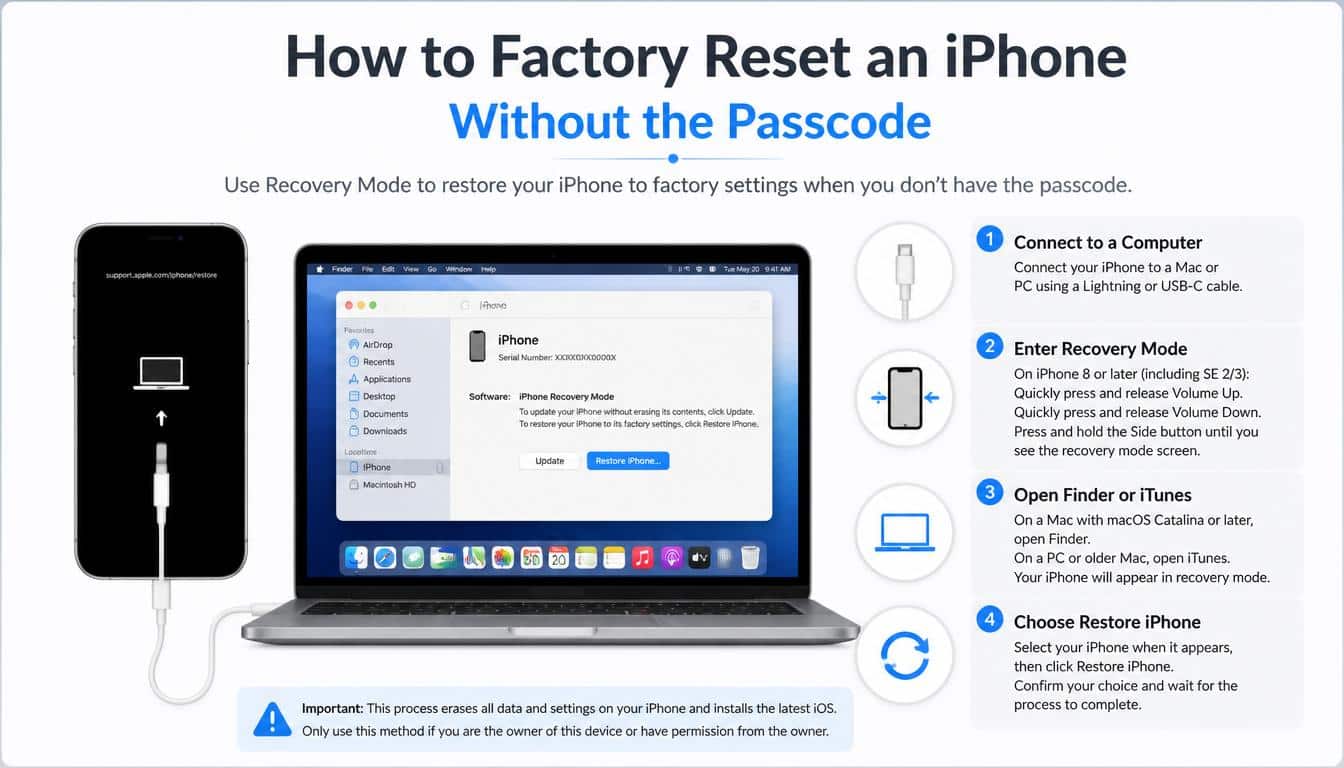
Forgetting a passcode can turn a simple task into a frustrating afternoon. If you cannot unlock your iPhone, you generally won’t be able to use the ordinary Settings-based erase procedure.
There are legitimate recovery options, but the correct method depends on your iPhone model, software version, and the security features available on the device.
If your iPhone displays a security lockout screen with an option to erase it, you may be able to follow the on-screen recovery instructions. Depending on your configuration, an Apple Account and an internet connection may be required.
Another option is to use a computer to place the iPhone into recovery mode and restore it using Finder on a Mac or the Apple Devices app on a Windows PC. Apple’s official support instructions explain how to enter recovery mode for different models.
Be aware that restoring an iPhone this way erases the information stored on it. If you don’t have a backup, you may not be able to recover your personal data.
You may also need your Apple Account credentials after the restore because of Activation Lock. A computer restore does not bypass ownership protections, and it shouldn’t be treated as a way to unlock a device that belongs to somebody else.
If you’ve forgotten your Apple Account password as well, use Apple’s official account recovery options. If the device is second-hand and still linked to a previous owner’s account, ask that owner to remove it from their account through the appropriate process.
What if You’ve Forgotten Your Apple Account Password?
Your Apple Account password and device passcode serve different purposes, so forgetting one doesn’t necessarily mean you’ve forgotten the other. The distinction matters when preparing an iPhone for erasure.
If you can unlock the phone but cannot remember your Apple Account password, first consider whether you need to resolve the account issue before resetting. For example, if Find My is enabled, additional authentication may be needed to turn off security features or complete the transfer of ownership.
Use Apple’s trusted account recovery process or an available password-reset method associated with your account. Avoid services that promise to remove Activation Lock for a fee, especially when they ask for sensitive credentials or make unrealistic guarantees.
If you’re preparing to sell your device, resolving the account issue before handing it over is especially important. A device can be successfully erased and still require the previous owner’s authorization during setup if Activation Lock remains enabled.
How to Restore Your Content After a Factory Reset
Sometimes a reset is the beginning of a fresh setup, not the end of the story. Perhaps you were troubleshooting an app problem, or maybe you wanted to clear the device before setting it up again. In either case, you may want your familiar photographs, contacts, and settings back.
When the Hello screen appears, follow the initial setup instructions. Connect to Wi-Fi, choose your preferred settings, and proceed until you reach the data-transfer or restore options.
If you created an iCloud backup, choose the option to restore from an iCloud backup and sign in with the appropriate Apple Account. Select the relevant backup and allow the device to begin restoring.
If your backup is stored on a computer, connect the device and follow the restore instructions in Finder or the Apple Devices app, as appropriate.
A few things are worth remembering:
- Keep your device connected to a reliable Wi-Fi network during an iCloud restore.
- Make sure you select the correct backup, particularly if you have several devices.
- Allow time for apps, photographs, and other information to download after setup.
- Check that important information is present before deleting any remaining backup you may need.
Not everything necessarily returns at once. Some content downloads in the background, and certain apps may require you to sign in again. That doesn’t automatically mean the restore failed; give the process time and check your connection if progress seems unusually slow.
If you have no backup, you may still be able to retrieve information that was independently synced to iCloud or another service. However, information that existed only on the erased device may be permanently lost.
Troubleshooting Common Factory Reset Problems
Even when you follow every instruction, technology sometimes decides to be a little difficult. The solution is often simpler than it first appears, but it helps to identify what is actually preventing the reset.
The Erase Option Is Missing
Check that you’re in the correct menu. On newer iPhones and iPads, the option is generally under Settings, General, and Transfer or Reset. Older iOS versions may use different labels.
If the device is managed by a school or employer, administrative restrictions may affect the available options. Contact the organization responsible for the device rather than trying to work around its management controls.
The Device Won’t Complete the Reset
Make sure the device has sufficient battery power and follow any prompts displayed on the screen. If it remains unresponsive for an extended period, consult Apple’s troubleshooting guidance for your specific model.
Avoid repeatedly interrupting the erase process without a clear reason. If the device appears stuck and won’t respond, the next step may involve a model-specific restart or recovery procedure.
The Device Asks for an Apple Account After Erasing
This can happen when Activation Lock is enabled. It is a security feature designed to help prevent other people from using a device without authorization.
If the device is yours, sign in with the Apple Account associated with it. If you’ve forgotten the password, use Apple’s account recovery options. If you purchased the device second-hand, the previous owner may need to remove it from their account.
Your Cellular Service No Longer Works
If you deleted the eSIM during the reset, your cellular plan may need to be activated again. Connect to Wi-Fi if possible and contact your carrier for the correct reactivation instructions.
Check that the plan is active and that the new device is compatible with the carrier’s activation process. A factory reset doesn’t necessarily cancel your subscription, but removing an eSIM can interrupt the connection until it is restored.
You Can’t Find Your Data After Restoring
First, check whether you’re signed into the correct Apple Account and whether the restore has finished. Then check the backup date and the availability of synced information.
If the information was never included in a backup or synced elsewhere, it may not be recoverable after erasure. That’s a difficult possibility, which is precisely why the preparation stage should never be treated as optional.
How to Make Your Factory Reset Safer and Easier
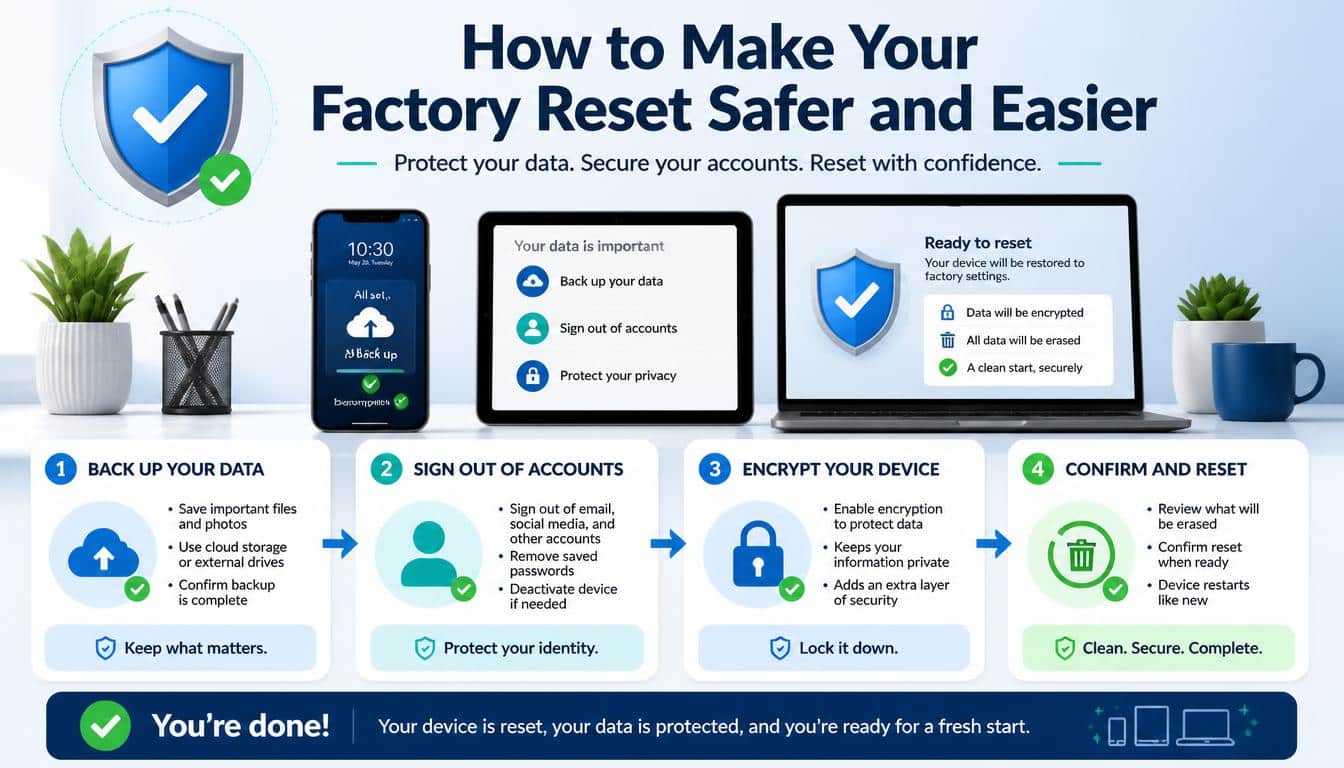
A successful reset isn’t only about pressing the right buttons. It’s also about making sure you don’t lose something important or leave an account connected to a device that you’re giving away.
A few sensible habits can make the whole experience less stressful, especially if this is your first time erasing an Apple device.
- Double-check your backup. Look at the latest successful backup date and verify that the information you care about is included.
- Keep your account details accessible. Make sure you know your Apple Account credentials before beginning, especially if you intend to transfer ownership.
- Read the eSIM prompt carefully. Decide whether to retain or delete your cellular profile based on what you’re doing with the phone.
- Unpair accessories when appropriate. If you’re transferring an Apple Watch or other paired device, follow the recommended preparation steps for each one.
- Don’t interrupt the reset unnecessarily. Allow the device to finish erasing and restarting before taking further action.
- Verify the final screen. If you’re handing over the device, check that it reaches the Hello screen and is ready for its next owner.
These steps may feel like extra work when all you want is a clean device. But a few careful checks now are much better than discovering later that an important document or account detail has gone missing.
Frequently aSked questions
How to reset iphone
To reset your iPhone, go to Settings > General > Transfer or Reset iPhone. Tap Erase All Content and Settings, then tap Continue and follow the on-screen instructions to complete the reset.
Factory reset ipad
To factory reset your iPad, open Settings > General > Transfer or Reset iPad. Select Erase All Content and Settings and follow the prompts to erase your data and restore the device to factory settings.
How to factory reset ipad
Back up your iPad before starting the factory reset to protect your important data. Then go to Settings > General > Transfer or Reset iPad > Erase All Content and Settings and follow the instructions on the screen.
Factory reset iphone
A factory reset removes personal information, apps, and settings from your iPhone. Before proceeding, back up your data, then navigate to Settings > General > Transfer or Reset iPhone > Erase All Content and Settings.
How to reset ipad
To reset your iPad to factory settings, open Settings, tap General, and select Transfer or Reset iPad. Choose Erase All Content and Settings, confirm your choice, and wait for the process to finish.
Read More: https://gracethemes.com/how-to-use-keyboard-shortcuts-on-mac/
Final Thoughts: Give Your Apple Device a Fresh Start
Learning how to factory reset your iPhone, iPad, or iPod touch doesn’t need to be complicated. Once you understand the difference between resetting settings and erasing all content, the process becomes much easier to manage.
For most accessible iPhones and iPads, the route is simple: open Settings, choose General, select Transfer or Reset, and tap Erase All Content and Settings. Follow the prompts, complete any required security checks, and wait for the Hello screen to appear. Older iPod touch models may use different menu labels or require a computer-based restore.
The most important part happens before you tap that final confirmation. Back up your information, check your Apple Account access, consider your eSIM, and unpair your Apple Watch if necessary. Those small preparations help protect your data and make transferring ownership far smoother.
And if your reason for resetting is simply to fix a troublesome device, remember that erasing everything isn’t always the first solution. Restarting, updating software, or resetting a specific setting may resolve some issues without removing all your personal content.
Ultimately, a factory reset is a practical way to prepare an Apple device for a new beginning. Whether you’re moving to a newer iPhone, passing an iPad to someone you love, or finally retiring an old iPod touch, taking the time to do it correctly gives you a little more peace of mind.
Your device may return to a familiar Hello screen, but what happens next is up to you: restore your memories, set it up for another chapter, or let a new owner make it their own. A clean start feels much better when you know your important information has been looked after along the way.
