
Top Adobe Premiere Pro Alternatives for Beginners and Content Creators
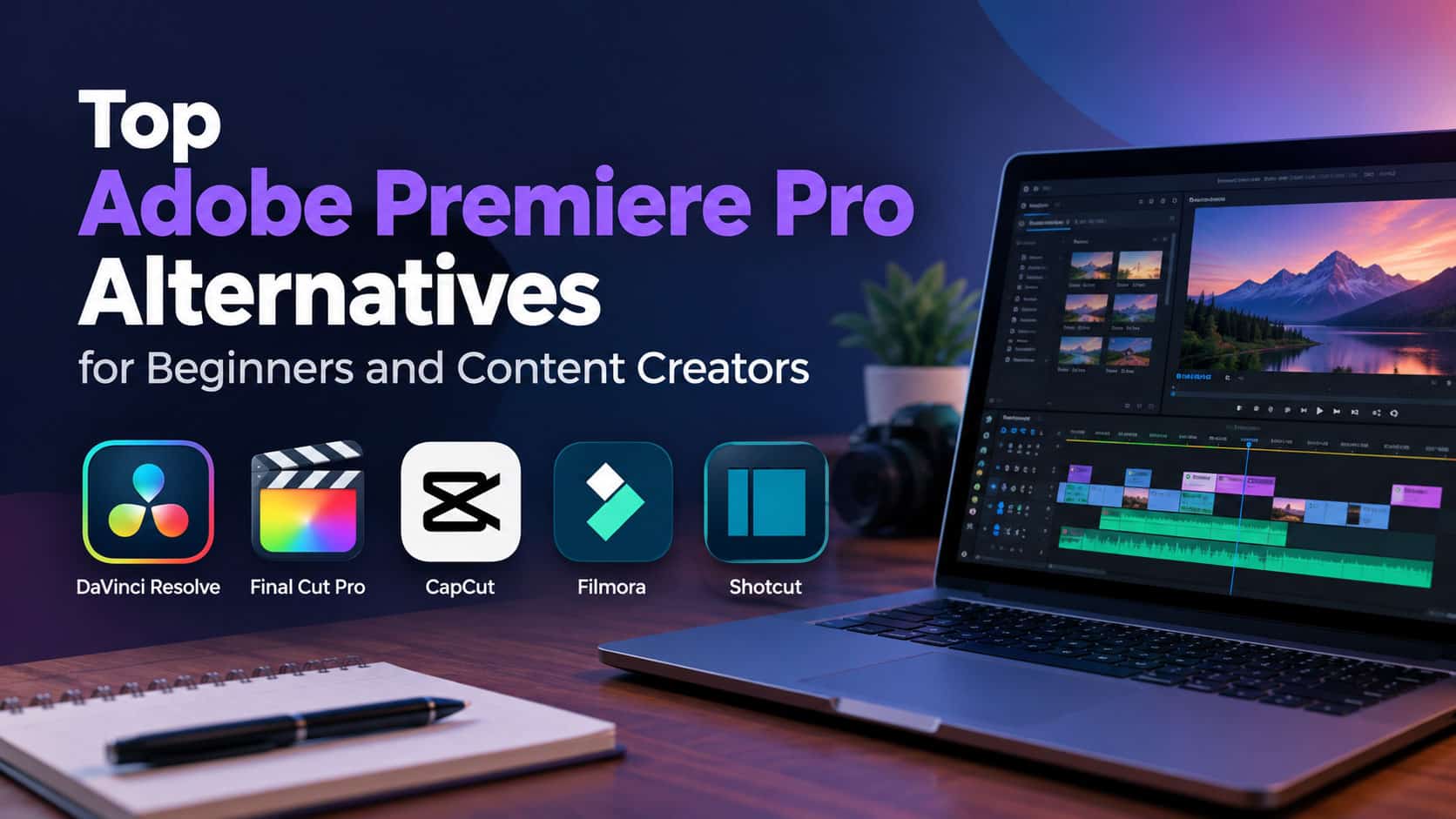
An Adobe Premiere Pro alternative is video editing software that trades Premiere’s subscription cost and professional-depth learning curve for templates, AI shortcuts, or a gentler timeline, without necessarily losing export quality. For a beginner or content creator, the best alternative is usually the one that gets a raw clip to a finished, platform-ready video fastest, not the one with the deepest color-grading toolkit. This guide compares seven tools on ease of use, AI assistance, cost, and how far each one can grow with you.
Quick Summary
- invideo — A free timeline editor with an AI agent that handles repetitive edits (Best Overall for Beginners Who Want to Grow)
- CapCut — The free, mobile-first editor every short-form creator already knows (Best for TikTok, Reels, and Shorts)
- Canva — Templates and brand kit in the same place you already design (Best for Marketing and Social Content)
- Clipchamp — Free, built into Windows and Microsoft 365 (Best for Microsoft 365 Users)
- Filmora — A real timeline with AI shortcuts, built for newcomers (Best for Learning Real Editing Skills)
- VEED — Fast captions and translation in the browser (Best for Multi-Language Social Clips)
- DaVinci Resolve — Free professional depth, for when you outgrow the basics (Best for Creators Ready to Level Up)
How We Evaluated These Premiere Pro Alternatives
Each tool was judged on four criteria built around what a beginner actually needs: ease of use (how long before you can produce something you’re proud of); AI assistance (does it remove repetitive manual work, not just add a filter); room to grow (can the tool handle more advanced work later, or will you outgrow it in a few months); and cost clarity (is the real price obvious up front, or hidden behind credits and regional variation).
| Tool | Best for | Key feature | Starting price |
| invideo | Learning on a real timeline while an AI agent handles repetitive edits | Free timeline editor plus a conversational editing agent | Free manual editing; paid tiers from $17/month billed annually |
| CapCut | TikTok, Reels, and YouTube Shorts | Templates, auto-captions, and trending effects across mobile, desktop, and browser | Free; Pro from about $9.99/month billed annually |
| Canva | On-brand marketing and social video | Drag-and-drop templates with Magic Studio AI | $144/year (about $12/month) for Pro |
| Clipchamp | Windows and Microsoft 365 users | Free 1080p export, no watermark, bundled with Windows 11 | Free; Premium $11.99/month standalone |
| Filmora | Learning real editing concepts without a professional interface | AI Copilot editing, keyframing, HSL color, stabilization | From about $19.99/month, or roughly $70/year |
| VEED | Multi-language captions for short-form social video | Auto-subtitles, AI avatars, 50+ language translation | Free; Creator plan from $12/month billed annually |
| DaVinci Resolve | Creators ready to grow past template editors | Node-based color, Fairlight audio, Fusion VFX | Free; Studio adds AI tools for $295 one-time |
Invideo — A Free Timeline Editor That Grows Into an AI Editing Agent
Invideo, browser-based timeline editor with Agent Two, an AI agent that can trim, caption, color-match, and reorganize a project from a plain-language instruction instead of manual clip-by-clip work. A beginner can start by dragging clips onto a real timeline, the same way they would in any editor, then lean on the agent only once a task starts feeling repetitive — asking it to apply one color look across every shot, for example, rather than learning keyframes first.
It also opens that project to outside help: invideo supports letting you edit videos using AI agents such as Claude, ChatGPT, Claude Code, Codex, and Cursor, which connect over MCP and work on the same browser timeline you’re watching, each with its own cursor alongside yours.
Because the timeline and the agent share the same project, nothing done with the agent locks you out of editing manually afterward. That matters for a beginner specifically: a tool built only around AI generation can become a dead end once you want finer control, while invideo’s timeline is there from day one.
Best for: Beginners who want to learn on a real timeline without giving up AI shortcuts as they go.
Where it falls short: AI generation and agent features run on credits once you move past manual editing, so heavier use needs a paid plan.
Pricing: Manual editing is free; paid plans start at $17/month billed annually and scale with AI credit usage.
CapCut — The Editor Every Short-Form Creator Already Knows
CapCut built its following on being free, fast, and nearly identical across its mobile app, desktop app, and browser version, with templates, auto-captions, and trending effects made for TikTok, Reels, and Shorts. For a beginner whose main output is short-form social video, there’s little reason to learn a timeline-heavy editor first: the free tier covers trims, transitions, and text without a subscription.
The catch is pricing and policy churn. CapCut has added a middle “Standard” tier alongside Pro, and creators have reported price increases and regional differences that make long-term commitment to a paid plan harder to evaluate than with most competitors. The free tier itself remains genuinely capable, though.
Best for: Short-form creators making TikTok, Reels, or YouTube Shorts who want a free, mobile-first start.
Where it falls short: Pro pricing has shifted over time and varies by region, and some features have moved between tiers without much notice.
Pricing: Free tier available; Pro runs roughly $9.99/month billed annually (around $19.99/month billed monthly), with pricing varying by region.
Canva — Video That Lives Next to Your Other Designs
Canva treats video as one more canvas alongside slides and social posts, so brand colors, fonts, and logos already saved in your account carry over automatically. Magic Studio layers in background removal, beat-synced cuts, and short AI video clips, all inside the same editor a beginner is probably already using for other content.
The trade-off is depth: Canva’s video tools are built for short, templated output rather than frame-accurate trims, and its AI features draw from a single shared monthly credit pool used by every Canva tool, not video alone.
Best for: Beginners already using Canva for other content who want video in the same workflow.
Where it falls short: Limited manual timeline control, and AI credits get consumed by Canva’s other design tools, not just video.
Pricing: Free plan available; Pro is $144/year (about $12/month).
Clipchamp — Free and Probably Already on Your Computer
Clipchamp is Microsoft’s browser-based editor, bundled at no extra cost into Windows 11 and Microsoft 365, which means a large share of beginners already have access to it without realizing. The free plan exports at 1080p with no watermark — a genuinely usable starting point rather than a stripped trial.
Premium, at $11.99/month standalone, adds 4K export and a larger stock library, but it comes included for anyone already paying for Microsoft 365 Personal or Family, which makes it close to free for that audience.
Best for: Windows and Microsoft 365 users who want a capable free editor without installing or subscribing to anything new.
Where it falls short: The AI and stock-media feature set is lighter than purpose-built competitors, and it’s tied to the Microsoft ecosystem.
Pricing: Free (1080p, no watermark); Premium is 9.99/month) or Family ($12.99/month).
Filmora — Real Editing Skills Without DaVinci Resolve’s Learning Curve
Filmora gives beginners an actual timeline — keyframes, HSL color adjustment, stabilization — dressed up with AI Copilot editing, AI thumbnail generation, and smart masking that lower the skill floor for each one. It sits between CapCut and a professional suite: more capability than a template editor, less intimidating than Resolve or Premiere Pro.
There’s no permanent free tier for watermark-free export, and pricing is split across monthly, annual, and one-time perpetual licenses that vary by platform, which makes comparing the real cost less straightforward than it should be.
Best for: Beginners who want to learn real editing concepts without a professional suite’s interface.
Where it falls short: No watermark-free free tier, and premium stock assets cost extra on top of the base plan.
Pricing: From about $19.99/month, or roughly $70/year on the annual plan; a one-time perpetual license is also available, priced separately by platform.
VEED — Captions and Translation Without Installing Anything
VEED runs entirely in the browser and is built around the same short-form habits CapCut owns, but adds AI avatars and translation into 50+ languages — useful for a beginner creator trying to reach audiences beyond one language or platform. Auto-subtitles are fast and accurate enough to replace manually timing captions almost entirely.
The free tier is watermarked, and the features most growing creators actually want — higher resolution, translation, brand kits — sit behind the $22/month Studio Pro tier rather than the $12 entry price.
Best for: Beginners publishing captioned, multi-language short-form video who don’t want to install software.
Where it falls short: The advertised $12/month tier is missing most of what a growing creator needs; real cost is closer to $22/month.
Pricing: Free plan with watermark; Creator is $12/month billed annually, Studio Pro is $22/month.
DaVinci Resolve — Free Professional Depth for When You’re Ready
DaVinci Resolve isn’t the easiest tool on this list, but it’s the one with no ceiling: its free version already includes color grading, audio mixing, and visual effects tools used on professional film sets, all at no cost. For a beginner who outgrows template-based editors within a few months, Resolve is the free option that won’t need replacing again.
The honest trade-off is onboarding. Resolve’s four-page structure — edit, color, Fairlight, Fusion — assumes you’re willing to learn concepts that CapCut and Filmora never ask you to touch.
Best for: Beginners who expect to get serious about editing and want one free tool that scales all the way up.
Where it falls short: The steepest learning curve on this list — not a tool to open the night before a deadline.
Pricing: Free; Resolve Studio adds AI tools and 4K+ output for $295 one-time.
Which Premiere Pro Alternative Should You Use
- Want to learn on a real timeline but keep AI shortcuts as you go → invideo
- Make TikTok, Reels, or Shorts and want a free, mobile-first start → CapCut
- Already use Canva for other content → Canva
- Use Windows or Microsoft 365 → Clipchamp
- Want real editing skills without a professional suite’s interface → Filmora
- Need multi-language captions for short-form social video in the browser → VEED
- Expect to get serious about editing and want one free tool that scales up → DaVinci Resolve
FAQ
What’s the easiest free alternative to Premiere Pro for a total beginner?
CapCut and Clipchamp are the gentlest starting points — both are free, template-driven, and watermark-free on their base tier. invideo’s timeline is also free to use manually, with the added option of an AI agent once you want to move faster.
Can I edit professional-looking video without learning Premiere Pro at all?
Yes. DaVinci Resolve’s free version includes the same color grading and audio tools used in professional post-production, and invideo’s AI agent can carry out polished multi-shot edits from plain-language instructions. Neither requires Premiere Pro’s interface or subscription.
Which Premiere Pro alternative is best for TikTok or Instagram Reels?
CapCut remains the default for short-form social video, built around templates and trends for that exact format. VEED is a close second if multi-language captions or translation matter more than trend templates.
Do I need to pay for an AI editing agent like invideo’s to get started?
No. invideo’s timeline editor is free for manual editing; the agent’s generation and automation features run on paid credits, so a beginner can learn the basics for free and add the agent only once a task feels repetitive enough to justify it.
Is DaVinci Resolve too hard for a beginner?
It has the steepest learning curve on this list, built around a four-page professional workflow rather than a simple trim-and-export flow. It’s a strong choice for a beginner who expects to get serious about editing, but not the fastest way to finish a video this week.
