

How to Add AI to your WordPress site without coding (GPT, Claude, Gemini)
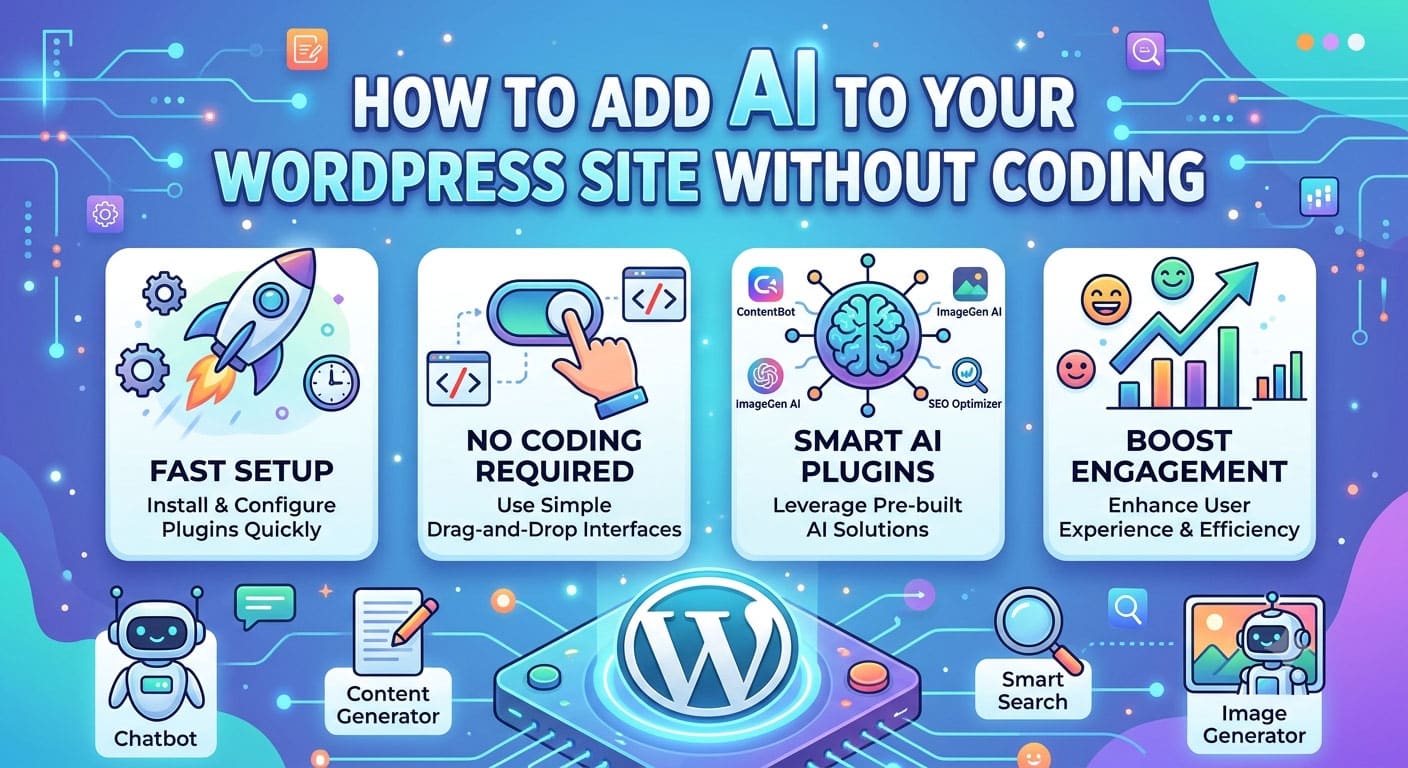
A few years ago, adding artificial intelligence to a website meant hiring developers and building custom systems. Today, any WordPress site owner can add AI-powered features in an afternoon, without writing a single line of code.
Visitors now expect websites to be helpful in new ways. They want quick answers, short summaries and content in their own language. Site owners, on the other hand, want to spend less time on repetitive work like writing meta descriptions, product details and FAQs.
AI can help with both. But with so many models, plugins and pricing options, it’s easy to feel lost. This guide walks you through the whole process in plain language:
- Which AI features are actually worth adding to WordPress
- How to choose between GPT, Claude, Gemini and other models
- How to connect AI to your site without coding
- How to keep your site fast, safe and affordable
- Common mistakes to avoid
Why AI belongs on your WordPress site
WordPress powers everything from personal blogs to large online stores. No matter what kind of site you run, AI can improve two things: the visitor experience and your own workflow.
For visitors, AI can:
- Answer questions instantly, day or night
- Summarize long articles into quick takeaways
- Recommend relevant posts or products
- Make content available in more languages
For site owners and editors, AI can:
- Draft blog posts and product descriptions faster
- Suggest meta titles, meta descriptions and image alt text
- Create FAQ sections from existing content
- Help sort and moderate comments and form messages
The goal isn’t to let AI run your website. It’s to remove the boring, repetitive tasks so you can focus on what really matters: great content, good design and happy visitors.
6 AI features worth adding to WordPress
1. Article summaries
Long, detailed posts are great for search rankings, but many readers only skim. A short “key takeaways” box at the top of each post helps visitors quickly understand what they’ll learn. It can also keep them on the page longer, because they know the article is worth reading.
2. AI chatbot
A chatbot that understands your pages, services and FAQs can answer common questions at any hour. For service businesses, it can capture leads. For online stores, it can help shoppers find products and understand shipping or return policies.
3. Meta descriptions and alt text
Writing a unique meta description for every page is one of the most tedious parts of SEO. AI can create a solid first draft in seconds. It can also suggest descriptive image alt text, which helps both search engines and visitors who use screen readers.
4. WooCommerce product descriptions
If you add products in bulk, AI can turn a simple list of features into friendly, readable descriptions. Just make sure someone checks every detail, especially sizes, materials and prices.
5. FAQ sections
AI can read an article or service page and suggest the questions your visitors are most likely to ask. Adding these as an FAQ section, with proper FAQ markup, can help your pages earn more space in search results.
6. Translation
For multilingual websites, AI can produce a first draft translation of pages and posts. A native speaker can then polish it. This is usually much faster and cheaper than translating everything from scratch.
Understanding AI models: GPT, Claude, Gemini and more
Behind every AI feature is a “model”: the system that actually reads your request and writes the response. The best-known models come from OpenAI (GPT), Anthropic (Claude) and Google (Gemini), but there are many others from companies like xAI, Meta and DeepSeek.
Each model has its own strengths:
- GPT models are reliable all-rounders and are great at following structured instructions.
- Claude models are known for natural, human-sounding writing.
- Gemini models can handle very long content, such as full guides or documentation.
Models also come in different sizes. Small models are fast and cheap, which makes them perfect for short tasks like alt text and meta descriptions. Larger “flagship” models cost more but produce better results for long-form writing and complex questions.
The smartest approach is to match the model to the task. You don’t need the most powerful model to write a 150-character meta description, but you might want it for a detailed buying guide.
The challenge: too many accounts and bills
Here’s where things get complicated. If you want to use GPT for one feature, Claude for another and Gemini for a third, you normally need:
- A separate account with each AI company
- A different API key for each one
- Separate billing and spending limits
- Different settings in each plugin
For a small business or a solo blogger, that’s a lot to manage.
A simple solution is to use a unified AI service. Platforms like Oxyy give you access to 170+ models from many AI companies through one account and one API key. Because it works with the same connection format that most OpenAI-based tools already use, switching from one model to another is usually just a matter of selecting a different model name in your plugin settings.
How to add AI to WordPress without coding
You don’t need to be a developer to get started. Here’s a simple, beginner-friendly process.
Step 1: Decide what you want AI to do
Start with one clear goal. For example, “add a summary box to my top 20 blog posts” or “answer common customer questions on my contact page.” Starting small makes it easier to measure results and avoid surprises.
Step 2: Choose an AI plugin
Browse the WordPress plugin directory for AI plugins that match your goal, such as chatbot plugins, AI content assistants or SEO helpers. When comparing plugins, look for:
- Recent updates and good reviews
- Support for multiple AI models
- An option to enter your own API key
- Ideally, an option to set a custom API endpoint, so you can use any OpenAI-compatible service
- Caching or “generate once” options to keep your site fast
Avoid plugins that load heavy scripts on every page or force you into an expensive monthly subscription on top of AI usage costs.
Step 3: Get your API key
Create an account with your chosen AI provider and generate an API key from the dashboard. Treat this key like a password. Never share it publicly, and only paste it into trusted plugin settings.
Step 4: Pick the right model for each feature
In the plugin settings, choose a model for each task. A small, low-cost model works well for meta descriptions and alt text. A mid-sized model is a good choice for summaries and FAQs. Save flagship models for long-form content. If you’re not sure which models are available, you can browse Oxyy’s model list to compare options and prices side by side.
Step 5: Test on a few pages first
Before turning AI on across your whole site, test it on a handful of pages. Check the quality of the output, how fast pages load, and how much the test cost. Adjust your settings until you’re happy.
Step 6: Roll it out and monitor
Once everything looks good, expand to more pages. Keep an eye on your AI usage dashboard and your site speed for the first few weeks.
Keeping your site fast
Site speed affects both user experience and search rankings. AI features can slow things down if they’re not set up carefully.
- Generate content once, not on every visit. Choose plugins that save AI output, such as summaries or FAQs, instead of creating it fresh each time a page loads.
- Load chatbots only where needed. If your chatbot only matters on product or contact pages, don’t load it across the entire site.
- Use a caching plugin. Page caching helps your site stay fast even with extra features.
- Check your Core Web Vitals. Run a speed test before and after adding AI to make sure nothing has slowed down.
Keeping AI affordable
AI providers usually charge based on how much text is processed. Costs are often tiny for small sites, but they can grow quickly on busy sites or with chatbots.
- Use smaller models for simple, high-volume tasks
- Generate content once and reuse it
- Set monthly spending limits in your AI provider’s dashboard
- Limit how many chatbot messages a single visitor can send
- Compare prices across providers, as the same model can cost very different amounts depending on where you access it
Keeping AI safe and trustworthy
Protect your API key. Only store it in trusted plugins, and regenerate it immediately if you think it has been exposed.
Review AI content before publishing. AI can make mistakes or invent facts. Always check product details, prices, health information and anything legal.
Respect visitor privacy. Avoid sending personal information to AI tools unless it’s truly necessary, and update your privacy policy to explain how AI features work on your site.
Be transparent. If visitors are chatting with an AI assistant, let them know. Honesty builds trust.
Common mistakes to avoid
Turning on every AI feature at once. Start with one feature, measure it, then expand.
Publishing AI text without editing. Generic, unedited AI content rarely ranks well and can make your brand sound robotic.
Using the most expensive model for everything. Small tasks don’t need flagship models.
Ignoring speed. A slow site loses visitors, no matter how smart its features are.
Forgetting to monitor costs. Check your usage regularly, especially after adding a chatbot.
FAQ: adding AI to WordPress
Do I need to know how to code?
No. Many WordPress plugins let you add AI features by simply entering an API key and choosing your settings.
Will AI slow down my WordPress website?
Not if it’s set up correctly. Choose plugins that save AI results instead of generating them on every visit, and only load chatbots where they’re needed.
Which AI model is best for WordPress?
There isn’t one best model. Small models are ideal for meta descriptions and alt text, mid-sized models for summaries and FAQs, and flagship models for long-form writing.
Is AI content good for SEO?
Helpful, accurate content that has been reviewed by a human can perform well in search. Unedited, generic AI content usually does not.
How much does it cost to add AI to WordPress?
For most small sites, AI usage costs only a few dollars a month. Busy sites and chatbots cost more, which is why choosing the right model and setting spending limits is important.
Conclusion
Adding AI to your WordPress site no longer requires technical skills or a big budget. With the right plugin, an API key and a clear goal, you can give visitors faster answers and helpful summaries, while saving yourself hours of repetitive work.
Start with one feature, choose the right model for the job, and keep an eye on speed and costs. As you get comfortable, expand to chatbots, FAQs, product descriptions and translations. Used thoughtfully, AI can make your WordPress website more useful, more engaging and easier to manage.
