
PHP 8.2 End of Life: How to Upgrade Your WordPress Site
PHP 8.2 Reaches End of Life on December 31, 2026: How to Check and Upgrade Your WordPress Site
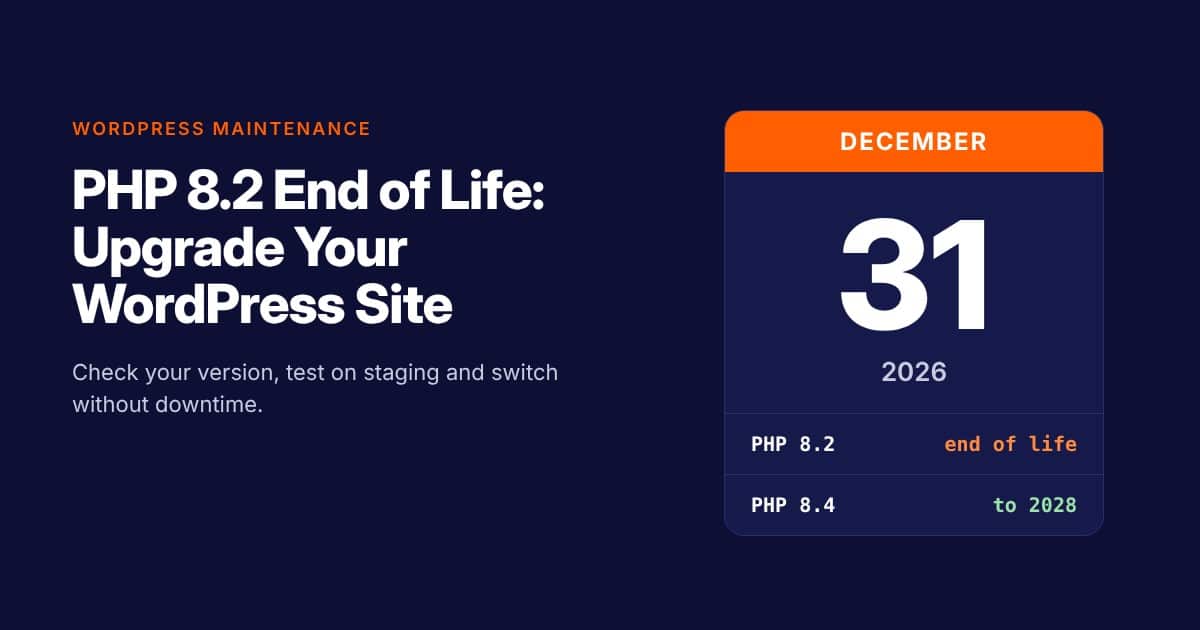
On December 31, 2026, PHP 8.2 stops receiving security fixes. If your WordPress site runs on it, the site won’t go down on January 1. It will keep working exactly as it does today. The difference is that any security hole found in PHP 8.2 after that date stays open for good.
That’s the trap with end-of-life software. Nothing breaks, so nothing feels urgent, and the upgrade gets pushed back until a host forces it or a vulnerability makes it an emergency.
This guide walks through how to check which PHP version your site runs, how to test an upgrade without risking the live site, and what to do when a plugin breaks. Done properly, the whole job usually takes an afternoon.
What “end of life” means for PHP
PHP is the programming language WordPress runs on. It sits on your hosting server, separate from WordPress itself, and each version has a fixed support window.
Each PHP release gets two years of active support, with bug and security fixes, followed by two years of security fixes only. After that, the branch reaches end of life and receives nothing (PHP.net supported versions).
Here’s where the current versions stand:
| PHP version | Security support ends | Status in November 2026 |
| 8.1 | December 31, 2025 | End of life |
| 8.2 | December 31, 2026 | Security fixes only, ending in weeks |
| 8.3 | December 31, 2027 | Security fixes only |
| 8.4 | December 31, 2028 | Active support |
| 8.5 | December 31, 2029 | Active support |
Source: PHP.net supported versions
PHP 8.1 is already past its end date. If your site is on 8.1 or older, everything in this guide applies to you too, only more urgently.
Why WordPress sites get stuck on old PHP
Most sites aren’t on old PHP because someone chose it. They’re on it because nobody changed it.
PHP version is set at the hosting level. It’s often picked once, when the site launches, and then left alone. WordPress updates itself, plugins update themselves, and the PHP version quietly ages underneath them.
WordPress itself is not the problem. WordPress 7.0 and 7.1 are fully compatible with PHP 8.2 through 8.5, and the core team retired its “beta support” label for PHP versions in May 2026 (Make WordPress Core). WordPress.org recommends hosts run PHP 8.3 or greater (WordPress requirements).
The risk sits in plugins and themes, especially old ones. Code written for PHP 7.4 or 8.0 can use functions that newer PHP versions have deprecated or removed. A plugin that hasn’t been updated in three years is the most likely thing to break.
In my experience auditing WordPress sites, the ones that struggle with PHP upgrades share one trait: a long list of plugins that nobody has reviewed since launch. The upgrade itself is simple. The cleanup it exposes is the real work.
Step 1: Check which PHP version your site runs
You don’t need server access for this. WordPress shows it in the dashboard.
- Log in to WordPress as an administrator.
- Go to Tools > Site Health.
- Open the Info
- Expand the Server section and find PHP version.
While you’re on the Site Health screen, check the Status tab too. If WordPress thinks your PHP version is outdated, it will flag it there as a recommended improvement.
If the version starts with 8.2, 8.1 or anything lower, keep reading.
Step 2: Choose your target version
Don’t upgrade to the version that’s “good enough for now.” Upgrade to the one that buys you the most time.
- PHP 8.3 meets WordPress.org’s recommendation and has security support until the end of 2027. It’s the cautious choice if your site runs a lot of older plugins.
- PHP 8.4 is in active support with security fixes until the end of 2028. For most business sites, this is the version I’d move to now.
- PHP 8.5 is the newest, supported until the end of 2029. WordPress core is fully compatible with it, but some plugins and hosts may lag behind. It’s a good target if your plugins are all well maintained.
Moving straight from 8.2 to 8.4 is fine. You don’t need to step through 8.3 first, as long as you test properly.
Step 3: Back up and set up a staging copy
Never change the PHP version on a live site first. Test on a copy.
- Take a full backup of files and database. Download it, don’t just leave it on the same server.
- Create a staging site. Many hosts offer one-click staging in the control panel. If yours doesn’t, a staging plugin or a local copy works too.
- Set the staging site to your target PHP version. In cPanel, this is usually under MultiPHP Manager or Select PHP Version. Managed WordPress hosts tend to have a PHP setting on the site’s dashboard.
Some hosts let you set PHP per directory or per site. Make sure you’re changing the staging copy only.
Step 4: Update everything before you switch
Run all updates on the staging copy before you test the new PHP version:
- WordPress core
- Your theme, and parent theme if you use a child theme
- Every plugin
Updates often contain the PHP compatibility fixes you need. Testing old plugin versions on new PHP just finds problems that the plugin authors have already solved.
This is also the moment to delete what you don’t use. Every deactivated plugin you remove is one less thing to test, and one less thing that can break later.
Step 5: Test with error logging turned on
Turn on WordPress debug logging on the staging site, so errors are written to a file instead of shown to visitors. Add these lines to wp-config.php above the line that says “That’s all, stop editing”:
define( ‘WP_DEBUG’, true );
define( ‘WP_DEBUG_LOG’, true );
define( ‘WP_DEBUG_DISPLAY’, false );
Errors will now be written to wp-content/debug.log (WordPress debugging documentation).
Then work through the site the way a customer and an editor would:
- Load the homepage, a few key pages and a blog post.
- Submit every form, including contact, booking and newsletter forms.
- If you run WooCommerce, add a product to the cart and go through checkout with a test payment method.
- Log in to the admin, edit a page, upload an image and save.
- Check any page that uses a page builder or custom shortcodes.
Afterwards, open debug.log. You’ll probably see some deprecation notices. These are warnings that code will need updating in a future version. They don’t break anything today. What you’re looking for are fatal errors and warnings that point to a specific plugin or theme file.
Step 6: Fix or replace what breaks
The log tells you which file caused each error, and the file path tells you which plugin or theme it belongs to.
Here’s a typical case. A small online store moved from PHP 8.1 to 8.4 on staging. Everything looked fine until checkout, where the shipping calculator threw a fatal error. The log pointed to a shipping-rates plugin last updated four years earlier, which used a function PHP had removed. The fix took 20 minutes: a maintained alternative was installed, the shipping zones were set up again, and the checkout worked. Found on the live site during a busy week, the same problem would have stopped every sale.
For each problem plugin, you have three options:
- Update it. Check whether a newer version exists, including from the vendor’s own site for premium plugins.
- Replace it. If the plugin is abandoned, find a maintained alternative that does the same job.
- Fix the code. For custom plugins or themes built for you, the fix is often small, but it needs someone who knows PHP.
If your site has custom code, or the errors point to files you don’t recognize, this is the point to bring in an experienced WordPress developer rather than guessing. A broken checkout or booking form costs more than the fix.
When the log is clean of fatal errors and the site works end to end, you’re ready.
Step 7: Switch the live site
- Pick a quiet time. Early morning or a weekend, depending on your traffic.
- Take a fresh backup of the live site, even if you took one last week.
- Apply the same updates you ran on staging, and remove the same unused plugins.
- Change the PHP version on the live site in your hosting control panel.
- Repeat the key tests: homepage, forms, checkout and admin login.
- Clear all caches, including any caching plugin, your host’s server cache and a CDN if you use one.
Keep an eye on debug.log for a few days, with WP_DEBUG_DISPLAY left set to false so visitors never see errors. Once you’re confident, turn debugging off again and delete debug.log. By default it sits in a folder visitors can reach, so it shouldn’t be left on a live site.
If something does go wrong, switching back is quick. Set the PHP version back in the control panel, and the site returns to how it was.
What if you do nothing?
Your site will keep running after December 31. But three things start to happen.
- Security risk builds up. New PHP vulnerabilities found in 8.2 after its end date won’t be fixed. Your site’s security then depends entirely on your host’s server-level protections.
- Hosts move on. Some hosts upgrade old PHP versions automatically, which can break a site that was never tested. Others keep old versions available only through paid extended support. GoDaddy, for example, offers PHP 7.4 through extended PHP support on its Managed WordPress hosting (GoDaddy help).
- Plugins move on too. Plugin authors drop support for old PHP versions over time. Eventually, a routine plugin update will refuse to install, or install and fail.
Upgrading on your own schedule, with a tested plan, is always cheaper than upgrading in a hurry because something forced it.
Frequently asked questions
Will upgrading PHP make my WordPress site faster?
Often, yes, but it depends on the site. Newer PHP versions generally run code more efficiently. On a site slowed down by heavy plugins or a page builder, the PHP upgrade alone won’t fix that. Treat speed as a bonus, not the reason to upgrade.
Can I upgrade PHP myself, or do I need a developer?
If your site uses well-known, up-to-date plugins and you have staging available, you can follow the steps above yourself. If the site runs custom code, a large WooCommerce store, or plugins you can’t update, get help before you change the live site.
How long does a PHP upgrade take?
For a typical business site with 15 to 25 plugins, testing and switching takes a few hours. Most of that is testing. Sites with abandoned plugins take longer, because each one needs replacing or fixing.
My host says my site is already on the latest PHP. Should I double-check?
Yes. Check Site Health yourself. Some hosts upgrade the server’s default PHP version, but individual sites can still be pinned to an older one in the control panel.
