


How to Sell Internationally with WooCommerce Currency Switcher:-, Pricing & UX Best Practices
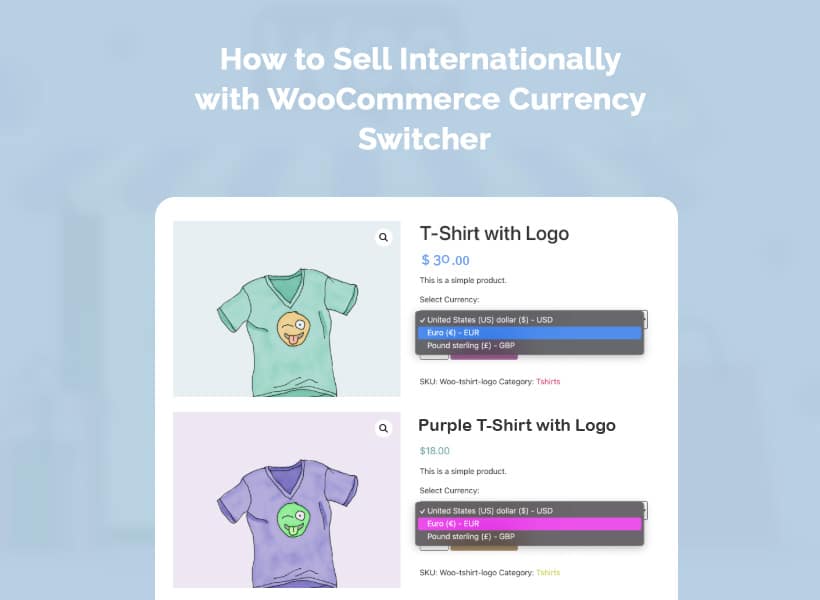
Selling online is no longer confined to a single country or market. Thanks to WooCommerce, even small and medium-sized businesses can reach customers worldwide. However, going global comes with its own set of challenges—particularly when it comes to displaying prices in the right currency, maintaining pricing clarity, and delivering a smooth user experience (UX).
When international visitors struggle to understand product prices, taxes, or final checkout costs, they are far more likely to abandon their carts. To overcome these barriers, store owners need the right tools and strategies in place. In this article, we’ll explore best practices for selling internationally with WooCommerce, including how using a reliable WooCommerce Currency Switcher, smart pricing strategies, and UX optimizations can help convert global visitors into confident customers.
Why Local Currency Matters for International WooCommerce Stores
When someone visits your WooCommerce store from another country, the first thing they usually notice is the price. If it’s shown in a currency they’re not familiar with, they have to stop and think, do a quick conversion, or even leave your site to check the cost. That small interruption is often enough to make people hesitate or abandon their cart.
Showing prices in a customer’s local currency removes that friction. It makes the store feel familiar and easier to trust, which is especially important when you’re dealing with international buyers who may be purchasing from you for the first time.
Here’s why local currency pricing makes such a difference:
- Customers instantly understand how much they’re paying
- There’s less confusion about exchange rates or extra fees
- Shoppers feel more confident moving through checkout
- Fewer surprises mean fewer abandoned carts
Of course, pricing clarity works best when it’s supported by a clean and user-friendly design. A well-structured WooCommerce-ready theme helps ensure prices, currency selectors, and calls to action are easy to find on any device. Many store owners start with lightweight layouts, such as these free WordPress themes, and then build on them as their business grows.
When pricing feels clear, and the site is easy to use, international customers are far more likely to stay, browse, and complete their purchase.
How a WooCommerce Currency Switcher Helps You Sell Globally?
Selling to international customers is much easier when your WooCommerce store can display prices and accept payments in multiple currencies. A reliable WooCommerce Currency Switcher ensures that visitors from any country feel comfortable shopping, understand product costs, and can complete purchases without confusion.
Among the available options, the Aelia WooCommerce Currency Switcher is widely regarded as one of the best solutions today. It combines powerful features with ease of use, helping store owners increase conversions while keeping international transactions smooth and transparent.
Why Aelia WooCommerce Currency Switcher Stands Out
- Shop in any currency – allows customers to see product prices and complete payments in their preferred currency.
- Automatic exchange rate updates – integrates with providers like Open Exchange Rates, OFX, and the Turkish Central Bank to keep pricing accurate.
- Manual price and currency control – set custom prices for each currency if you want fixed rates, or let the plugin calculate prices automatically.
- Geolocation support – automatically detects the visitor’s country and sets the appropriate currency.
- Persistent currency selection – remembers the customer’s preferred currency on every visit, improving the user experience.
- Payment gateway filtering – displays only payment methods compatible with the selected currency.
- Conversion-focused – helps reduce extra credit card conversion fees, which can improve overall sales.
How It Works
After installation, you can configure which currencies your store will accept. These currencies are displayed in a widget so that users can select their preferred one. Once chosen, the store updates product prices and completes transactions in that currency. Each order records the currency used, making it easy for both shop owners and customers to track exactly what was paid.
The Aelia WooCommerce Currency Switcher is easy to use for both merchants and shoppers. It removes the guesswork for international buyers, reduces abandoned carts, and ensures a seamless shopping experience worldwide.
Step-by-Step Guide to Installing and Setting Up the Aelia WooCommerce Currency Switcher
The Aelia WooCommerce Currency Switcher is a powerful plugin that helps WooCommerce stores sell globally. It lets you display prices in multiple currencies, automatically detect a visitor’s location, and process payments in the selected currency. Follow this guide to install, configure, and test the plugin for optimal performance.
1. Install and Activate the Plugin
Before you can use the currency switcher, you need to install and activate it on your WordPress site. This process is simple and takes just a few minutes.
- Purchase the plugin from the Aelia website and download the .zip file.
- In your WordPress dashboard, go to Plugins > Add New > Upload Plugin.
- Upload the .zip file, click Install Now, and then Activate.
- Once activated, the plugin’s settings will appear under WooCommerce > Currency Switcher.
Tip: If the settings don’t appear, clear your WordPress cache or check Aelia’s knowledge base for troubleshooting tips.
2. Configure Your Currency Options
After activation, you need to choose which currencies your store will support. Offering only relevant currencies helps keep the shopping experience simple and avoids confusing your customers.
- Navigate to WooCommerce > Currency Switcher.
- Select the currencies you want to enable and click Save.
- Avoid enabling too many currencies at once to keep the interface clean and user-friendly.
2.1 Review Currency Settings
Once your currencies are selected, review the settings to ensure accurate pricing and display.
- Set Exchange Rates: choose automatic updates for live rates or enter manual fixed rates.
- Configure Currency Symbol & Position (e.g., $, €, £ before or after the amount).
- Select an Exchange Rate Provider like Open Exchange Rates, OFX, or others.
- Enable automatic updates to refresh rates regularly (daily is recommended).
Tip: Automatic exchange rates are generally more accurate and prevent pricing discrepancies.
2.2 Enable Geolocation
Geolocation ensures visitors automatically see prices in their local currency, making the shopping experience seamless.
- Go to the Geolocation tab and enable it.
- Set a default currency for visitors from unsupported regions.
- Optionally, assign specific currencies to certain countries or regions using filters.
2.3 Set Up Payment Gateways
To process payments correctly, each currency must be linked to a compatible payment gateway.
- Assign at least one payment gateway for each currency (e.g., Stripe, PayPal).
- Navigate to WooCommerce > Currency Switcher > Payment and tick the gateways for each currency.
Tip: Revisit this section whenever you add a new payment gateway to ensure it’s correctly assigned.
2.4 Configure Customer Currency Selection
You can give customers control over currency selection or automatically assign it based on location.
- URL Parameter: Switch currency via a special URL.
- By Country: Automatically assign currency based on billing or shipping country.
- Currency Selector Widget: Allow users to choose manually via a dropdown or menu.
Note: If the currency is locked by country, hide the selector to prevent overrides.
2.5 Enable Debug Mode (Optional)
Debug Mode helps monitor plugin activity and troubleshoot issues.
- Enable Debug Mode under the Support tab.
- Useful when testing configurations or contacting Aelia support for help.
2.6 Add the Currency Selector Widget
The widget lets customers manually switch currencies from anywhere on your site.
- Go to Appearance > Widgets and place the currency selector in your sidebar, footer, or menu.
- Alternatively, use a shortcode to display it anywhere, such as inside a product page or header.
3. Test Your Setup
After configuration, it’s important to ensure everything works correctly before going live.
- Visit your storefront and switch between currencies to confirm product prices update accurately.
- Add products to the cart and check that totals, taxes, and shipping costs reflect the selected currency.
- Complete a test order and verify that order emails show the correct currency.
- Check WooCommerce > Orders to ensure each order records the correct currency for reporting.
UX Best Practices for International WooCommerce Stores
Installing a currency switcher is just the first step—how your store looks and feels to international customers is equally important. A smooth, intuitive user experience (UX) can make the difference between a completed purchase and an abandoned cart. Optimizing your WooCommerce store for global visitors ensures that currency, pricing, and navigation all work together seamlessly.
1. Make Prices Clear and Consistent
Customers should always see prices in a familiar format, and totals should match what they expect at checkout.
- Display product prices in the visitor’s selected or detected currency.
- Ensure that taxes, shipping, and discounts are calculated and displayed accurately.
- Keep pricing consistent across product pages, cart, and checkout.
- Use familiar currency symbols and formatting for each region.
2. Use Geolocation Thoughtfully
Automatically showing local currency improves convenience, but give customers control if needed.
- Detect the visitor’s country and display the appropriate currency automatically.
- Allow users to manually change currency via a dropdown or widget.
- Consider region-specific promotions or offers to make international shoppers feel welcome.
3. Optimize Checkout for Global Users
A smooth checkout reduces friction and builds trust with international buyers.
- Show the total price, including taxes and shipping, in the selected currency before finalizing payment.
- Offer multiple payment options compatible with the selected currency.
- Avoid sudden currency changes during checkout, which can confuse or frustrate users.
- Display clear instructions, terms, and customer support information for international buyers.
4. Keep Navigation and Layout Simple
A clean, responsive design helps visitors from all countries shop without confusion.
- Use responsive themes that adapt well to desktop and mobile devices.
- Highlight the currency selector in a visible but non-intrusive location, such as the header or sidebar.
- Organize menus and product categories logically to avoid overwhelming international customers.
- Test your site in different regions or with VPN tools to see how it appears to foreign visitors.
5. Enhance Trust and Transparency
International shoppers are more cautious when buying from a store in another country. UX improvements can reduce hesitation.
- Provide localized support or contact information.
- Show estimated delivery times for international shipping.
- Clearly state refund, return, and exchange policies for different regions.
- Use recognizable security badges and SSL certificates to reassure buyers.
