
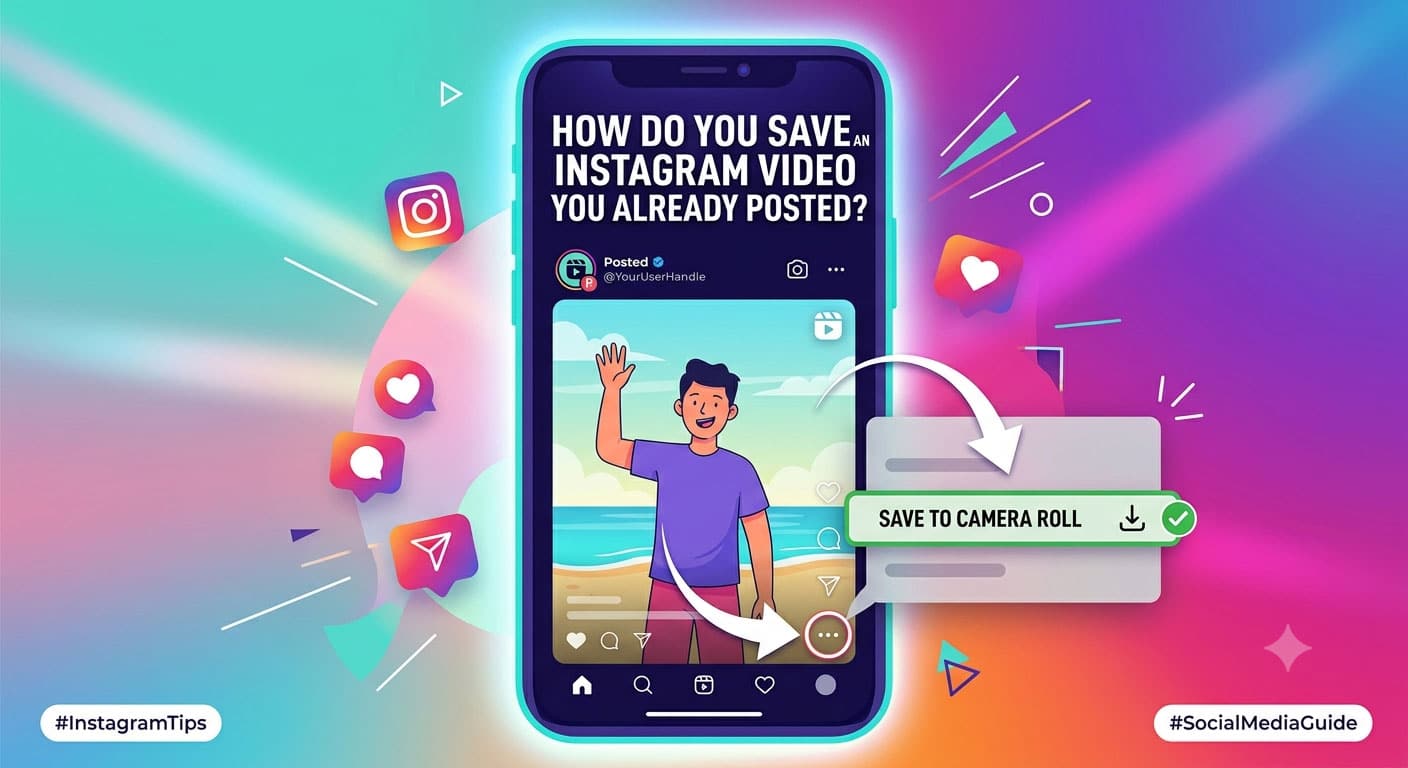
How do you save an Instagram video you already posted
The theme is in, the demo content is gone, and the homepage hero block is a grey rectangle with a Play icon nobody can press. The clip that belongs there exists: shot on my phone in the workshop, trimmed in the Instagram app, posted as a reel.
The exported file is nowhere.
Not in the camera roll, not in the folder I swear I made for this. So how do you save an Instagram video? For a site builder it splits in two: embed the post or host the file, and if you host it, will WordPress take it? Each half turns on a number.
Embed it or host it
Embedding uploads nothing; the video plays from Instagram’s servers.
The easy version is dead. The Instagram embed block stopped working after October 24, 2020, and core dropped Instagram as an oEmbed provider in WordPress 5.5.2. Getting it back takes a developer account, an app id and an authentication token, per WordPress.org.
Instagram’s own embed code still renders: three-dot menu, Embed, copy. I put that code for a public NASA reel on a plain HTML page, not a WordPress install, and loaded it five times in a fresh headless browser, never pressing play. It rendered every time, no token, no login. It also pulled 1,679,393 bytes, about 1.68 MB, across 46 requests before anyone touched the video. Below Editor you lack the unfiltered_html capability, and a Custom HTML block then strips the script on save, so the embed never loads. And an account can switch embedding off for a post, leaving a blank.
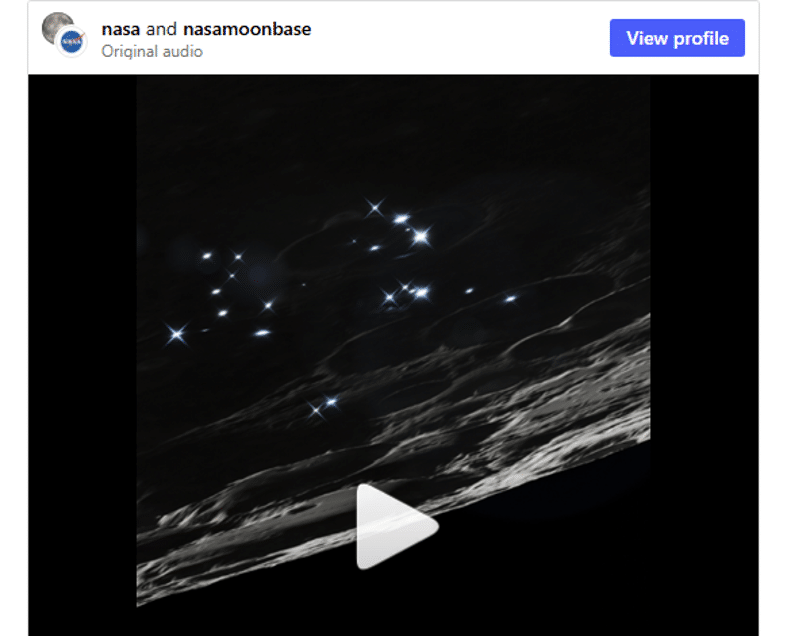
Instagram’s own embed code drawing the NASA reel on a plain HTML page. Before Play, a load like this cost about 1.68 MB over 46 requests, the median of five.
Look for the original before you download anything
The link fastdl handed back for that same NASA reel carried Instagram’s own encode tag for a 720 rendition. Whatever a downloader gives you is Instagram’s rendition of your upload, not your upload. I do not know your camera, so I will not call the original sharper. It has not been through Instagram’s encoder, and that is the file your homepage deserves.
The Instagram app’s own menu may have a Download option for your posts; menus move, so no tap path from me.
If the clip is not yours, ask first.
Where to get the file when the original is gone
- fastdl. Paste a public reel link into fastdl’s instagram reel download page and it hands back an MP4, and in five runs across its pages nobody was asked to log in or sign up. It is also the only one of the three whose output I measured, audio track included, so the arithmetic below is on a real file. The caveat: what you get is Instagram’s 720 rendition of your clip.
- DownReels. On paper it matches fastdl: no login, its page states no daily limit, and it says MP4 at source quality with audio. Its terms are the plainest of the three about this exact use, naming “Saving your own content that you have published on Instagram” as permitted. Second because nothing about its file was observed, and its video page says “Not for Reels, Photos, Stories, or Profile Pictures”, pointing reels to a separate tool.
- Inflact. Its paid plan is the only one here that pulls a whole public account in one click, into a cloud folder. For moving a back catalogue of reels into a WordPress portfolio, that beats fastdl outright: one action against one paste per clip. It costs €7.8 a month, and I have not tested it. For a single clip it comes last, because the free counter runs dry after two downloads a day.
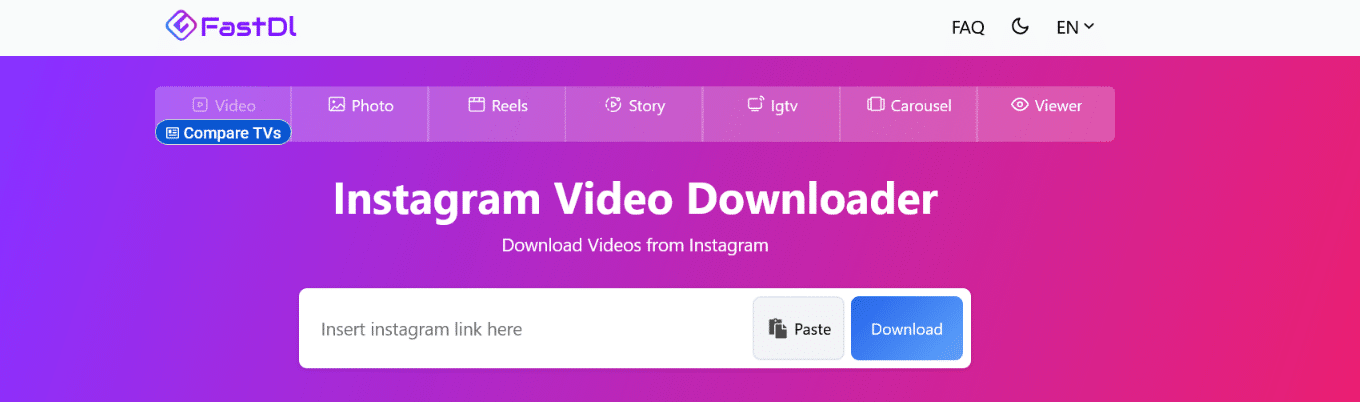
fastdl’s video page, with Reels one tab over. One box for the link, a Paste button, a Download button, and nothing in the header asking you to sign in.
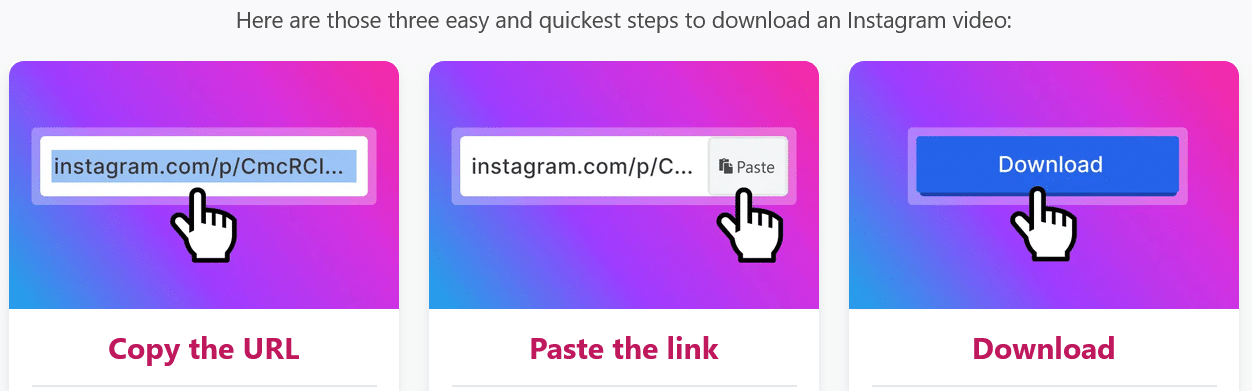
The how-to on the same page comes down to three cards: Copy the URL, Paste the link, Download.
Will WordPress take the file
Now the second number. The file I measured is a 46.2-second video from a NASA Earth post, pulled through fastdl’s free path from that account’s posts: not the reel above, and not a story. It came down as a 720×1280 H.264 MP4 with AAC audio at 1,436 kb/s overall, 8,294,411 bytes, which is 7.91 MiB. At that rate a minute of footage comes to roughly 10.77 MB, arithmetic that assumes your clip encodes like this one.
MP4 is on WordPress’s allowed list, but the size ceiling is the smaller of two PHP settings, upload_max_filesize and post_max_size. On PHP’s out-of-the-box settings those are 2,097,152 and 8,388,608 bytes. The file is 3.96 times the first and slips under the second by 94,197 bytes.
Call it four times the ceiling.
Hosts change those defaults, so read yours: Media > Add New shows the “maximum upload size for files, as set by your hosting provider”.
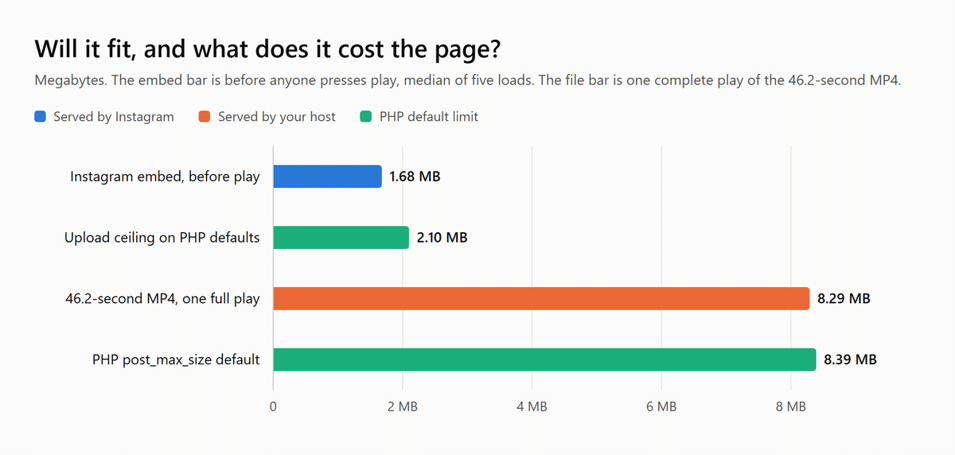
The embed bar is measured before play and served by Instagram; the file bar is one complete play, served by your host. Both limits are PHP’s defaults, not necessarily your host’s.
Once it is in, use a Video block with Preload on Metadata, the default; in WordPress’s wording, “the download of the video file only begins when someone clicks Play”.
What I would do
Dig for the original, in this order: the phone, the editing app’s exports, the Instagram app’s own menu.
If it is gone, paste the public link into fastdl and take the 720 MP4. A shipped hero beats a perfect one in a folder I cannot find.
Before uploading, read the ceiling on Media > Add New. I have lost an evening to that error more than once.
Then decide by what the clip is for. Where the video is the point of the page, I host it in a Video block, Metadata preload, and let my server carry it. Where it is a side note in a post, I paste Instagram’s embed code as an Editor or above and let Instagram’s servers carry it.
I would not pay Inflact’s monthly fee for one clip. The day I need a whole account moved, I would.
