
Clinic Staff Pages Need One Face File Not Another Studio Day

Clinic websites break in a boring place: the About or Staff grid. One doctor has a sharp studio frame, another still uses a cropped wedding guest shot, and a third slot stays empty because nobody can book photography this month. Visitors do not read your specialty paragraph first. They scan faces. When those faces disagree, even a clean WordPress theme looks unfinished—and that is exactly where a coherent set of doctor headshots matters more than another homepage banner.
The fix is not an inspirational brand workshop. It is a repeatable portrait workflow you can finish between clinic hours. ProfessionalHeadshot is useful here because the path is short—upload selfies, pick medical looks, download a set—and the output is meant for directories, practice pages, and portal crops, not a single magazine cover. The claim worth checking on a real Staff page is simple: can one master file survive your theme’s circle crop, the bio sidebar, and the mobile card without looking like three different people?
Set The Staff Page Pass Rule Before You Generate
Before anyone opens a generator, write the acceptance rule next to the CMS login. For most clinic sites the rule has three checks: same face across desktop and mobile Staff cards, readable eyes inside a circular crop, and attire that matches how the doctor appears on clinic days. If a file fails any check, it never reaches the Media Library.
That rule stops the usual WordPress failure mode—uploading twelve “nice” JPGs, then arguing in Slack about which one feels warm. You are not collecting vibes. You are shipping one canonical face per clinician so the theme’s grid stops looking like a collage of unrelated eras. Teams that skip this step often waste an afternoon renaming files that were never going to clear the crop.
Prepare Inputs The Generator Can Actually Use
The product asks for 5–20 casual phone photos. That range is not filler. Too few angles and the likeness gets thin; a dump of near-identical selfies wastes the set. For clinic work, prepare a small folder the night before: front-facing and slight three-quarter angles in even indoor light; no sunglasses, heavy filters, or group crops; hair and facial hair as they appear on a normal clinic day; one clean wall selfie plus one window-light selfie so lighting variety exists.
If a doctor only has festival photos and car selfies, stop and shoot five hallway frames before paying for generation. Bad inputs create re-work that looks like “AI failed,” when the real miss was upload hygiene. The five minutes in a hallway are cheaper than regenerating a whole set because every source file was backlit and smiling at a cake.
- Collect 5–20 solo phone photos with angle variety
- Exclude filters, groups, hats that never appear at clinic
- Label the folder by clinician before anyone uploads
- Confirm the Staff template crop shape (circle, rounded square, hard square)
Run The Official Path With Medical Looks Locked First
Once the folder is ready, the live path on ProfessionalHeadshot stays tight. You do not need a custom prompt novel. You need medical looks unlocked and the Staff crop checked before anyone celebrates a before/after in chat.
Step 1 Upload The Selfie Folder
Upload the 5–20 photos and start the personalized model build. Keep filenames boring (`dr-lee-01.jpg`) so the later Media Library does not turn into chaos. Do not mix two clinicians in one project. One face per job keeps the Staff grid honest and prevents the awkward “why does Dr. A’s coat look like Dr. B” support thread.
Step 2 Choose Medical Outfit And Clean Background
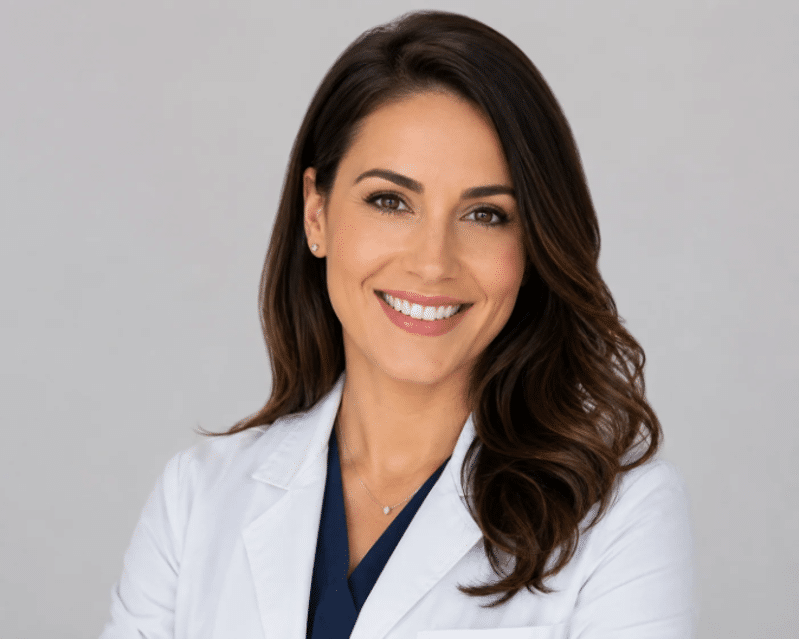
For physician pages, lock medical looks before you browse lifestyle scenes. The doctor landing page highlights white lab coat and medical scrubs against clean studio backgrounds—solid white or light gray—because those survive directory-style circles and clinic theme thumbnails. Business blazer options help administrators; they are usually the wrong default for a clinical Staff card where patients expect a coat or scrubs.
Pricing matters for this step only in one way: Executive is the tier that unlocks Medical, Legal, and Executive style sets. Lower tiers can still produce polished professional frames, but if the clinic’s brand standard is lab coat on every Staff tile, buy the unlock that actually includes Medical looks instead of hoping a cheaper package invents them.
Put that unlock requirement in the purchase note the same way you note a plugin license. Practice managers remember “we bought headshots.” They forget which looks were unlocked. Six months later a new partner joins, someone regenerates on the wrong mental model, and the Staff grid drifts back into blazer-on-one-tile, coat-on-another chaos.
Step 3 Download And Name The Master File
Delivery is commonly framed as 10–30 minutes for dozens of frames in the 40–100 range depending on plan. When the set lands, do not upload the whole ZIP to WordPress. Pick one master frontal for the Staff grid, one three-quarter alternate for long bio pages, and park the rest offline. Name the master `lastname-staff-master.jpg` so future editors stop inventing new heroes every quarter.
This is also the moment to open ProfessionalHeadshot.io only long enough to grab regenerations if the first master fails crop—not to wander into unrelated lifestyle scenes that will never match your theme.
Step 4 Drop The File Into The Theme And Fail Fast
Replace the Staff image in the theme, purge cache, and open the page on a phone. In my testing protocol for clinic WordPress grids, the only variable is the portrait file; layout and bio text stay fixed. If the face looked fine on desktop but the circular crop cut the eyes, or the coat collar turned muddy against the card background, that frame is discarded before anyone debates CSS for an hour.
Spend a regeneration credit on a cleaner frontal instead of asking the developer to “just nudge the object-fit.” Theme hacks hide a bad master for one breakpoint and break another. The observable fail is the crop; the fix is another frame, not more CSS.
Acceptance Table For Clinic Media Libraries
Use one small table so editors stop improvising standards mid-publish:
| Check | Pass | Fail |
| Likeness | Same person as clinic-day face | Softer stranger / age drift |
| Crop | Eyes clear in circle/square card | Forehead-heavy or chin cut |
| Attire | Lab coat / scrubs / agreed clinic dress | Party wear or noisy logos |
| Background | Clean studio white/gray | Busy clinic clutter fighting type |
If two of four checks fail, the file never clears editorial. That sounds strict. It is cheaper than a wasted afternoon rebuilding the Staff page after patients screenshot the weird crop and the front desk starts fielding “who is that?” questions.
Keep the table in the operations wiki next to the Media Library naming rules. When a new hire uploads a selfie straight from the phone into the live grid, you want a written fail reason, not a vague “looks off.”
Common Mistakes That Recreate The Collage Problem
Most clinic sites do not fail because the generator is empty. They fail because the workflow leaks.
Mixing two doctors in one upload job creates blended cues that are hard to explain to a non-technical practice manager. Uploading every regenerated look into WordPress recreates the collage you were trying to kill—editors keep swapping “favorites” until the grid drifts again. Choosing a dramatic skyline background behind a lab coat may look cinematic in the ZIP preview and unreadable next to your theme’s navy bio text.
Another quiet miss: buying a lower package, then asking why Medical styles never appear. That is a tier problem. Executive is the published unlock for Medical looks. If the brand standard requires coats on every tile, put that requirement in the purchase note before anyone hits pay.
Equally quiet: treating regenerations like infinite free edits. Credits are finite on every plan. Use them when the Staff crop fails, not when someone wants a slightly warmer smile for Instagram. The CMS is the customer; the social feed is optional.
If you manage five or more clinicians, batch the work. Collect folders on Monday, generate Tuesday, publish Wednesday. Spreading the job across random afternoons recreates the collage because each editor invents a private standard. One pass rule, one naming scheme, one publish day beats heroic one-off uploads.
Where This Workflow Still Needs A Human
AI sets do not replace hospital badge photography rules, printed credential policies, or a campaign shoot that needs art direction. They also inherit your uploads: blurry selfies stay blurry in nicer clothes. Keep a human gate for likeness and attire before anything hits the live Staff grid, and keep certified ID photography on its own track.
Publish Checklist When The Grid Finally Matches
When the master file passes, finish the boring CMS work the same day. Set alt text with the clinician’s name and role. Update duplicate bio modules that still hold the 2019 JPEG. Note the package tier in the ops doc so the next hire knows Medical looks were unlocked. Then walk the mobile Staff grid once more: if 3 of 4 doctors now share crop geometry and coat logic, the page finally reads like one clinic instead of a folder dump.
Teams that already run a clean photographer retainer for every clinician may not need this path. Teams that ship theme updates with empty avatar slots do. ProfessionalHeadshot earns its keep when the bottleneck is getting a coherent face into WordPress this week—not when the clinic wants a rented studio and a stylist for a billboard. For the middle case—multiple doctors, one theme, no time—lock medical looks, keep one master file, and stop letting the Staff grid invent a new identity every quarter.
If you want a single sentence for the ops wiki, use this: upload clean selfies, unlock Medical looks on the right tier, publish one master per clinician, and fail any crop that makes the doctor look like a stranger on mobile. Everything else is decoration. The Staff page either reads as one clinic or it does not—and patients notice before they read a single insurance line.
