

How to Combine Live Footage With AI-Generated Shots in the Same Scene
Hybrid production, mixing footage you actually shot with shots generated to fill in around it, is common practice now. Getting the two to cut together without one looking obviously bolted onto the other is the actual hard part.
The problem usually isn’t the quality of either shot on its own. It’s that a generated shot created without reference to the live footage’s specific lighting, camera character, and grade has no reason to match it, and mismatches like that are exactly what a viewer’s eye catches first.
Here’s how to actually get a generated shot to sit inside a scene built from real footage in AI filmmaking.
Why generated and live footage don’t match by default
A generated shot created independently, without any reference to footage that’s already been captured, has nothing forcing it toward the same lighting direction, lens character, or color grade as the rest of the scene. Left on its own, a model makes reasonable but generic choices, and generic rarely matches a specific real shoot.
This is the core reason hybrid shots often look seamed at the cut, not because the generated shot looks bad, but because it was never built to match the particular footage sitting next to it.
Matching a generated shot to footage you’ve already captured
The actual fix is treating the real footage as the reference, not an afterthought to check the generated shot against later. Uploading the live footage first lets a system read its specific lighting setup, camera movement, and grade, then generate new shots built to match that treatment directly.
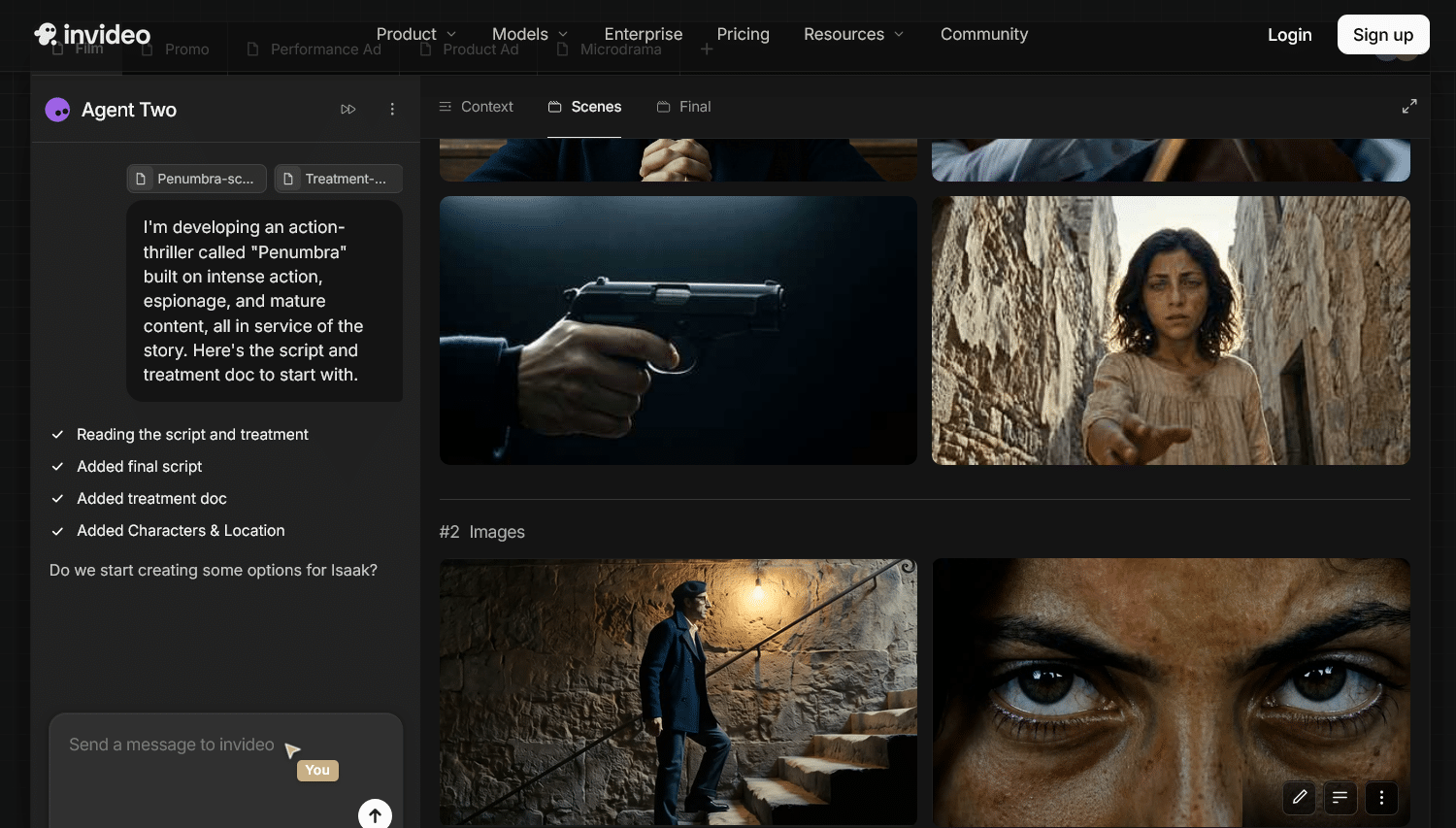
Invideo Agent works this way by default, treating already-captured footage as a locked reference the same way it would treat a character or brand reference, rather than generating a new shot in isolation and hoping it blends afterward.
What Agent Two adds: reading footage’s exact treatment
The newer invideo Agent Two model can read an uploaded clip’s lighting, camera movement, and color treatment directly, then apply that same exact treatment to a newly generated shot through its AI VFX pipeline, rather than approximating a similar look from a text description.
That distinction matters specifically for hybrid work: matching “warm, slightly overexposed daylight with a handheld push-in” from a written description is much less reliable than reading those qualities directly from the actual footage they need to match.
Catching a mismatch before it reaches the final cut
Even with a matched reference, it’s worth checking the generated shot against the surrounding live footage before locking a cut. A color grade that runs slightly hotter or cooler than the shots around it, or a camera move that doesn’t quite match the handheld quality of the rest of a sequence, tends to be the kind of mismatch that’s obvious once pointed out but easy to miss scrolling through footage quickly.
A system built for AI filmmaking that can review a rough cut against its surrounding shots can flag exactly this kind of inconsistency, a grade running off, a mismatched camera characteristic, before it reaches a final edit.
Common problems when combining live and generated footage
A color grade that doesn’t match is the most common issue, since a generated shot’s default color treatment has no reason to align with a specific shoot’s actual grade unless it’s explicitly matched.
Camera characteristics that don’t match, a lens’s depth of field, a handheld shot’s specific shake, a wide shot’s distortion, are a second common mismatch, since these are physical qualities of the original camera and lens that a generated shot has to be specifically matched to rather than approximated generically.
Lighting direction inconsistency shows up when a generated shot’s light source doesn’t match where the light was actually coming from in the live footage, which reads as wrong even when a viewer can’t immediately say why.
Common mistakes when combining live and generated footage
- Generating a shot without referencing the live footage it needs to sit next to. A shot built in isolation has no reason to match a specific existing shoot’s look.
- Describing the target look in words instead of matching it from the actual footage. A written description is a weaker match than reading lighting and camera qualities directly from a reference clip.
- Skipping a check against surrounding shots before locking the cut. A subtle grade or camera mismatch is often only obvious once it’s placed next to the shots around it.
- Ignoring lighting direction specifically. A generated shot can match a scene’s overall mood and still look wrong if its light source doesn’t match where the live footage’s light was actually coming from.
FAQ
Does the AI-generated shot need to be created after the live footage is shot, or can it come first? It works best when the live footage exists first, since it becomes the reference the generated shot is matched to. Generating first and shooting to match afterward is possible but reverses which side is doing the matching.
What’s the most common giveaway that a shot is generated rather than shot live? A grade or lighting mismatch is usually the first thing a viewer’s eye catches, more often than any issue with the generated content itself.
Can this work for a shot that needs to cut in the middle of a continuous live take? Yes, though it requires the closest match on camera movement and framing specifically, since any discontinuity there is more noticeable mid-take than at a hard cut between two separate shots.
Is this different from adding a visual effect to existing footage? It’s related but distinct. Adding an effect modifies footage that already exists; combining live and generated shots means creating an entirely new shot that has to match footage it will sit next to, not modifying the original footage itself.
